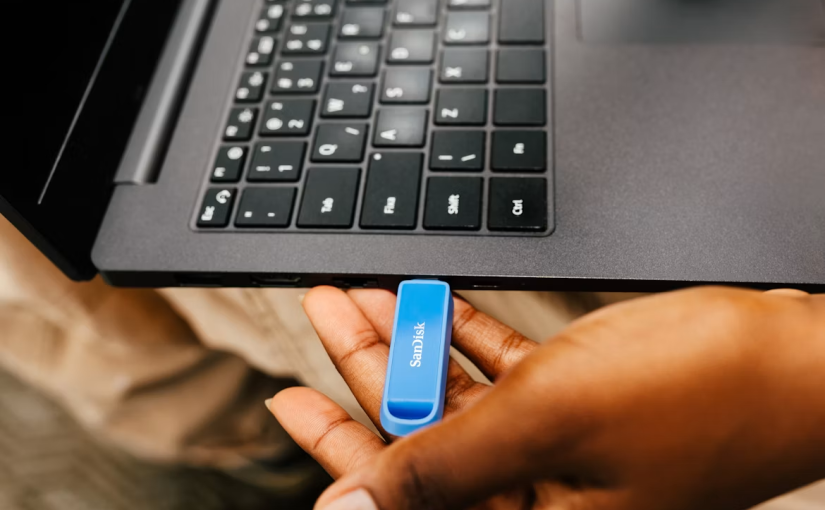
Which USB Port Is Faster on My Laptop? USB Speed Comparison Guide

Understanding USB Port Speed on Laptops

When choosing a laptop or connecting external devices, many users wonder which is the fastest usb port in laptop. USB ports may look similar, but their transfer speeds can be very different depending on the USB standard, port type, and the cable being used. A faster USB connection can make a big difference when transferring large files, connecting external SSDs, charging devices, or using accessories such as monitors and docking stations.

For users in New Zealand who rely on laptops for work, study, gaming, or creative projects, understanding USB speed helps you choose the right port and avoid wasting time with slow data transfers.

USB 2.0 vs USB 3.0 Which Port Is Faster?

A common question is which usb port is faster, 2.0 or 3.0? The answer is USB 3.0. USB 3.0 provides significantly higher transfer speeds compared with USB 2.0.

USB 2.0 supports a maximum theoretical speed of around 480 Mbps, while USB 3.0 can reach up to 5 Gbps. This means USB 3.0 can transfer files much faster, especially when moving large videos, photos, backups, or software files.

Many modern laptops use USB 3.0, USB 3.1, USB 3.2, USB-C, or Thunderbolt ports instead of traditional USB 2.0 ports. However, some budget laptops may still include USB 2.0 ports for basic accessories such as keyboards, mice, and printers.

What Is the Fastest USB Port on a Laptop?

If you are asking what is the fastest usb port on a laptop? the answer depends on the laptop model and the technology it supports. Currently, the fastest laptop connections are usually USB4 and Thunderbolt 4 ports.

USB4 can provide speeds up to 40 Gbps, while Thunderbolt 4 also supports up to 40 Gbps data transfer. These ports are designed for high-performance devices, including external SSDs, high-resolution displays, and docking stations.

A USB-C connector is not automatically the fastest option. USB-C only describes the shape of the connector. The actual speed depends on the USB version behind it. A USB-C port may support USB 2.0 speeds, USB 3.2 speeds, USB4, or Thunderbolt technology.

Which USB Ports Are the Fastest on a Laptop?

Many people search which usb ports are the fastest? because laptops often have multiple USB ports that look almost identical. The fastest port is usually marked with information near the port or listed in the laptop specifications.

Generally, USB4 and Thunderbolt 4 are among the fastest options, followed by USB 3.2 Gen 2×2, USB 3.2 Gen 2, USB 3.1, and USB 3.0. USB 2.0 is the slowest commonly found USB standard.

If your laptop has several USB ports, the port with higher-speed support is usually better for external storage devices, video output, and fast data transfers. Slower ports are still useful for everyday accessories that do not require high bandwidth.

How to Find Which USB Port Is Faster on Your Laptop

If you are wondering which usb port is faster on my laptop? there are several ways to check. First, look for symbols near the USB ports. Some laptops use different icons or markings to indicate faster connections.

You can also check your laptop specifications or user manual to identify the USB standards available. In Windows laptops, you can use device information tools to check the USB controller details.

Another simple method is testing the port with a high-speed external SSD. A faster USB port will usually provide noticeably higher transfer speeds compared with an older USB connection.

USB Cables Affect Transfer Speed

Choosing the right usb cables is just as important as choosing the right laptop port. A high-speed USB port cannot reach its maximum performance if the cable does not support the required speed.

For example, a USB4 laptop port connected with an older USB cable may operate at a much lower speed. Similarly, some USB-C cables are designed mainly for charging and may have limited data transfer capabilities.

When buying USB cables in New Zealand, consider what you need the cable for. A cable used for external storage, video connections, or fast file transfers should support higher data speeds. For simple charging or connecting basic accessories, a standard cable may be enough.

USB-C, USB4, and Thunderbolt Differences

USB-C has become common in modern laptops because it offers a smaller reversible connector and can support multiple functions. However, USB-C alone does not determine performance.

USB4 is a newer USB standard that improves speed, efficiency, and compatibility. Thunderbolt technology, commonly found on premium laptops, combines high-speed data transfer with support for external displays and advanced accessories.

For users who connect external monitors, portable SSDs, or docking stations, choosing a laptop with USB4 or Thunderbolt support can provide a better long-term experience.

Why Faster USB Ports Are Useful for Laptop Users

A faster USB port can improve everyday laptop performance in many ways. Transferring large files becomes quicker, external storage works more efficiently, and connecting multiple devices becomes easier.

For students and professionals in New Zealand, faster USB connections can save time when backing up documents, editing videos, or moving large project files. Gamers may also benefit from faster connections when using external drives or gaming accessories.

However, not every device requires the fastest USB speed. A mouse, keyboard, or basic printer will work perfectly with slower USB ports.

How to Choose the Right USB Port and Cable

The best USB connection depends on your device and your needs. For fast file transfers, choose the fastest available laptop port and pair it with a compatible high-speed USB cable. For everyday accessories, a standard USB connection is usually sufficient.

Before purchasing cables or accessories, check the USB version supported by your laptop. Understanding the difference between USB generations can help you get better performance and avoid compatibility problems.

Final Thoughts on Finding the Fastest USB Port

So, which is the fastest usb port in laptop? In most modern laptops, USB4 and Thunderbolt 4 offer the highest speeds, while USB 3.0 and newer USB 3.x versions provide much better performance than USB 2.0.

Knowing which usb port is faster on my laptop?, understanding what is the fastest usb port on a laptop?, and choosing suitable usb cables can help you make the most of your laptop’s connectivity. Whether you use your laptop for work, entertainment, or creative tasks in New Zealand, selecting the right USB port can improve speed, convenience, and overall user experience.
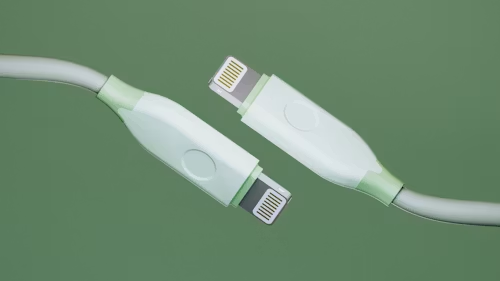
Which Side of USB Goes Up? A Simple USB Orientation Guide

Understanding USB Orientation and Why It Matters

When using usb cables, many people have experienced the same small but frustrating problem: trying to plug in a USB connector, only to find that it does not fit, then flipping it over and trying again. This common experience is related to usb orientation, which refers to the correct direction a USB connector should face when inserted into a USB port.

For users in New Zealand who use laptops, desktop computers, smartphones, gaming devices, cameras, and other electronics every day, understanding USB orientation can make connecting devices easier and help avoid unnecessary wear on USB ports and cables.

Does USB-C Have an Orientation?

A common question from users is does usb-c have an orientation? The answer is no in the traditional sense. USB-C was designed as a reversible connector, meaning it can be inserted into the port in either direction. Unlike older USB connectors, you do not need to check which side is facing up before connecting a USB-C cable.

This reversible design is one of the biggest improvements of USB-C technology. Whether you connect the cable one way or flip it around, the connector should work the same way as long as the cable and device support the required functions, such as charging, data transfer, or video output.

Which Side of USB Goes Up?

Many people search which side of usb goes up? when they are using traditional USB connectors such as USB-A. For USB-A cables, the correct side usually depends on the position of the USB symbol or the internal connector design.

In most cases, the USB logo on the connector faces upward when inserting the cable into a standard horizontal USB port. However, the direction can change depending on how the USB port is installed, especially on desktop computers, monitors, or docking stations.

If the cable does not slide in easily, forcing it is not recommended. Checking the port direction first can help prevent damage to both the USB port and the cable.

What Is the Orientation of the USB Logo?

Another frequently searched question is what is the orientation of the usb logo? The USB logo is often used as a visual guide to show the correct insertion direction of a USB connector.

For many USB-A cables, the logo is placed on the side that should face upward when connecting to a typical USB port. This design helps users identify the correct orientation without looking closely at the internal pins.

However, the logo position may vary between different usb cables, so it should be considered a helpful guide rather than a strict rule for every cable model.

Why Is USB-A Not Symmetrical?

Many users wonder why is usb-a not symmetrical? The reason is related to the original design of USB-A connectors. USB-A was created with a specific top and bottom orientation to ensure that the electrical contacts connect correctly and to prevent incorrect insertion.

Although this design worked well for many years, it also created the familiar problem of trying to insert the connector multiple times before finding the correct direction. This is why many people joke about the difficulty of connecting USB-A cables.

The development of USB-C solved this inconvenience by introducing a symmetrical and reversible connector design.

Understanding Micro USB Orientation

Before USB-C became widely used, micro usb orientation was a common issue for smartphone and electronic device users. Micro USB connectors are not reversible, meaning they must be inserted in a specific direction.

Micro USB cables usually have a flatter side and a slightly curved side. The flatter side often faces upward when connecting to many devices, but the exact position depends on the design of the device’s charging port.

Many older Android phones, Bluetooth devices, power banks, and accessories still use Micro USB, so knowing the correct orientation remains useful when using older electronics.

The USB Orientation Meme and Everyday Frustration

The phrase usb orientation meme became popular because so many people have experienced the same situation: trying to insert a USB cable, getting it wrong, flipping it over, and somehow finding that the original direction was correct.

These jokes reflect a universal technology experience. Even though USB connections are simple, the small inconvenience of incorrect orientation has become one of the most recognisable everyday technology frustrations.

USB-C has reduced this problem significantly, but USB-A and Micro USB users still encounter it regularly.

USB Port Orientation and Different Device Designs

usb port orientation can vary depending on the type of device. A laptop USB port may be positioned horizontally, while a desktop computer case may have ports facing different directions. Monitors, gaming consoles, car entertainment systems, and charging stations can also have unique USB port layouts.

Because of these differences, there is no single universal “up” direction for every USB port. The best approach is to check the shape of the connector, look for the USB symbol, and insert the cable gently.

USB Correct Orientation Tips for Everyday Use

Finding the usb correct orientation becomes easier when you understand the connector design. USB-A connectors usually have a visible USB symbol or a small opening that indicates the top side. Micro USB connectors require matching the connector shape with the port, while USB-C connectors can be inserted either way.

If you are searching for the correct usb orientation, avoid pushing the connector with force. A properly aligned USB connector should enter smoothly with minimal pressure.

For New Zealand users who frequently connect chargers, external drives, keyboards, phones, and other accessories, using the correct orientation can help extend the lifespan of both USB cables and device ports.

Which USB Type Is Reversible and Can Be Inserted in Either Orientation?

A popular question is which usb type is reversible and can be inserted in either orientation? The answer is USB-C. USB-C connectors are designed to work regardless of which side is facing up or down.

USB-C is now widely used in modern laptops, smartphones, tablets, gaming devices, and accessories because it offers a simpler connection experience. Some USB-C cables also support faster charging, higher-speed data transfer, and additional features depending on their specifications.

Older USB-A and Micro USB connectors are not reversible and require the correct orientation before insertion.

USB-C Motherboard Connector Orientation and PC Building

For computer builders, usb c motherboard connector orientation and usb c header orientation are important topics when installing front-panel USB-C ports.

Unlike external USB-C cables, internal motherboard USB-C headers may have a specific connection direction. When installing a PC case front USB-C cable, users need to carefully match the connector with the motherboard header to avoid incorrect installation.

The motherboard usb c header orientation depends on the motherboard design, so checking the motherboard layout and connector markings is important during installation.

Choosing Reliable USB Cables for Different Devices

USB cables are available in many types, including USB-A to USB-C, USB-C to USB-C, and Micro USB cables. Choosing the right cable depends on the device, charging requirements, and data transfer needs.

For everyday use in New Zealand homes, offices, and travel situations, USB-C cables are becoming increasingly popular because they are easier to connect and reduce the frustration associated with traditional USB orientation.

A suitable USB cable should match your device requirements and provide stable charging and data performance. Understanding connector types and orientation can help you choose the right cable and avoid common connection problems.

Final Thoughts on USB Orientation

USB orientation may seem like a small detail, but it affects everyday interactions with many electronic devices. From which side of usb goes up? to does usb-c have an orientation?, these questions show how connector design influences user experience.

USB-C has made connections much easier with its reversible design, while USB-A and Micro USB still require users to pay attention to the correct direction. By understanding usb orientation, usb cables, and different connector designs, you can connect devices more confidently and reduce unnecessary damage caused by incorrect insertion.