These 15 vintage PCs shaped the way we think about laptops today

This collection of computers, in part, has colored how we think about computers today.
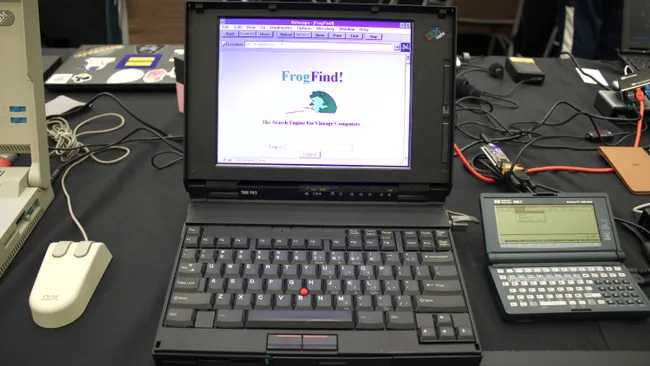
Though packed away in garages and basements or collecting dust on a bookshelf, the computers of decades past are often things we have trouble discarding. It’s not just that electronics reuse is so challenging because of the components, it’s also hard to part with the laptops of yesteryear because they hold so much sentimental value and act as artifacts of our recent past.

I attended the Vintage Computer Festival in Orange, California, this month to try to figure out why old computers still have such appeal long after they become obsolete. There are now meetups in hotel ballrooms and convention centers across the country where people gather to share stories about old video games, swap repair tips, and yes, buy more old computers.

As a visual pairing with her story, “From the basement to the festival: The enduring allure of vintage computers,” Nelius also captured photos of 15 machines pivotal to how we define a computer — laptop, desktop, tablet, phone, watch, glasses — today.
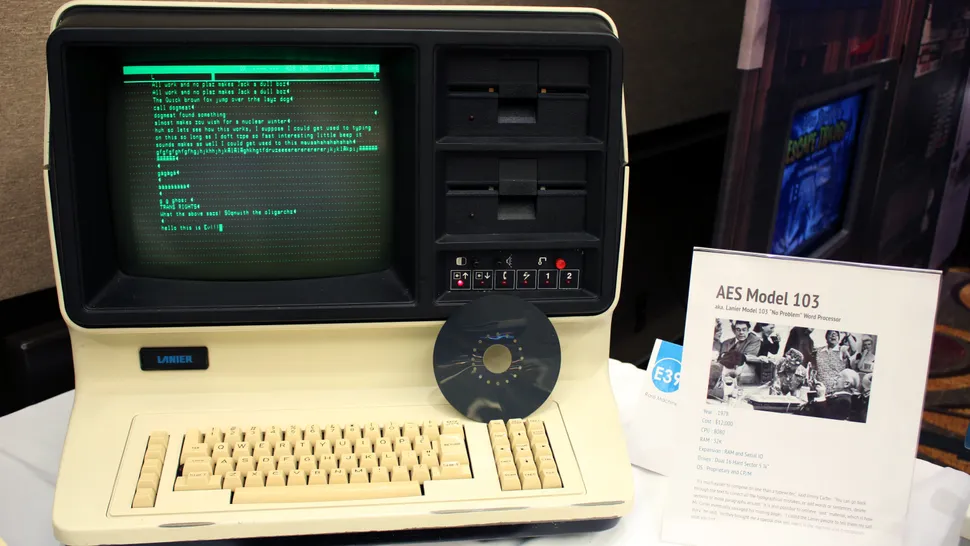
AES Model 103:AES released the Lanier Model 103 “No Problem” word processor in 1978 with an Intel 8080 CPU (the company’s second 8-bit microprocessor), 32K of RAM, and dual 5.25-inch floppy disk drives. At the time, it cost $12,000, which would be nearly $61,000 in 2025. President Jimmy Carter used one of these PCs to write his memoir Keeping Faith: Memoirs of a President and found it “much easier to compose on one than a typewriter,” as he told the New York Times in 1981.
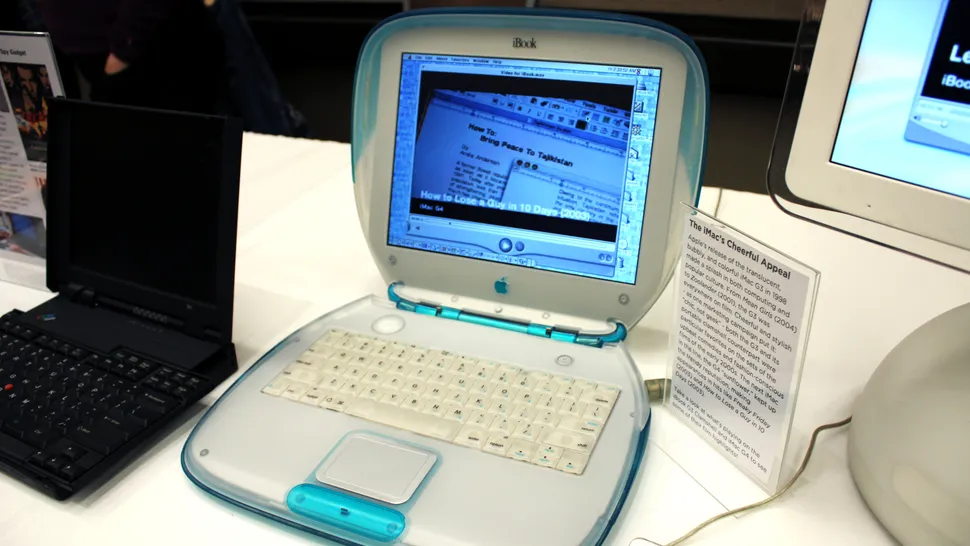
Apple iBook G3: The G3 was Apple’s first iBook. This model includes a PowerPC G3 CPU, an optical drive, standard USB, and Wi-Fi, and it is the first to use Apple’s Unified Logic Board Architecture. Apple released it in 1999 for $1,599, about $3,050 today. Nicknamed “the clamshell,” it was a far departure from laptop designs at the time, not just because it resembled a clam. Its casing was translucent and boldly colored on the outside.

also:A2681 Battery for Apple MacBook Air 13 M2 2022 661-26150
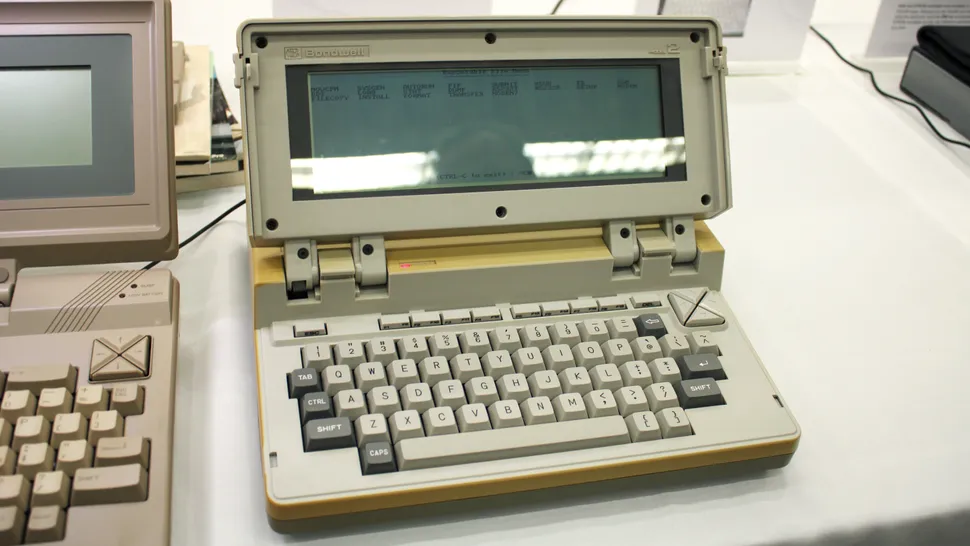
Bondwell 2: Introduced by Bondwell in 1985, the Bondwell-2 was a netbook-sized laptop that used a CP/M (Control Program/Monitor) system with a 3.5-inch disk drive. Bondwell originally designed the CP/M to load and run programs and organize files on 8- and 5.25-inch magnetic storage disks, so it was an unusual design choice to have it work with a more modern-sized floppy disk for the time. By 1985, MS-DOS and other operating systems had become more popular.
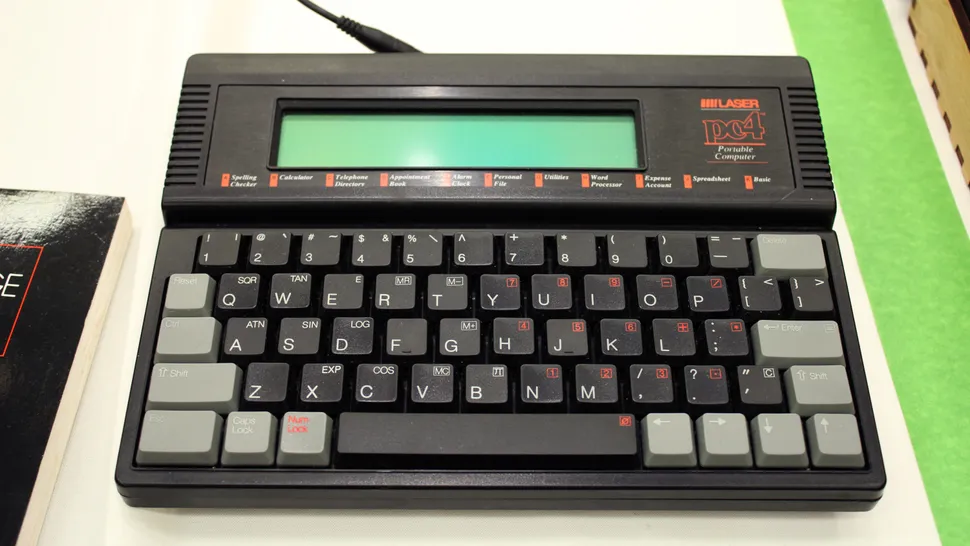
Laser PC4: This 1990 laptop shares several core features with today’s smartphones and laptops. It could keep track of your appointments, store telephone numbers, create spreadsheets, spell check documents, and function as an alarm clock. There was an IBM and a Macintosh version, so if you had either one of those desktop computers at the time, you could easily export files from the PC4 — but if not, the laptop came with an optional conversion kit for IBM, Mac, and Apple II systems.
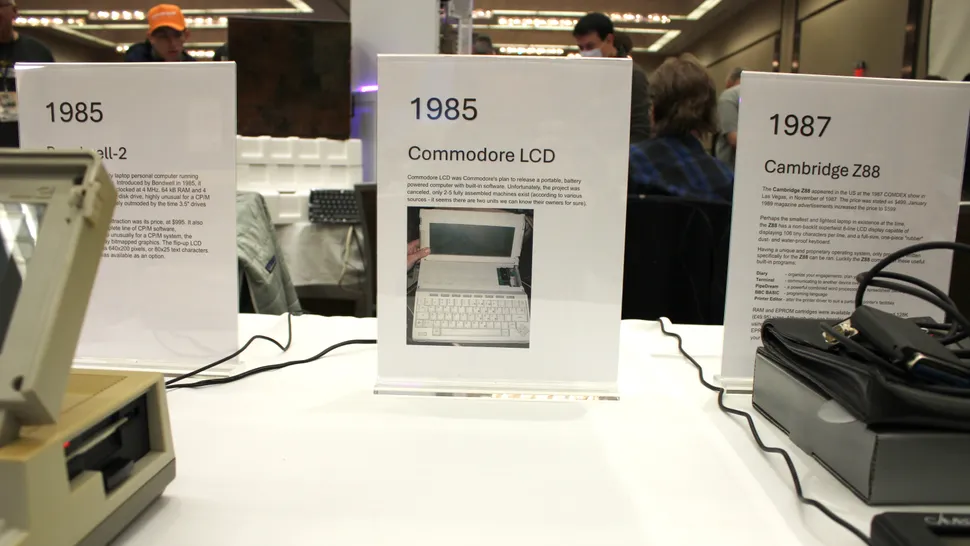
Commodore LCD: The empty space here commemorates a laptop that never was: the Commodore LCD. The company canceled its release plans after announcing it at CES 1985, so only a handful of prototypes were ever made. One of those prototypes is currently in the hands of Bill Herd, an engineer who designed the LCD and other Commodore systems. Had the LCD been released, it would have run the Commodore BASIC 3.6 OS on a Rockwell 65C102 with 32KB of RAM and 96KB of ROM.
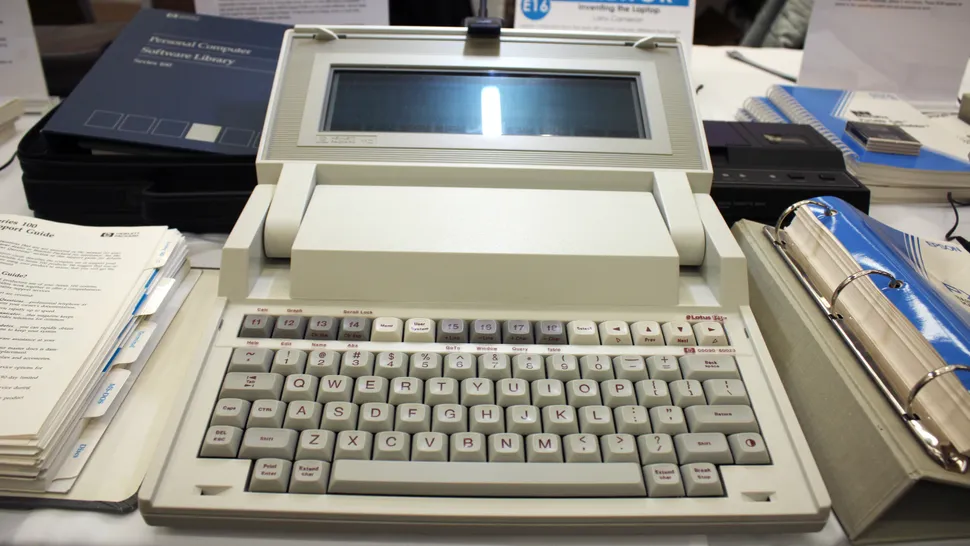
HP 110 Portable: The HP Portable was a stand-out laptop in 1984. Its screen was four times the size of the Radio Shack TRS-80 Model 100 (its major competitor), its 5MHz CPU was extremely fast, and its 256K of RAM was enormous for the time. Its battery also lasted 16 hours on a single charge. Creative Computing voted the 110 Portable one of the best computers of 1984 for having “nearly everything you could wish for.”

>>>839367-003 Charger for HP Sprout Pro G2
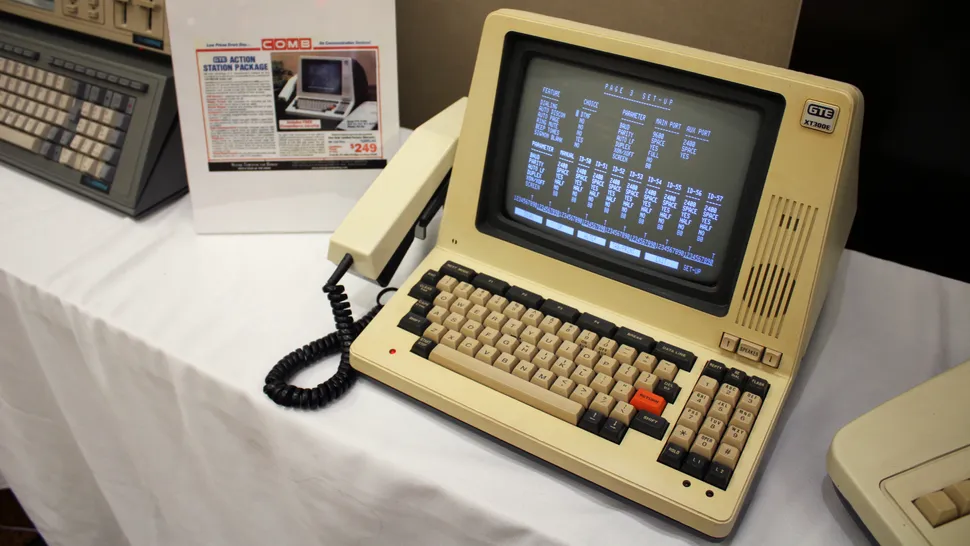
GTE XT300E Action Station: Before Bell Atlantic acquired GTE Corporation, it released a few unsuccessful business computers. One was the 1985 XT300E ActionStation. No one wanted it, even with a built-in modem, electronic telephone, 9-inch screen, speakerphone, email service, and online public database search capabilities. In addition to its $1,295 price tag (around $3,825 in 2025), it costs $15 per hour to access CompuServe’s online services. That’s like paying $45 per hour today to access the Internet.
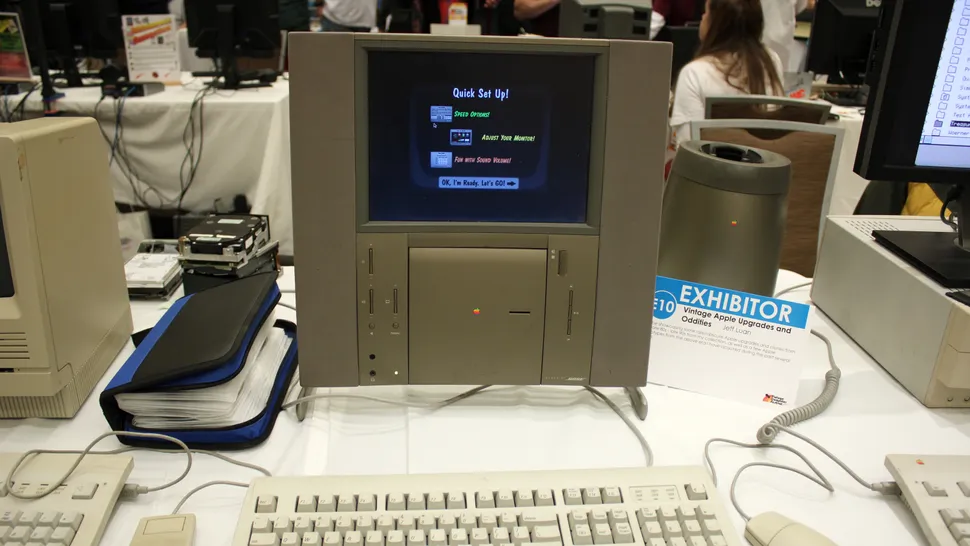
The rare Apple Bose: Released in 1997, Apple’s Twentieth Anniversary Macintosh (TAM) commemorated the 20 years that had passed since Steve Jobs, Steve Wozniak, and Ronald Wayne started Apple Computer. (Ironically, this was also the same year Steve Jobs returned to Apple after previously departing in 1985.) The limited-edition desktop PC featured a PowerPC 603ev CPU, ATI 3D RAGE II graphics, and a custom-made Bose sound system. At release, it cost an astonishing $7,500.
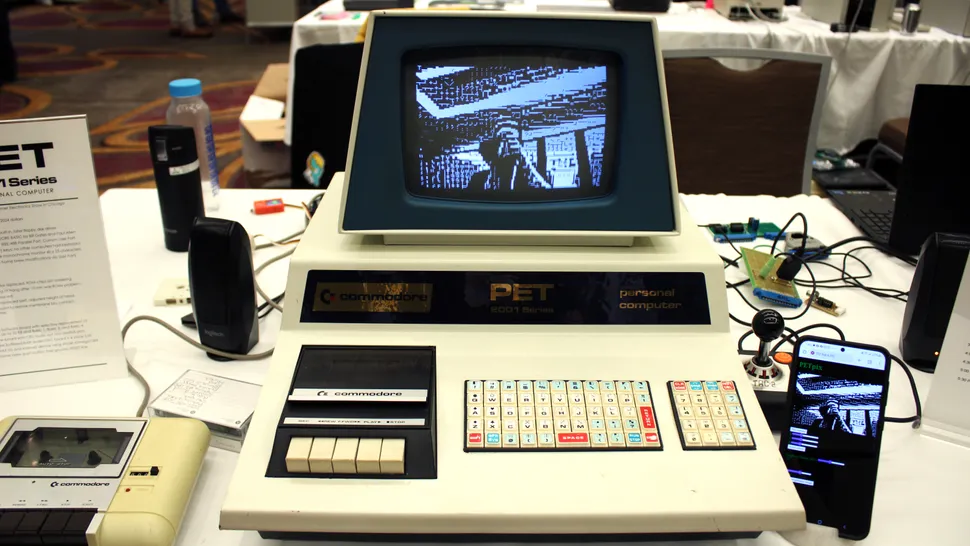
Commodore PET 2001: The Commodore PET 2001 was the world’s first personal computer, debuting at CES 1977. Starting at $795 (over $4,000 today), it was powered by a MOS 6502 microprocessor and could be configured with up to 32KB of RAM. The TTL monochrome monitor was built into the same chassis as the chiclet keyboard. The PET 2001 had an integrated dataset that used cassette tapes instead of floppy disk drives like its rivals.
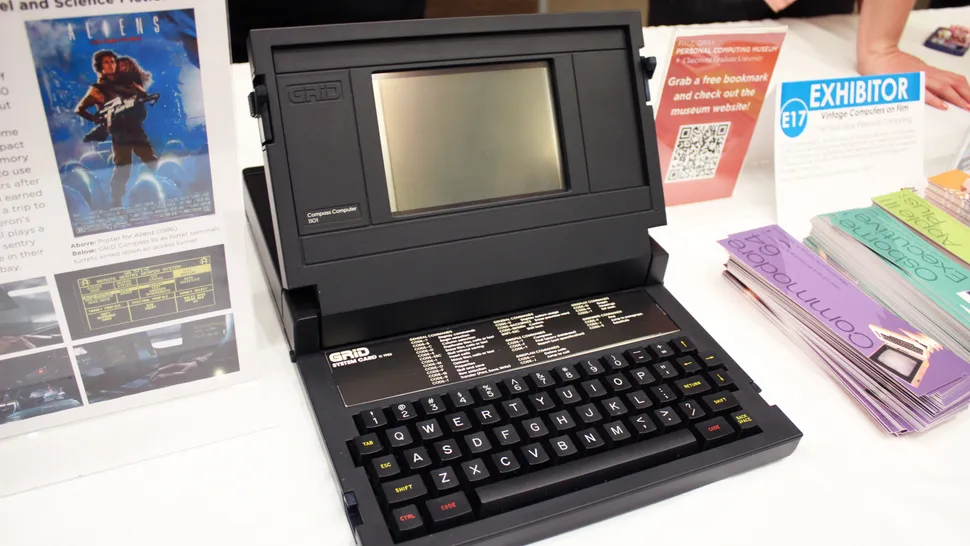
Grid Compass Computer 1101: When the first clamshell laptop, the Grid Compass Computer 1101, was released in 1982, it cost $8,150 — a couple of thousand dollars more than the average price of a car. This price was way out of most people’s budgets. However, its size and internal hardware made it the perfect computer for NASA, which first launched one into space in 1983 aboard the space shuttle Columbia. The custom GriD-OS was powered by an Intel 8086 CPU and used bubble (solid-state) memory.
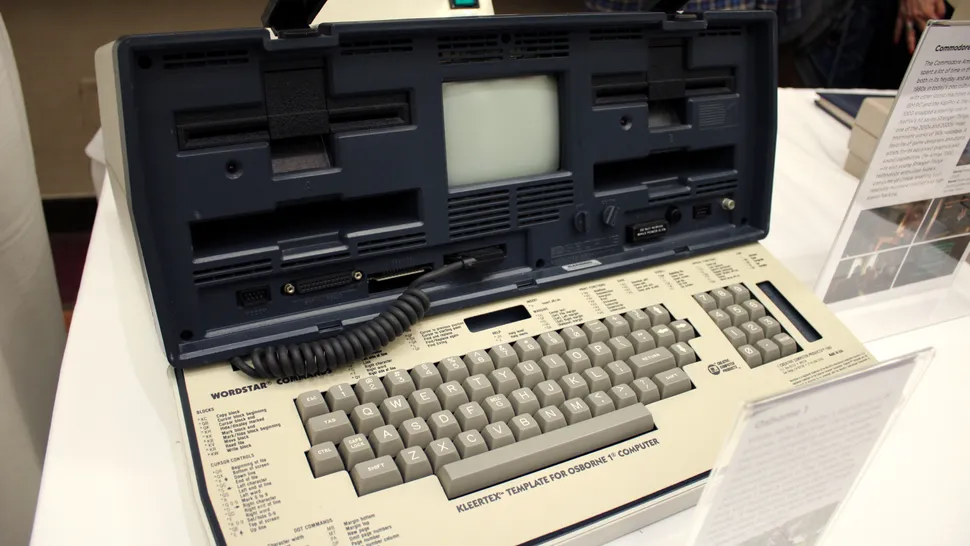
Osborne 1: The Osborne 1 was released in 1981 and was the first commercially successful, “all-in-one” portable computer—even though it weighed nearly 25 pounds, had a 5-inch display, and looked like “a cross between a World War II field radio and a shrunken instrument panel of a DC-3,” as Time Magazine noted in 1982. Its CP/M operating system was powered by a Zilog Z80 CPU, 64KB of RAM, and dual 5.25-inch floppy disk drives.
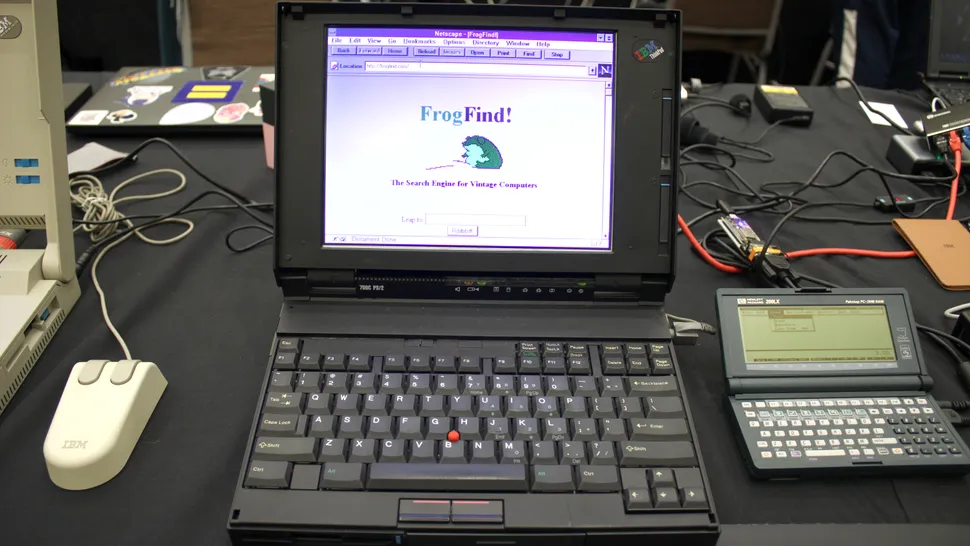
ThinkPad 700C: IBM released its iconic ThinkPad 700/700C in 1992. It was the first laptop to feature the TrackPoint, an integrated pointing stick that controls the mouse cursor. The ThinkPad is also known for its Japanese Bento Box design, which makes many of its internal components easily accessible for upgrades or repairs. Due to their popularity, they sold out quickly. Even President George H. W. Bush had a hard time buying one as a Christmas gift for his wife, Barbara.

>>>L23D3P75 Battery for Lenovo ThinkPad L22M3PG1 SB11H56305 5B11H56404
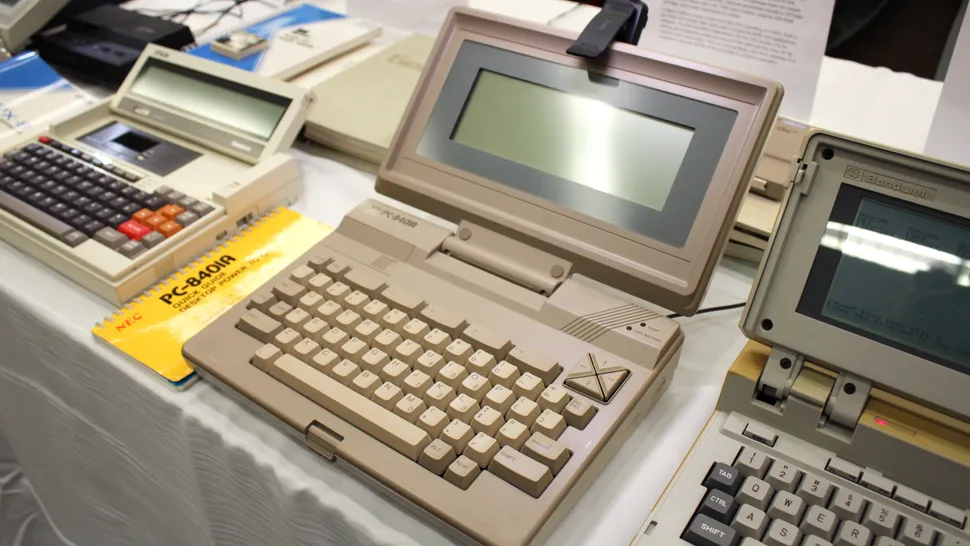
NEC 8401 A Starlet: Nicknamed “Starlet,” the NEC PC-8401A was a portable laptop released in 1985, the successor to the 8201 model. It was incredibly light for the time, weighing just 4.7 pounds, and came configured with 64K of RAM and 96K of ROM. The Starlet used the CP/M operating system, but its storage drives had to be purchased separately. However, the laptop did come with a few preinstalled programs for word processing, creating spreadsheets, and connecting to your phone line.

>>>PC-VP-WP152 Battery for NEC N22SBT300
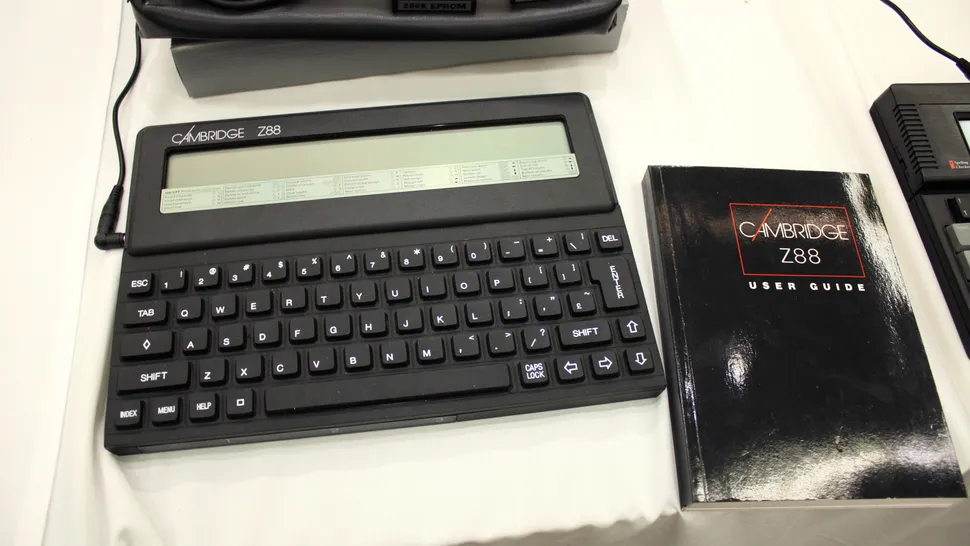
Cambridge Z88: The Cambridge Z88 was first announced in the US during the 1987 COMDEX show in Las Vegas. Weighting just 2 pounds, it was one of (if not the) smallest and lightest laptops that existed back then. It ran a proprietary operating system but had built-in programs for keeping track of appointments and important dates, combined software for word processing and making spreadsheets, and good printer driver compatibility — though you’d need to alter the printer driver manually.
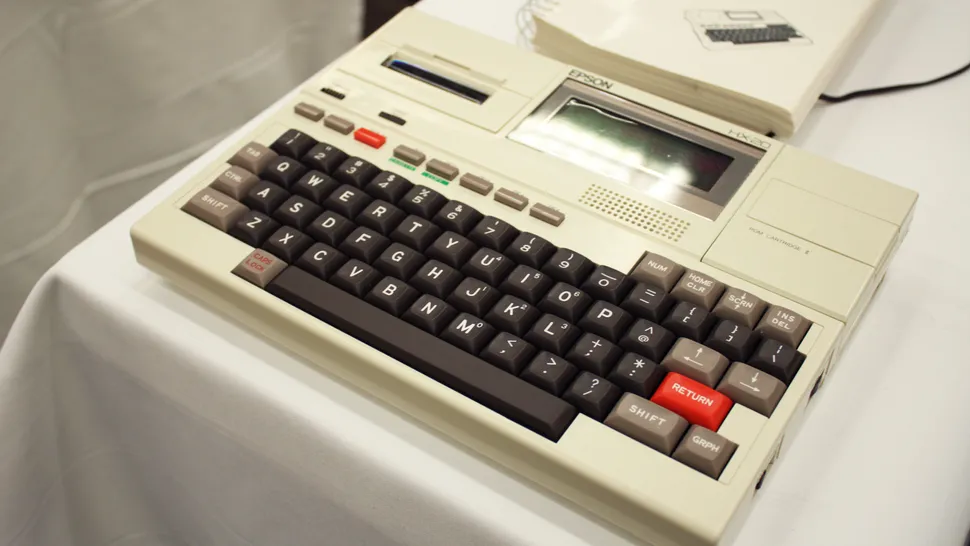
Epson HX20: When it debuted at COMDEX in 1981, the Epson HX-20 started a new portable laptop trend: briefcase-sized, powerful, battery-operated devices. The HX-20 could last around 50 hours on a single charge, and if it sat idle for too long, it would turn off to conserve energy. As awesome as this laptop was, it didn’t achieve commercial success outside of Japan when it was released a year later. Radio Shack’s TRS-80 Model 100 overshadowed it.
How to manage multiple monitors in Windows 11

For those who are hoping to make use of more than one screen, here’s how to manage multiple monitors in Windows 11

For those who want to take advantage of more than one screen, then a multiple monitor setup is the way to go. Many people, myself included, find having multiple monitors boosts productivity. However, the setup process can be a bit finicky. So to help, we’ll be covering how to manage multiple monitors inWindows 11with a step-by-step tutorial below.

There are many settings you’ll be able to adjust when managing multiple monitors inWindows 11. This includes resolution settings for each screen, orientation if you’ve decided to use your monitor vertically, or changing the position of your screens for a seamless experience.

Once you’ve set up your monitors once, your PC will remember these settings and you won’t need to come back and manage multiple monitors in Windows again unless you want to change something.

Tools and requirements

  • PC or laptop
  • The monitors you want to manage (already plugged into your PC)
  • Windows (this tutorial applies to both 10 and 11)

>>>G3HTA071H Battery for Microsoft Surface Laptop Studio 1964

Steps for how to manage multiple monitors in Windows 11

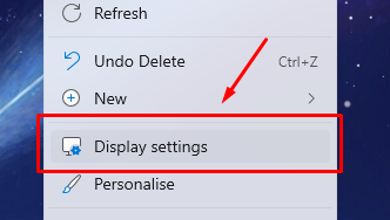
  • Right-click on your empty desktop and selectDisplay settings
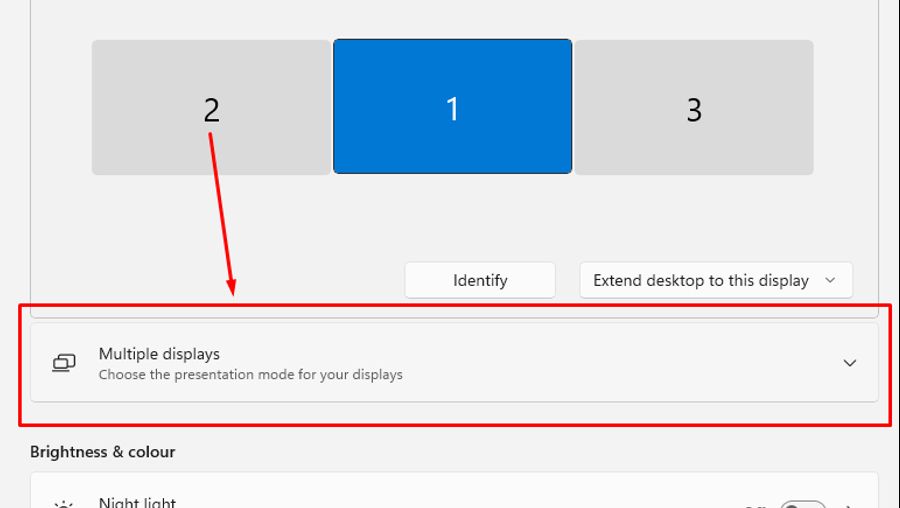
  • Press theMultiple displaysoption and a menu should appear
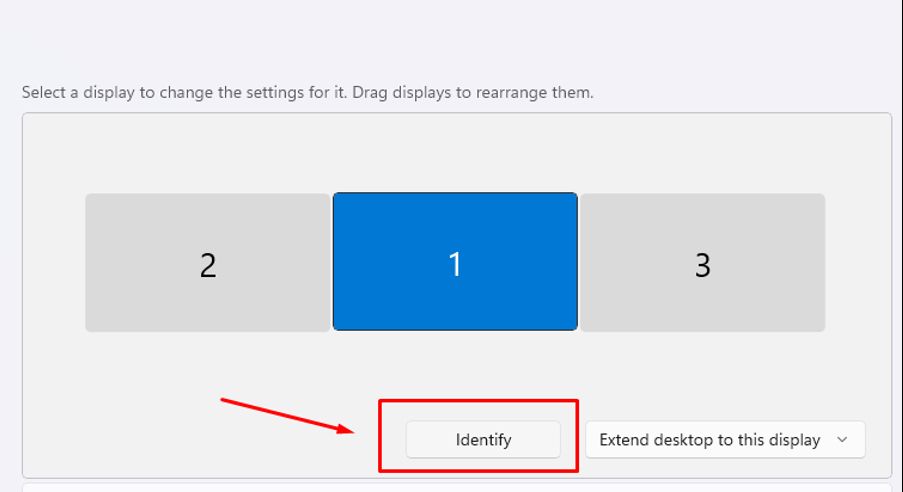
  • Hit theIdentifybutton to find out which monitor corresponds with which screen
  • Select the screen you want to adjust and change your settings as required

>>>G3HTA056H Battery for Microsoft Surface Pro X 13″ Tablet

Step by step guide on how to manage multiple monitors in Windows 11

1. Open Display settings

First, right-click on your empty desktop and then click theDisplay settingsoption when it appears.

2. Access settings for multiple monitors

Your display settings should open up,. In the menu that appears, hit theMultiple displaysoption to show a menu which will allow you to adjust your settings.

3. Identify your monitors

Hit theIdentifybutton, which is just below the icons of your screens, and this will display numbers on each monitor that correspond with the screens shown in the settings window (as shown in the screenshot above). Keep note of which is which so you know what to adjust.

4. Select the screen you want to manage

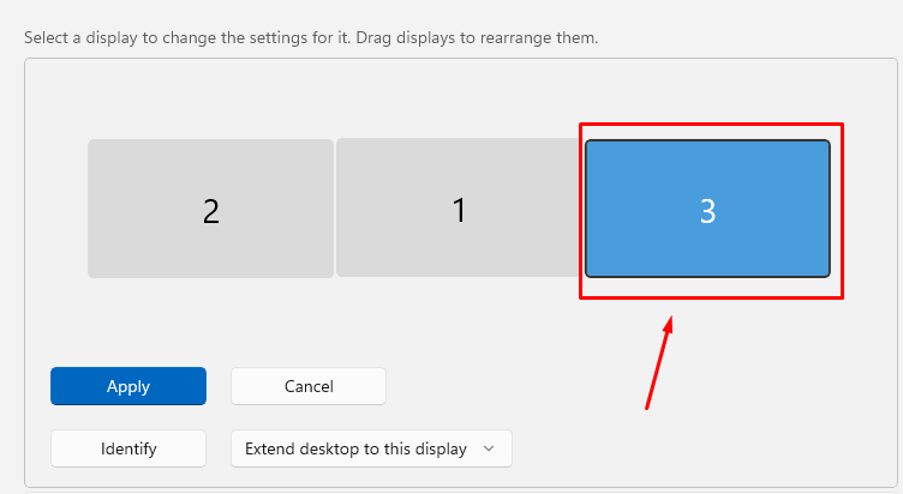
Select the screen you want to adjust by pressing or clicking on it. You can drag within the gray box to adjust the positioning if needed.

5. Adjust the screen

With the screen you want to adjust selected, you can scroll down in the settings to find information on the scale, resolution and orientation. Adjust these as required until you are happy.

You can also hit theAdvanced displayoption just below to change the refresh rate.

6. Apply your changes

Once you are done adjusting, scroll back up to the top of the settings and make sure you hit theApplybutton to keep the settings you’ve just changed.

Final thoughts on managing multiple monitors in Windows 11

For those who are hoping to make use of multiple screens, then adjusting settings to ensure all of your monitors work together seamlessly is essential.

Be sure to adjust all of the settings as you require and if you’re not sure what to change them to, Windows 11 helpfully highlights which options it recommends based on your monitor so you’re not completely in the dark.

As stated above, after completing this setup once, your device will remember your monitors and keep the settings the same.

iPhones are replacing ‘Trump’ with ‘racist’ during dictation – but Apple is fixing the problem

What happened here?

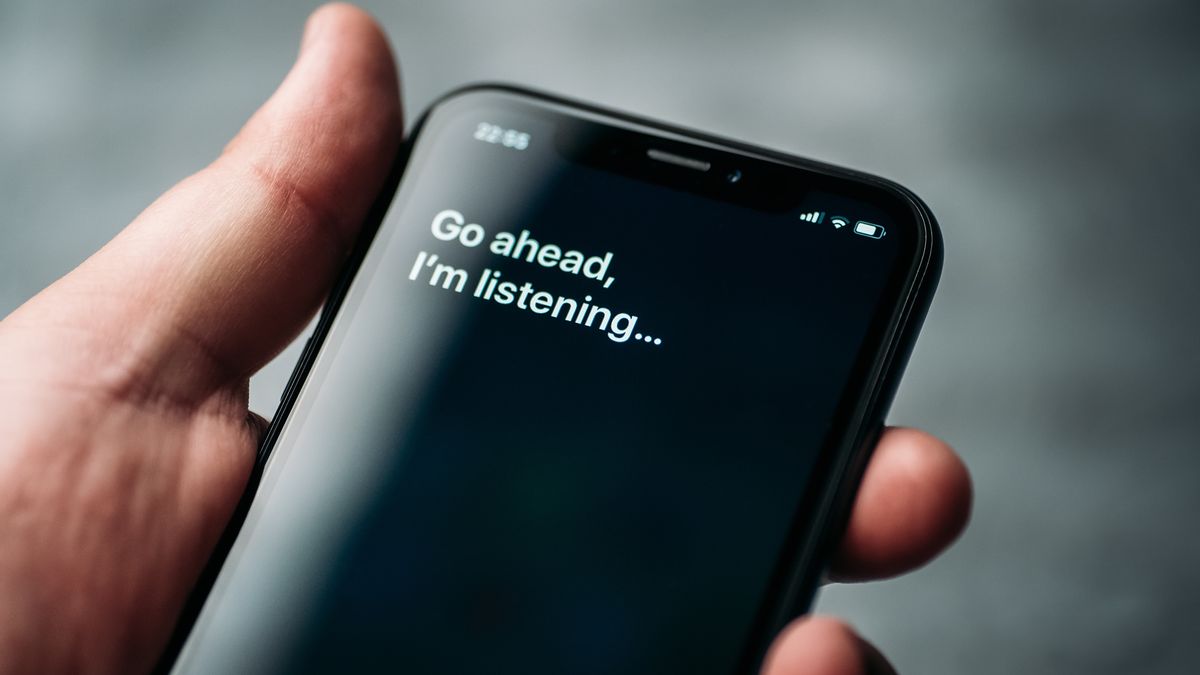
Siri interface on iPhone display

Speech-to-text on the iPhone is misbehaving(Image credit: Shutterstock / DedMityay)


  • iOS is changing “Trump” to “racist” when transcribing
  • Apple says the bug is now being fixed
  • The official explanation is “phonetic overlap”

iPhone owners have noticed a peculiar bug in recent days: “Trump” autocorrects to “racist” when using speech-to-text dictation mode. According toApple, it’s a problem with “phonetic overlap”, and a fix is already in the works.

AfterTikTok videosof the slip went viral, Apple provided a statement toThe Guardianand others, blaming “phonetic overlap” between the two words: “We are aware of an issue with the speech recognition model that powers Dictation, and we are rolling out a fix as soon as possible,” a spokesperson said.

While many people were able to recreate the blip, it didn’t happen every time – and the text seemed to revert back to “Trump” after a short delay.The latest reportsonline suggest Apple’s fix has already taken effect, so you might not see it happening any more.

In its explanation, Apple suggested its speech recognition engines were struggling to distinguish between words with “r” in them. Further testing suggested iOS didn’t always get the word “racist” right either, though historically Apple’s speech-to-text engines have been very reliable.

>>>A2660 Battery for Apple iPhone 13 Mini

‘Just not plausible’

Apple says the Trump-related bug is getting patched(Image credit: Getty Images)

Apple will be keen to draw a line under this as soon as possible and get the error corrected. It seems particularly unfortunate that a transcription bug like this would link two specific words sure to set off a wave of controversy and politically-charged debate.

Peter Bell, professor of speech technology at the University of Edinburgh, told theBBCthat Apple’s explanation was “just not plausible” given what we know about speech-to-text technology. “It probably points to somebody that’s got access to the process,” said Bell.

John Burkey, founder of Wonderrush.ai, gave a similar option to theNew York Times: “This smells like a serious prank,” he said. “The only question is: did someone slip this into the data or slip into the code?”

>>>616-00651 Battery for Apple iPhone 11Pro Max

This also feeds into the wider conversation about AI and its reliability, as AI models are used to convert the spoken word into transcribed text – something that you can now do on any modern smartphone. Whether it’s meeting notes or show subtitles, we need to be able to rely on the accuracy of this fast-spreading technology.

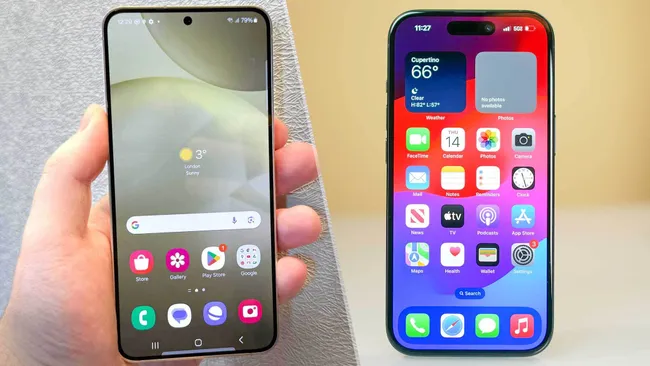
Switching to iPhone? Here’s how to transfer your data from Android

Whether you’re switching to a newiPhoneand need to transfer all your data fromAndroid, or you want to use both devices side by side and share files between them, you’ll be glad to know that the process is quite straightforward.

In the first instance, we’d advise you to use an Apple app calledMove to iOS. If you’re sharing files between both devices,GoogleDrive or Google Photos are great options. You can also use other apps like Dropbox or Microsoft OneDrive, but the process underlying principles are the same.

Here, we’ll walk you through the process and introduce a method similar toAirDrop(which is handy to knowif you’re not already familiar with it). So, without further ado, let’s dive into how to transfer data from Android to iPhone.

>>>GWRL2 Battery for Google Pixel 9 Pro Fold

How to transfer data when setting up a new iPhone

Got a new iPhone out of the box? There’s an easy way to get set up using the data stored on your Android device.

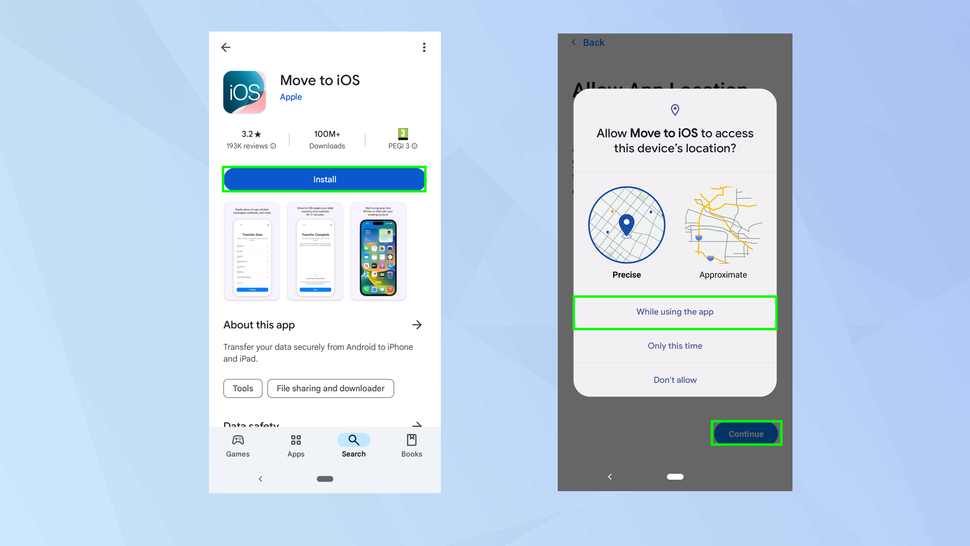
1. Launch the Move to iOS app

Go to Google Play on your Android device then search for andinstall theMove to iOSapp.

Nowopen Move to iOSandagree to the terms and conditions. You should alsodecide if you want to share app datawith Apple and if you’d like it to access the device’s location (perhapsselect While using the app).

>>>A2660 Battery for Apple iPhone 13 Mini

2. Make a connection

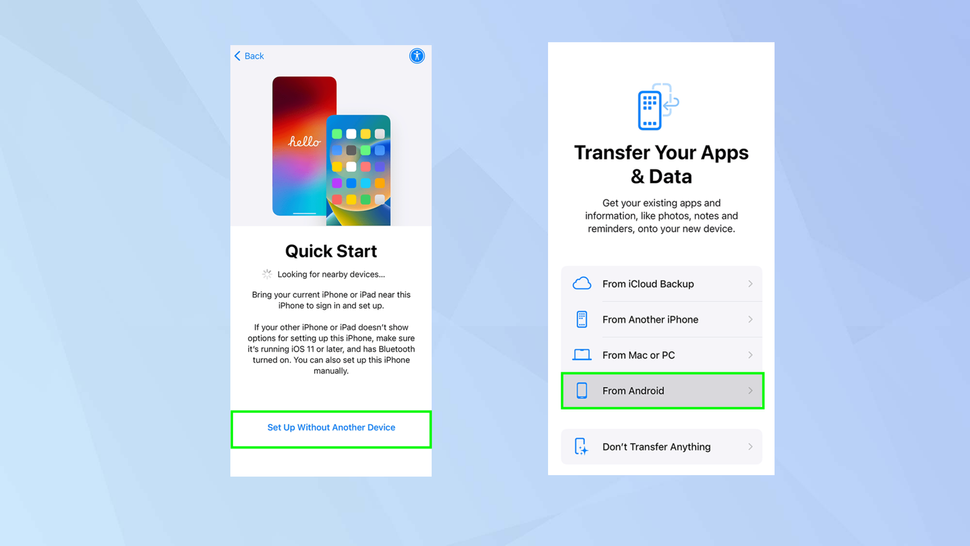
Next,turn on your new iPhoneandfollow the setup instructionsuntil you reach the Quick Start screen.Tap Set Up Without Another Deviceand on the Transfer Your Apps & Data screen,tap From Android.

3. Enter a code

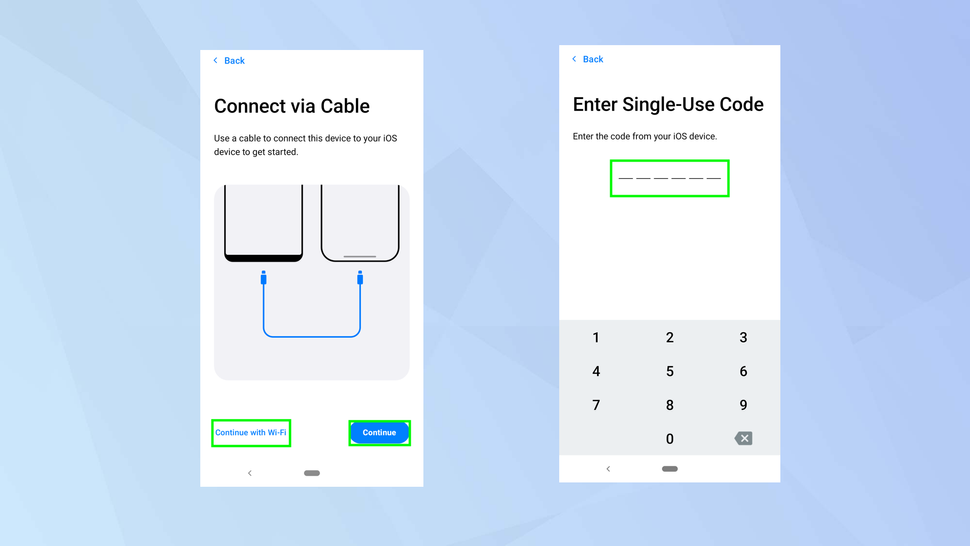
Eitherconnect your iPhone and Android via a USB cable,ortap continue with Wi-Fiandensure both devices are on the same network.

When you see the Move from Android screen on your iPhone,tap Continueto see a single use code. You shouldenter the code on your Androiddevice.

4. Select your data

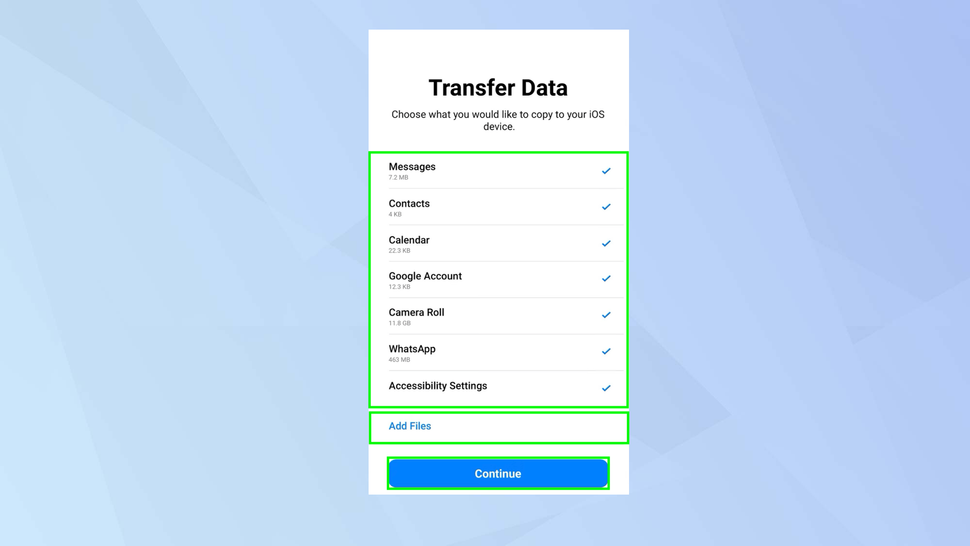
On the Android device,select the datayou would like to transfer to the iPhone (you can evenadd files) andselect Continue. Sit back andallow the process to complete. Don’t touch the screen or buttons on either device during this time.

How to manually transfer data

If you’ve already set up your iPhone and you want easily transfer data from an Android device to it, it’s best to use Google’s own software, notably Google Drive.

If you’re dealing with images, you can also use the Google Photos app on both theiPhoneandAndroiddevices. The same principles apply as in the first two steps below.

1. Use Google Drive

Since Google Drive tends to be the go-to storage app on Android devices, it makes sense to use it as a way to access data across Android and iPhone.

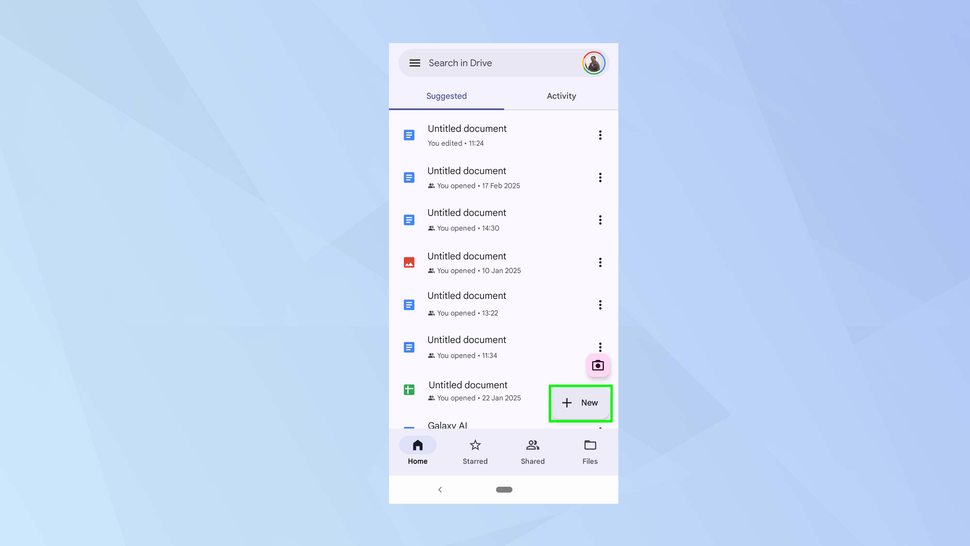
Open Google Drive on your Android deviceto see what you have stored. You canadd new files by tapping +New.

2. Launch Drive on iPhone

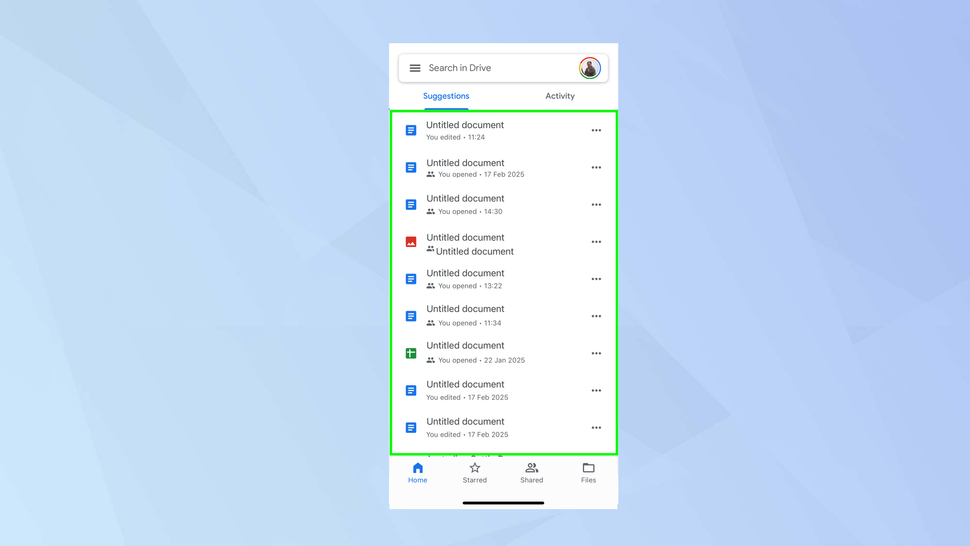
Next,installGoogle Driveon your iPhoneandlog inusing the exact same detailsas on your Android device. The files you have saved in Drive via Android will be available on your iPhone.

3. Browse via Files

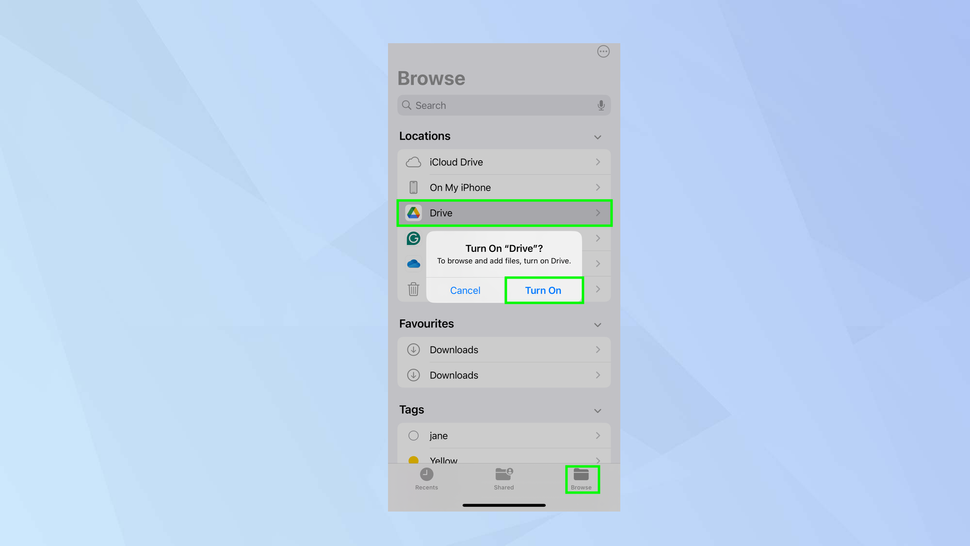
To make life even easier, you can nowuse the Files appon your iPhone.Launch Filesandtap the Browse tabthenselect Drivefrom the list of Locations.

You may be prompted totap Turn On. Once you do, your files will be available to view.

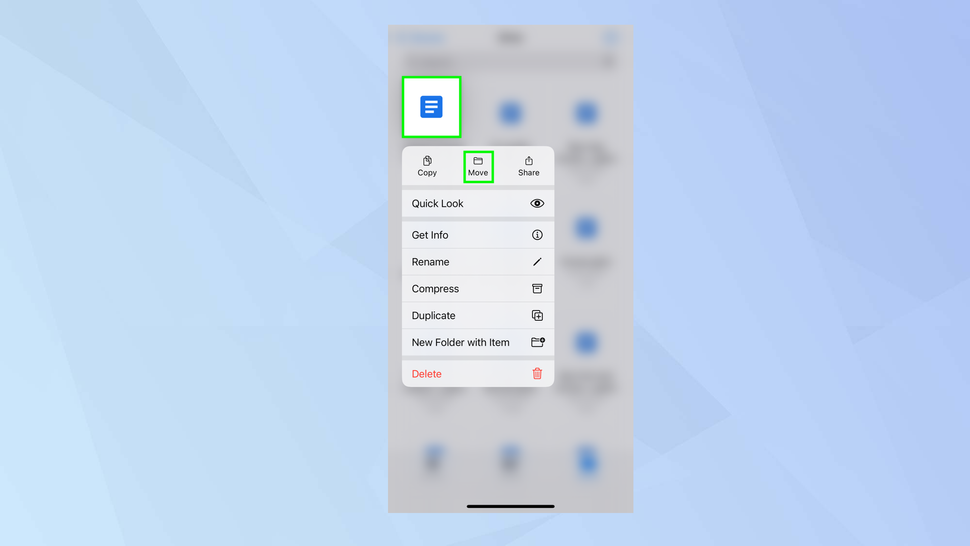
4. Move a file

If you want to move a file from Google Drive to another location on your iPhone,tap and hold a single file.

If youtap the three-dot iconin the top-right corner of the screen andtap Select, you canchoose multiple files— when done, again tap and hold. Thenselect Moveanddecide where you want to put the files(s).


And there you have it—two ways to transfer data from Android to iPhone, whether you’re starting fresh or not. But if you just need to move a few files quickly, check outhow to share files between Android and iPhoneusing Snapdrop. You can also learnhow to transfer data from Android to Androidorhow to transfer data from iPhone to iPhone.

Google is ditching SMS – and will now use QR codes for Gmail account authentication

Google is getting rid of shoddy SMS authentication

  • Google is removing SMS messages as an authentication option
  • It will be replaced with on-screen QR codes
  • Removing SMS authentication reduces the risk of phishing and fraud

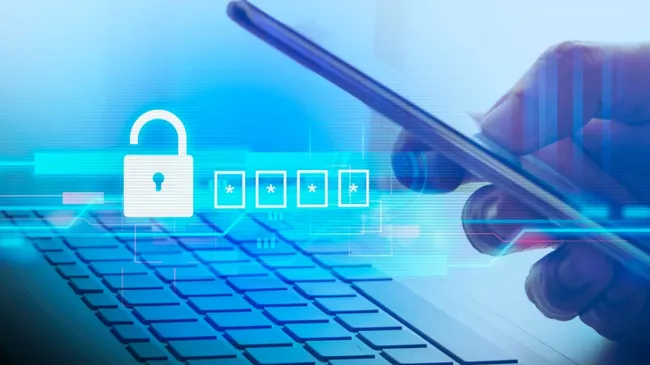
Googleis officially moving away from using SMS messages in its Gmail account two-factorauthenticator.

Gmail spokesperson Ross Richendrfer toldForbes, “we want to move away from sending SMS messages for authentication” to “reduce the impact of rampant, global SMS abuse.”

SMS authentication codes can be easily intercepted by hackers simply by porting your phone number to a new device – just one of the many security issues plaguing SMS messages for authentication.

>>>GWRL2 Battery for Google Pixel 9 Pro Fold

QR codes to replace Gmail SMS authentication

Google will instead introduce on-screen QR codes that will have to be scanned with your chosen authentication device in order to verify that it is actually you trying to log in. This potentially adds an extra layer of biometric security for those who use a facial recognition or fingerprint scan to access their device or applications.

QR codes will also solve two other concerns related to SMS authentication methods. The first being that QR codes are more phishing resistant, as there will no longer be a security code to share with an attacker. The second being the authentication will no longer be reliant on the phone service provider’s abuse and fraud protections.

Authentication will still be reliant on the user having access to their mobile device, but removes a significant amount of the risk of abuse. For Google, it is also a win, as it cuts down on threat actors being able to run ‘traffic pumping’ campaigns.

In these campaigns, criminals will abuse online service providers to generate a huge amount of SMS messages to phone numbers they control, allowing them to generate revenue through access charges and intercarrier compensation.

>>>GDHB7 Battery for Google GDHB7

In the future, Google hopes to move to a fully passkey supported authenticator system, but the move from passwords to passkeys hasn’t been as fast as Google had hoped, despite their best efforts to convince users to make the switch.

Catching up to Tesla: you can now unlock and start your Polestar 3 with an Apple Watch

Your wrist is the key

Polestar 3

(Image credit: Polestar)


  • Polestar 3 just got a big Apple Watch upgrade
  • It now supports car keys in Apple Wallet
  • You can unlock and drive your car with just an iPhone or your Apple Watch

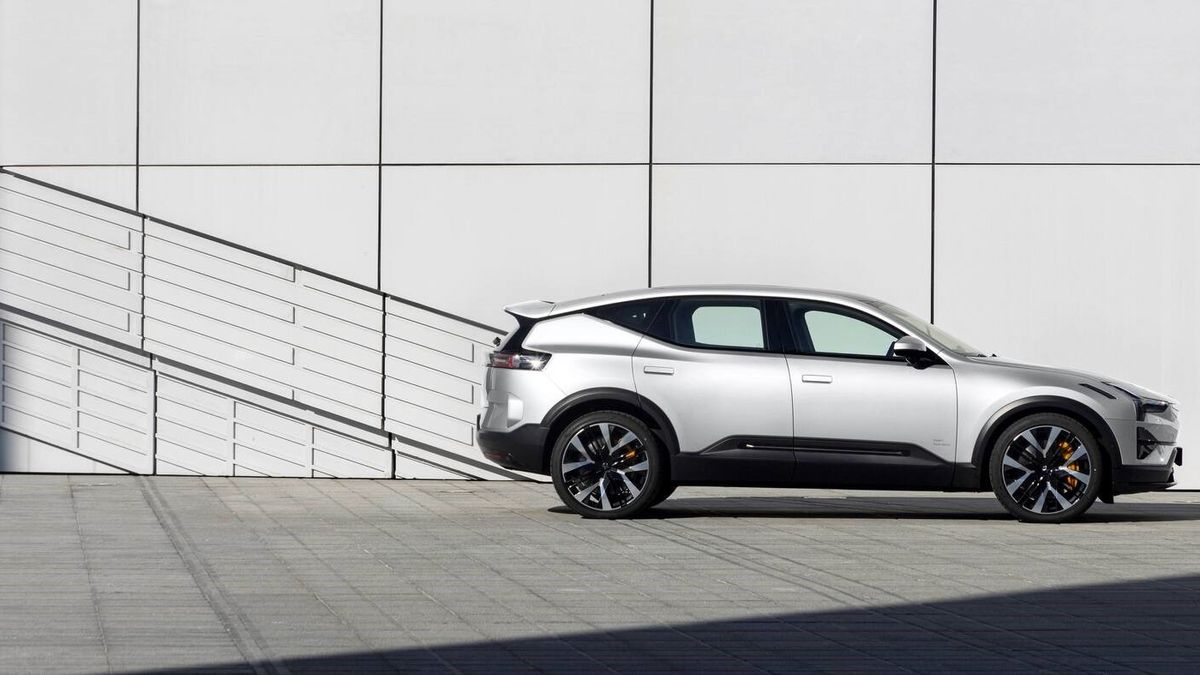
Polestar has announced a big upgrade for iPhone andApple Watchcustomers that will allow drivers of its Polestar 3 to unlock and drive the vehicle thanks to car keys inAppleWallet.

The companyannouncedthat it was pushing an over-the-air software update to the Polestar 3. Car keys in Apple Wallet support now means that drivers can automatically unlock their cars while leaving their iPhones in their pocket, simply by wearing an Apple Watch.

It’s a big benefit that allows seamless, keyless entry to (and exit from) your vehicle. What’s more, customers benefit from Apple Wallet’s car keys sharing, so you can share keys through Messages, Mail, AirDrop,WhatsApp, and more with up to five other users, tweaking access between just gaining access to the vehicle or driving it as required. You can even use the iPhone Power Reserve feature to unlock and drive the car if your iPhone has run out of battery.

>>>A1578 Battery for Apple Watch Series 1 (38mm)

Polestar 3 gets car keys support

This is a welcome quality-of-life upgrade for Polestar 3 owners, and the company has confirmed the Polestar 4 should get support soon too. What’s more, you don’t even need thebest Apple Watchor newest iPhone to take advantage, you just need an iPhone 11 or Apple Watch Series 6 or later.

It’s also a welcome catch-up play for anyone casting a jealous eye over at Tesla. Tesla supports Apple Wallet car keys and also unveiled a new bespoke Apple Watch app for Tesla owners late last year. The latter lets users remotely lock and unlock their vehicle, adjust climate controls, and even open the front trunk.

>>>A1760 Battery for Apple Watch Series 2 38mm

While niche, Apple Wallet car keys is one of the coolest Apple Watch features going. The device’s Wallet app and NFC tools can also be used to unlock thebest smart locksfor your home, access hotel rooms, and of course, make payments using Apple Pay.

Chinese researchers develop method to revive lithium batteries that significantly extends their lifespan

The process includes injecting fresh lithium into batteries to give them a prolonged life

Better battery binding materials

(Image credit: Anu Adamson, Dalhousie University, Halifax)

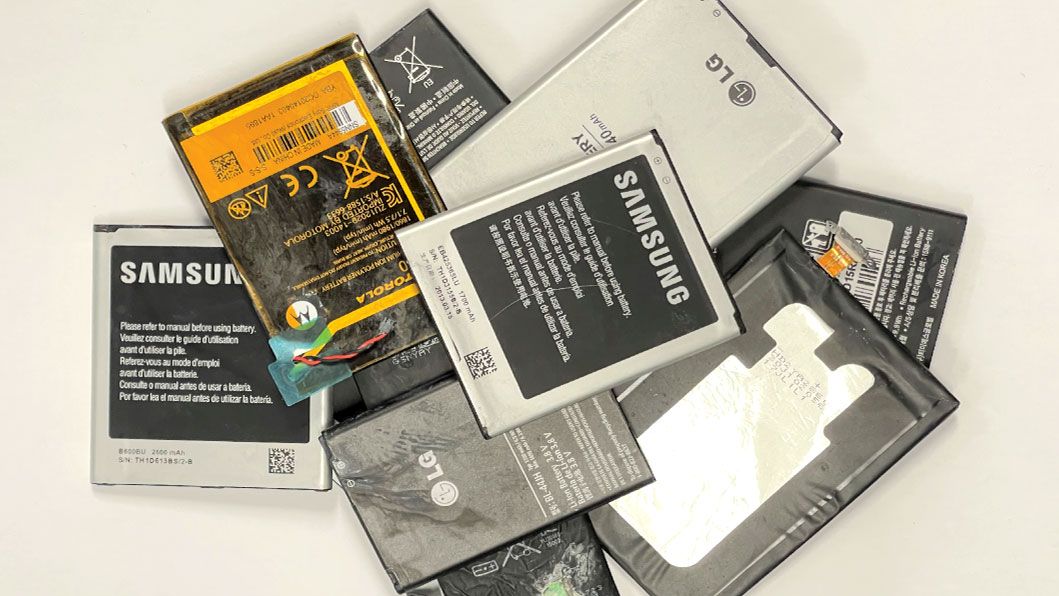
Researchers from Fudan University in China have developed a method to refresh and extend the lifespan of lithium batteries, a breakthrough that could improve battery sustainability and reduce electronic waste. The findings, recentlypublished at Nature, are based on a technique that rejuvenates degraded lithium-ion cells, potentially increasing their usability for long periods.

As we know, lithium-ion batteries power everything from smartphones and laptops to electric vehicles, but their efficiency declines over time due to electrode degradation and chemical side reactions. The research led by Peng Huisheng and Gao Yue from Fudan University, along with other collaborating Chinese research institutions, began by identifying and synthesizing a lithium carrier molecule – lithium trifluoromethanesulfinate (LiSO₂CF₃). The researchers described the white powdered functional salt as a “precise-treatment medicine for lithium-ion batteries.”

Over time, lithium-ion batteries lose efficiency as lithium becomes trapped in inactive compounds and electrode materials degrade. The new method involves introducing an electrolyte solution containing dissolved LiSO₂CF₃ into a degraded battery. When a voltage is applied, the compound breaks down, releasing lithium ions that reintegrate into the electrode material, effectively restoring lost capacity.

Simultaneously, the breakdown process generates gaseous byproducts, including sulfur dioxide (SO₂), trifluoromethane (HCF₃), and hexafluoroethane (C₂F₆), which naturally escape from the electrolyte if the battery is designed to allow venting.

>>>Ulefone Armor 20WT Replacement Battery

Extending lifespan from 1,500 to 12,000 charge cycles

Once the lithium restoration is complete, the battery is sealed and tested to confirm its performance. Early experiments have shown that lithium-iron phosphate batteries treated with this method can regain nearly all of their lost capacity, extending their lifespan up to 12,000 charge cycles. For comparison, a typical electric car battery has a lifespan of around 1,500 charge cycles.

According to Gao Yue, “The battery only lost 4% of its performance after 11,818 cycles. For an EV that charges twice a day, this means the battery could last up to 18 years. In comparison, current EV batteries usually lose 30% of their performance in just 2.7 years with the same charging routine.”

However, practical implementation requires that batteries be designed with electrolyte replenishment and gas venting in mind, which may limit the new technology’s feasibility for widely used consumer electronics. While still in the experimental stage, this process presents a promising approach to reducing battery waste and increasing the longevity of rechargeable lithium-ion cells, particularly in large-scale energy storage systems.

>>>Ulefone Power Armor 16 Pro Replacement Battery

The breakthrough not only has the potential to extend battery lifespans and reduce e-waste, but it can also lower the environmental impact of lithium mining. More testing and regulatory approvals will be needed before this method can be implemented widely, but it seems to be a promising step toward a more sustainable battery industry.

From floppy disks to fax machines: 5 obsolete piece of tech that do not want to die in 2025

It’s astonishing how many places still rely on old hardware, even in 2025

As technology marches on at an unprecedented pace, many devices and standards have fallen by the wayside, replaced by faster, sleeker, and more efficient alternatives. Not all outdated technologies have gone quietly into the night, however. Some linger on, defying predictions of their demise and continuing to serve niche purposes.

I’ve been writing about technology since the early 1990s and have used a vast array of tech products over the decades, moving on from them when their inevitable replacements arrived. That isn’t the case for everyone, though, as plenty of places still rely on antiquated tech, as we’re about to see.

For this article I’ve picked five pieces of tech that I’ve – surprisingly – been reminded of due to stories in the news over the past 12 months.

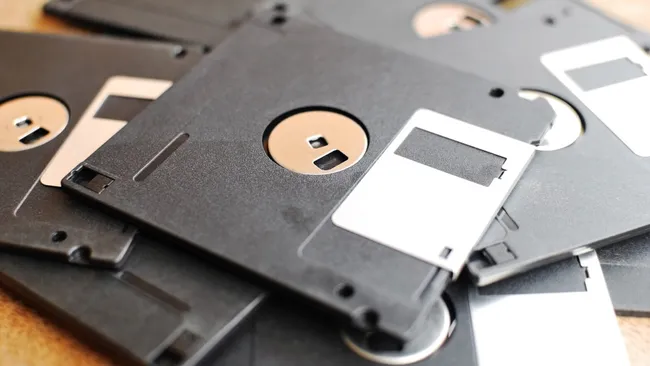
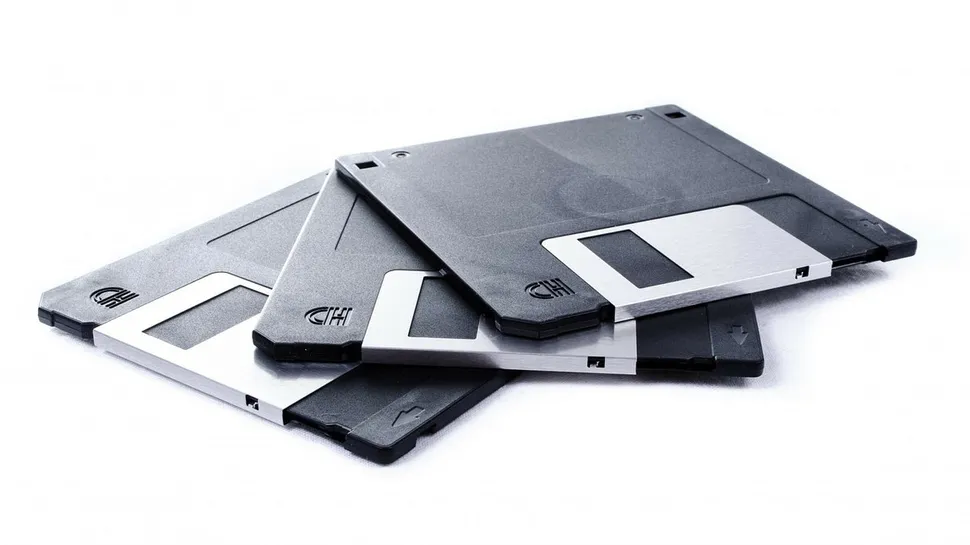
1. Floppy Disks: Storage relics of a bygone era

Floppy disks, once the pinnacle of portable data storage, have been obsolete for decades. I can’t remember exactly when I last saved a file onto a floppy, but it’s unlikely to have been this century.

Yet, amazingly, these magnetic storage devices continue to hold on in certain specialized sectors. Some legacy industrial systems, for example, still rely on floppy disks for software updates and data transfers. This is especially true for aerospace and military equipment, where, as crazy as it might sound, the cost and risk of overhauling entire systems to accommodate modern storage formats can be prohibitive.

While consumer devices haven’t used floppy disks in years, manufacturers still produce them in limited quantities to meet niche demands.You can buy floppy disks on Amazon, and floppy disk readers too. I’d be tempted to buy a reader just to discover what’s on the handful of floppy disks I know are lurking somewhere in a box in the loft – but I imagine it would only lead to disappointment

The simplicity and reliability in certain controlled environments make floppy disks surprisingly resilient. Even as storage capacities and transfer speeds of modern devices have soared, the humble floppy remains a steadfast solution for certain outdated systems, although they are slowly being eradicated.

In 2024, we reported how the Japanese government claimed to have “won the war” on floppy disks in June, and this was followed by news that the German Navywas looking to replace the floppy drives used on its four Brandenburg class F123 frigates with a modern emulated solution. Then in October came the news that the San Francisco Muni Metro light rail system’s DOS-based floppy disk solution was finally being overhauled, at the cost of $212 million.

>>>>>PC-VP-BP151 Battery for NEC PC-VP-BP151

2. VGA ports: Still big in Japan

(Image credit: NEC)

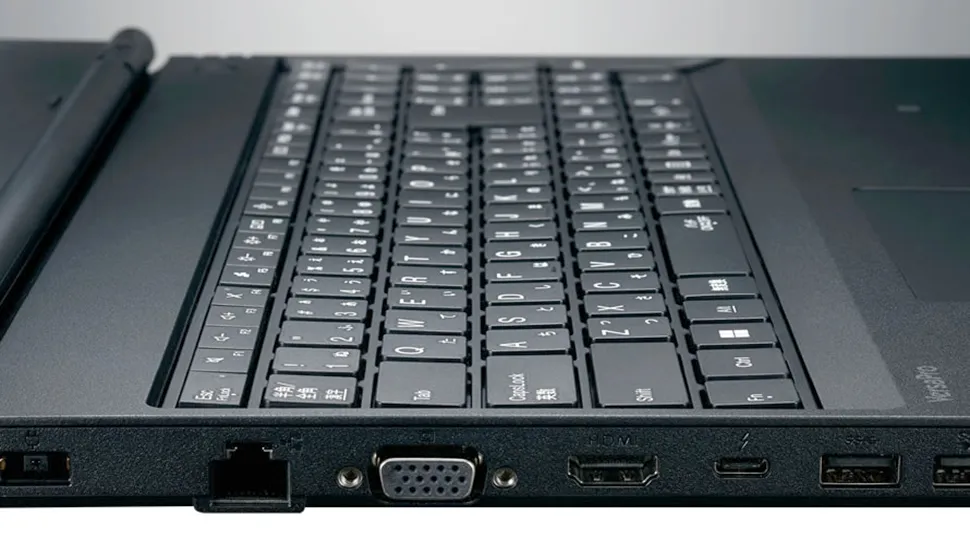
The VGA (Video Graphics Array) port, introduced in 1987, revolutionized how computers connected to monitors. Recently, while searching for a mini USB cable for a friend, I stumbled upon no fewer than three VGA monitor cables buried in my box of old wires. They’ve likely sat there untouched for at least fifteen years, relics of a bygone era. The monitors they once connected to have long since disposed of.

In the era of HDMI and DisplayPort, one might expect VGA to have disappeared entirely, but it persists in various applications and its presence is largely due to its widespread use in older hardware that remains in operation, such as projectors, industrial equipment, and some educational systems.

Many businesses and institutions are hesitant to replace functioning systems simply to upgrade connectivity. VGA also benefits from its durability and compatibility across a broad range of devices, making it a practical choice in environments where reliability is valued over cutting-edge performance.

Even in 2025, a number of new laptops and monitors can be found with VGA ports, ensuring backward compatibility. Japan, which clings on to older technology much more determinedly than many other countries, has a number of brandnew laptops with a VGA port, alongside HDMI and DP.

>>>PC-VP-WP152 Battery for NEC N22SBT300

3. Parallel ports: The unsung survivors

(Image credit: Kuroutoshikou)

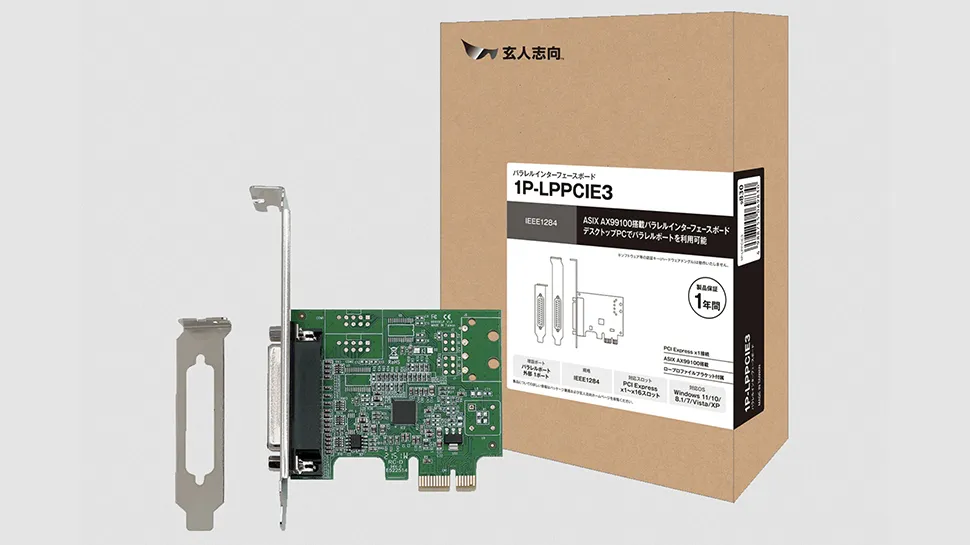
Parallel ports, which were once ubiquitous for connecting printers, scanners, and other peripherals, have long been rendered obsolete by USB and wireless technologies. While searching through my box of old wires (see the VGA entry) I found a parallel cable that had once connected my PC to a scanner or printer – possibly both. I’ve no idea when it was last used. I do still have a (very dusty) scanner in the loft, and probably an inkjet printer or two, but those are USB devices.

Parallel ports do still persist in industrial and scientific settings where older equipment continues to play a vital role. Machines like CNC (computer numerical control) tools, laboratory instruments, and legacy industrial devices often depend on parallel ports to function.

The cost and complexity of upgrading these systems often outweigh the perceived benefits, leaving parallel ports as an essential link. They may be slow and clunky compared to modern interfaces, but their reliability and compatibility with older equipment have kept them alive.

Manufacturers even produce USB-to-parallel adapters, and last year a Japanese firm rolled out a newPCI Express adapterthat makes it possible to add the antiquated parallel port to modern PCs. The drivers for it come on a CD-Rom and offer support for Windows XP upwards.

4. Fax machines: An office dinosaur that refuses extinction

(Image credit: Pixabay)

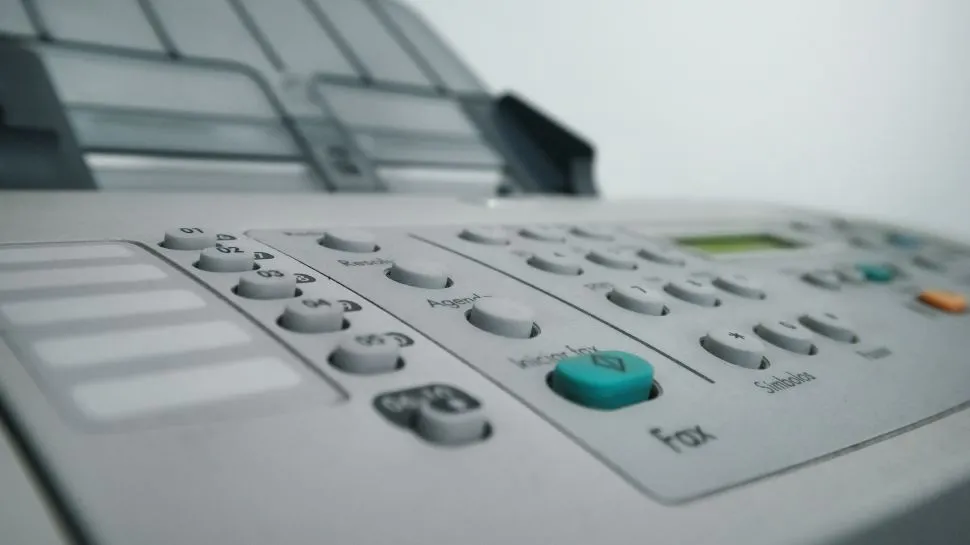
Fax machinesare synonymous with outdated technology, but they remain stubbornly entrenched in specific industries. Healthcare, legal, and governmental sectors still rely on fax communication due to regulatory requirements, security concerns, and ingrained workflows. The fax machine’s ability to send secure, physical copies of documents continues to hold appeal in environments where digital alternatives are viewed with skepticism.

In some regions, faxing is still a legal requirement for transmitting sensitive documents. For instance, in parts of the United States, and of course Japan, the healthcare sector adheres to faxing as a standard method for transmitting medical records and prescriptions. While e-fax services have modernized the process somewhat, the physical fax machine remains a fixture in far more offices than you might expect.

My memory of the fax machine? The thrill of hearing it suddenly whir to life and the suspense of wondering what message was slowly making its way through. There’s no such anticipation with emails – they just pop up, ready to read, without ceremony. Friends who would occasionally fax you rude drawings at work brought a fun element of danger to the company fax machine, even more so in my case as in one office I worked in, the device was right next to my boss’s desk.

5. Pagers: Lifelines for certain professions

(Image credit: Haakon Stevens)

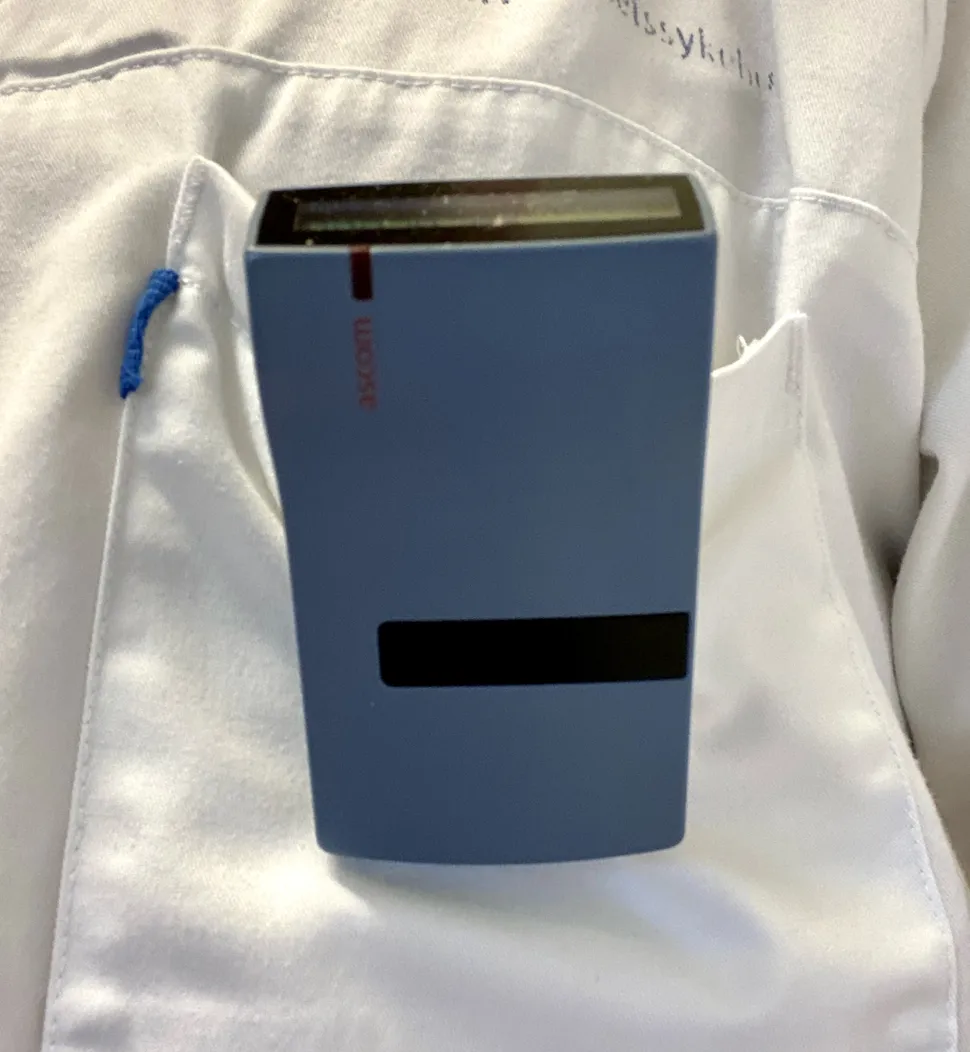
The pager, once a ubiquitous tool for communication in the pre-smartphone era, is far from dead in 2025. Although smartphones have replaced pagers for the general population, these devices remain indispensable in certain professions, particularly in healthcare. Many doctors, nurses, and first responders continue to rely on pagers for their simplicity, reliability, and ability to function in environments where cellular networks may be patchy.

Pagers are also prized for their long battery life and the ability to receive messages without requiring an internet connection. This makes them particularly useful in hospitals, where signal interference from medical equipment can be an issue. My sister has worked in a number of UK hospitals, and I remember being impressed when I first saw her pager – known in NHS as “the bleep” – many years ago. She hated it though and was thrilled when she no longer had to carry one.

While their use has dwindled significantly, including in hospitals where smartphones are being used more and more, pagers are still manufactured and supported to cater to niche requirements. 

AirPods Pro 2’s hearing aid mode launches in the UK today – here’s what you need to know about it

Hear hear

AirPods Pro 2 Hearing Test Start Screen on an iPhone 16

(Image credit: Future/Jacob Krol)

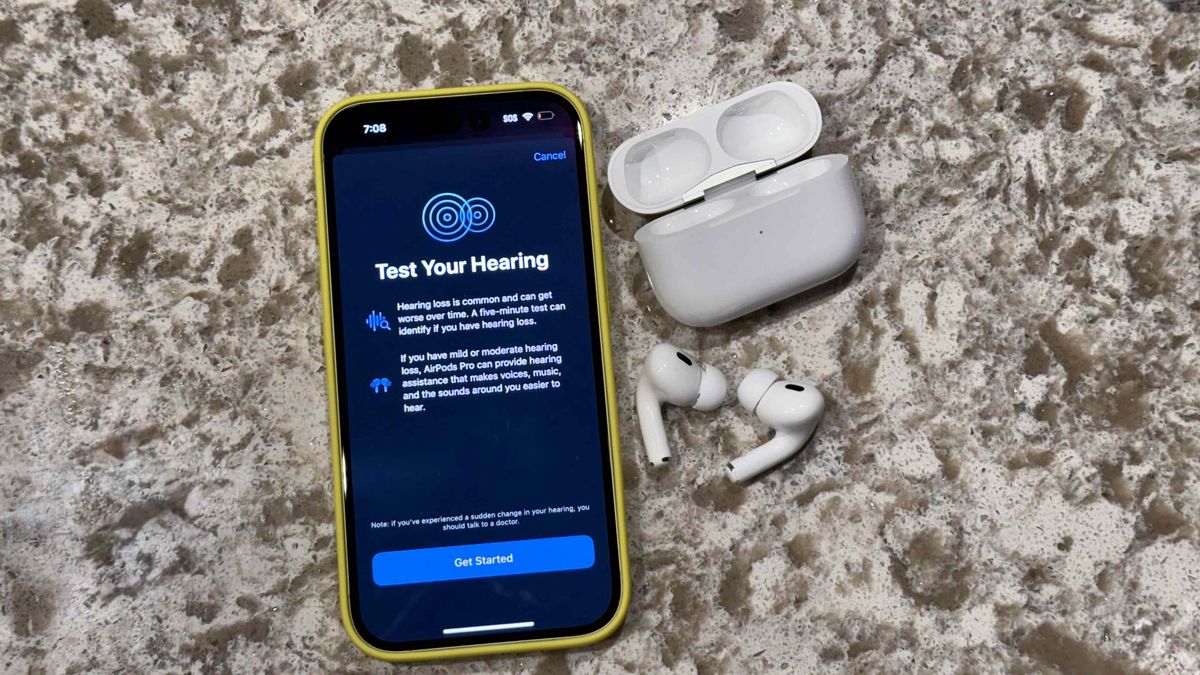
Applehas announced that the hearing aid mode forAirPods Pro 2, which wasannounced and launched in the US last year, is coming to the UK today, Monday February 24th, 2025. We alreadyknew that it was coming to the UK following a regulatory change, but not when – however, you can expect it to become enabled imminently.

AirPods Pro 2 are able to help with mild to moderate hearing loss, and the hearing aid mode is designed to help people boost particular frequencies that may make it hard for them to hear conversations in loud rooms, for example – especially in combination with Apple’s noise-management tech used in the earbuds.

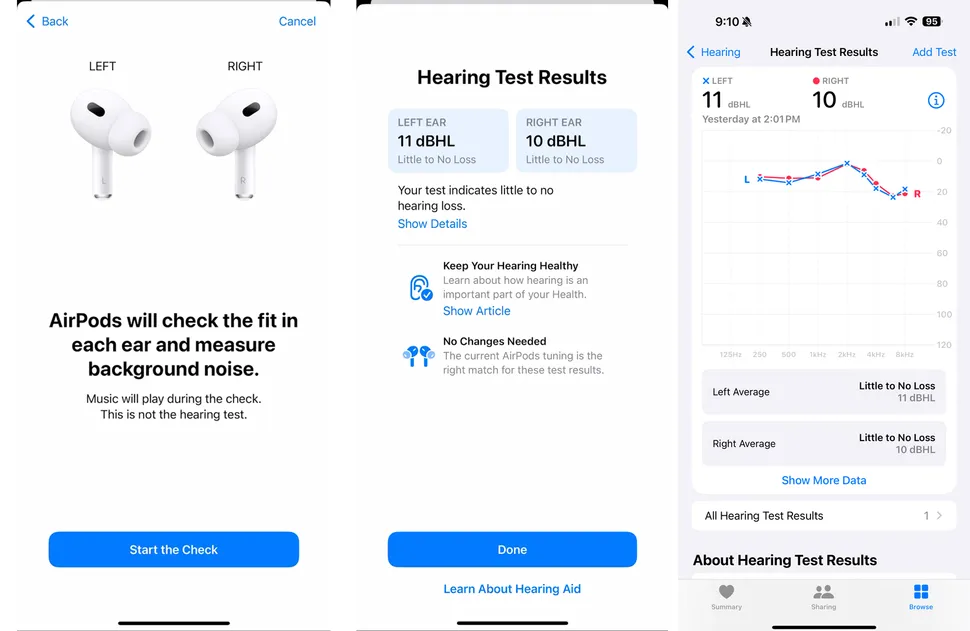
Using them as hearing aids is a two-step process: first, you take a hearing aid test with them in your ears from your iPhone by listening to a series of tones while in a quiet room. This was already available in the UK, and we recommend everyone tries it –like our writer, you might find interesting things out even if you have no hearing problems, or it might help clarify things for you.

>>>CP1154 Battery for Apple Airpods Pro A2084 A2083

The second step is that the AirPods can take the results of your hearing test and create the hearing aid profile from there, boosting the parts of the world around you that need boosting when you wear them – though there are ways you can adjust how it works. This second part has been missing from the UK so far, but we’ve tried it out in the US, and it can be very powerful.

>>>020-00098 Battery for Apple Airpods 1 2 1st 2nd Wireless Charge A1596

There are lots of people who resist hearing aids, for various reasons, and being able to use (relatively) inexpensive earbuds as an alternative might help a lot more people to try out hearing augmentation.

Well, that’s as long as they have an iPhone as well, and don’t hearing support all day. There’s no Android support for this feature on AirPods Pro 2, and you’re limited to the roughly six-hour battery life that AirPods Pro 2 have before then need recharging from their case.

But for some people, that will be perfect – they’ll only need them when having lunch with a friend or watching TV for a few hours, and can put them back in the case to charge when they extra nuance they offer isn’t needed.

The feature is only available for the AirPods Pro 2, not any of the otherbest AirPods– even the newerAirPods 4, because it requires the in-ear seal that only the Pro model provides.

If you’re having trouble finding the new feature, make sure your iPhone is up to date by going to the Settings app, then General, then Software Update, to check for an update on that device. AirPods should update their software automatically in the background when charging and not in use, butApple recently finally shared instructions on how to update AirPods.

Even Samsung and Apple can’t fix the mess that is Qi2 charging

The unfolded Anker MagGo Wireless Charging Station.

Samsung wasn’t the first phone maker to adopt wireless charging, but it was the first to make it widely available in its flagship phones. Starting with the Galaxy S5, each Samsung flagship featured wireless charging integrated into the phone itself, and Apple continued the trend with the launch of the iPhone two years later.

However, wireless charging has not improved much since then, and companies have sought individual approaches. Apple launched the MagSafe standard five years ago, and the next generation of wireless charging standards was announced three years later.

It promised to bring the best ofMagSafeto all phones, but much like the original promise of wireless charging, it hasn’t quite worked out that way. Over 300 companies agreed to the standards of Qi2, and two years later, we have yet to see a phone properly support it.

Like USB-C, there are competing speeds, specifications, and approaches, all of which conform to Qi charging standards but do little to ensure there’s consistency. This is why even Samsung and Apple’s support can fix the mess that is Qi charging.

>>>BLPA25 Battery for OnePlus 12 5G

What is Qi and who controls the standard?

Baseus MagSafe wireless charging power bank with OnePlus 13 resting on a flat surface.

Qi is the universal standard for wireless charging that over 300 companies have agreed to. While some companies also take individual approaches, any phone you buy that’s equipped with wireless charging will almost certainly support the Qi standard.

Much like the USB-C standard for wired charging, Qi is designed to ensure that there’s broad compatibility between different devices and the plethora of wireless charging accessories available. While it achieves that at its core, this approach has had its problems.

The Wireless Power Consortium (WPC) has been trying to evolve the standard with its members, but can you imagine the state of those conversations? 300 different companies, each with its own vision and desire to be involved in helping to shape the wireless charging standard.

Unsurprisingly, we haven’t had any conformity beyond the basic standard, even with companies like Apple, Samsung, and Google involved in shaping the standard. The hope was that Qi2 would solve this, but two years later, it hasn’t rolled out as quickly or as widely as we all hoped.

>>>EB-BS928ABY Battery for Samsung Galaxy S24 Ultra

What are the Qi2 and 2.1 standards?

The magnet on the Galaxy S25 Ultra magnetic wireless charging cover

The magnet on the Galaxy S25 Ultra magnetic wireless charging cover

The main appeal of Qi2 in its current form is the addition of magnets for charging alignment. This is through the addition of the Magnetic Power Profile (MPP), which is based on Apple’s MagSafe charging standard. Essentially, it means that Qi2-compatible devices can add a ring of magnets to ensure the phone aligns perfectly with the charger. It’s essentially the same as MagSafe, and there’s expected to be cross-compatibility between MagSafe and the best Qi2 chargers.

Then there are those chargers that support the Extended Power Profile, which meets the specifications for Qi2 but the manufacturer has opted against including magnets. This should mean some support for faster speeds, but these devices won’t be billed as, or feature, the Qi2 logo. Think of this as the entry-level to Qi2 charging.

So far, that’s easy to understand, but the current implementation of Qi2 by phone makers has led to a third level, and I suspect it’ll prove to be the most popular. Like the three different frequency bands for 5G — low-band, mid-band, and high-band (mmWave) — the three tiers of Qi2 will likely see most companies opt to promote “Qi2-Ready” devices soon.

>>>Samsung Galaxy Z Fold 6 Replacement Battery

Which phone makers support magnetic charging?

Qi2-Ready devices essentially mean that the device doesn’t contain magnets, but you can add these via a third-party case. TheGalaxy S25 seriesare Qi2-Ready which essentially means they’re billed as Qi devices, but you use a certified Qi2 Ready case with a Qi2 Ready charger to effectively get the same benefits of Qi2.

I reviewed theGalaxy S25 Ultra Magnetic Charging Coverand while it’s a great addition if you care about wireless charging — and you have a compatible charger — it doesn’t achieve the other expected benefit of Qi2 charging: faster speeds. However, this could be due to the long lead cycle of phone development, but as OnePlus has shown, it’s possible to add everything.

The OnePlus 13 with its Sandstone case.

OnePlus 13 with Sandstone case and wireless charging insert

The OnePlus 13 features Oppo’s50W AirVOOC wireless charging, which brings all the benefits of Qi2 charging without the official certification. Magnets in the case keep it aligned to your phone, and the superfast charger even has a fan to ensure maximum efficiency, and to cool your phone. The result is that it wirelessly charges the phone to full in 70 minutes, which is almost three times the speed of the Galaxy S25 Ultra’s wireless charging.

Qi2 was eventually meant to offer improved charging speeds, but so far, all devices only charge at the maximum 15W except for the iPhone 16 series. Thanks to Apple’s tight integration of its ecosystem and accessories, the iPhone 16 series supports MagSafe charging, which offers 25W wireless charging speeds.

OnePlus AirVooc 50W wireless charger.

The latest MagSafe and the faster charging speeds are limited to just Apple’s latest iPhones, although the new iPhone 16e doesn’t support MagSafe charging. Much like the original introduction of MagSafe, only the latest iPhone has faster wireless charging speeds, and it’s unlike this model will change soon.

Which phone currently has the fastest wireless charging?

OnePlus 13 review: A next-gen tour de force

OnePlus AirVOOC 50W charger attached to a OnePlus 13

One of the benefits of the Qi standard is that all phones ultimately face the same limitations, but we’re already seeing companies take proprietary approaches and use the Qi standard as the fallback. Samsung opted to let someone else build the charging infrastructure, so it’s Qi2-Ready and only supports 15W charging when paired with devices like theGalaxy S25 Plus.

Then there’s Oppo and OnePlus. Both use the same AirVOOC charging solution that offers 50W charging when paired with the official case. I’ve tested theFind X8 Proand theOnePlus 13, and both are exceptionally fast when charged wirelessly. Although neither of these is Qi2-certified, both should work fine with any magnetic charger, although you’ll need the official 50W AirVOOC charger to get the full speeds.

Qi2 offered much promise to every phone maker adhering to a single standard for magnetic wireless charging, but it has so far failed to live up to its promise. It will likely take Samsung incorporating it into a future handset for more companies to also want to follow, and that’s unlikely for at least another year, if not longer.