We are specialists in quality batteries. We have batteries, chargers and accessories for everything you can think of. Low prices, big inventory, expert advice. Find your battery here!
OnePlus has revealed the Plus Key, a new button positioned as a way to access the new OnePlus AI suite
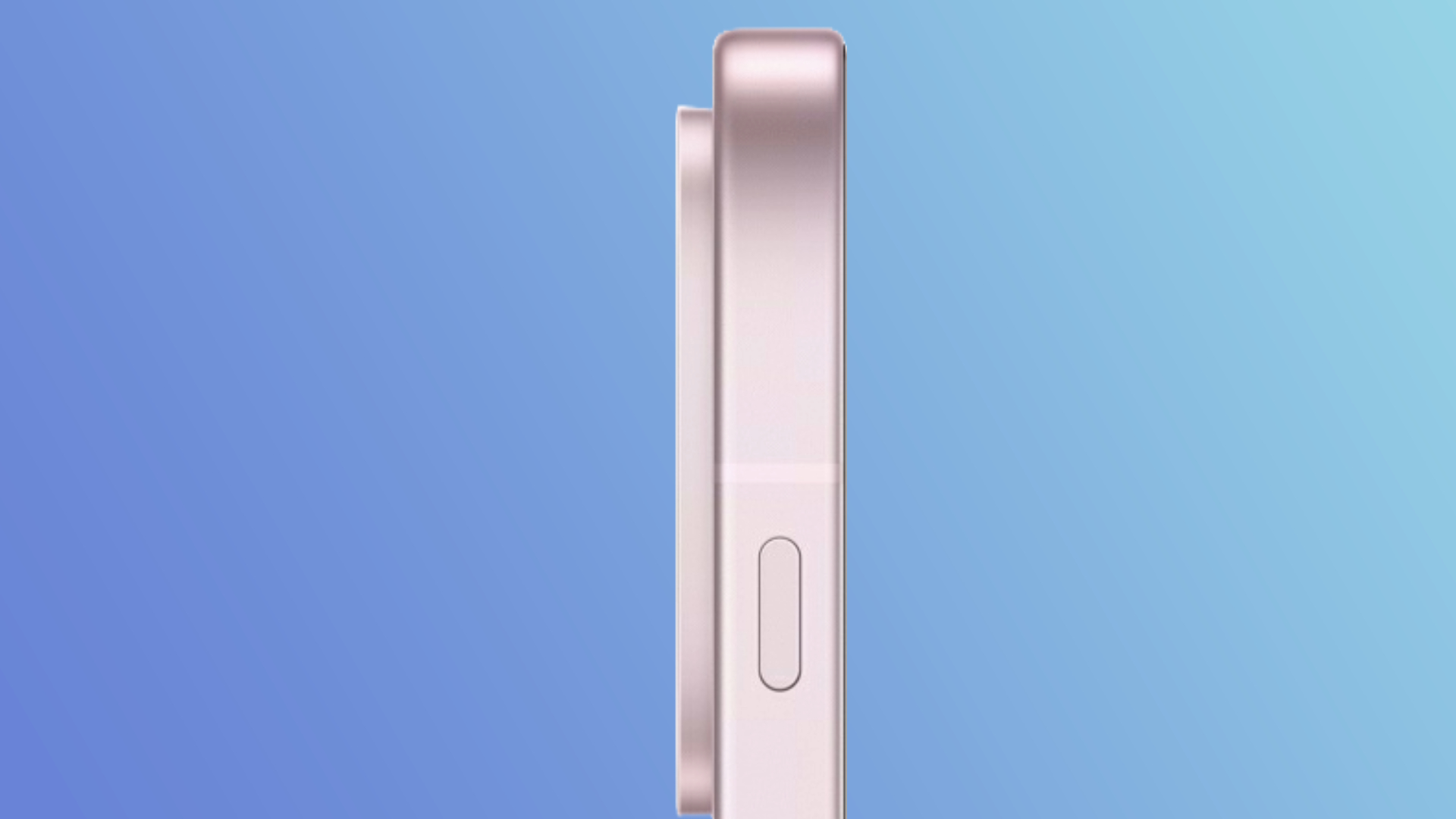
The Plus Key replaces the Alert Slider found on OnePlus phones since the OnePlus 2
The Plus Key will come to all OnePlus phones launching this year
OnePlus has announced OnePlus AI, and while the Chinese company’s vision for mobile artificial intelligence comes mainly via new software, the list of changes includes an update to one of the brand’s most iconic hardware features.
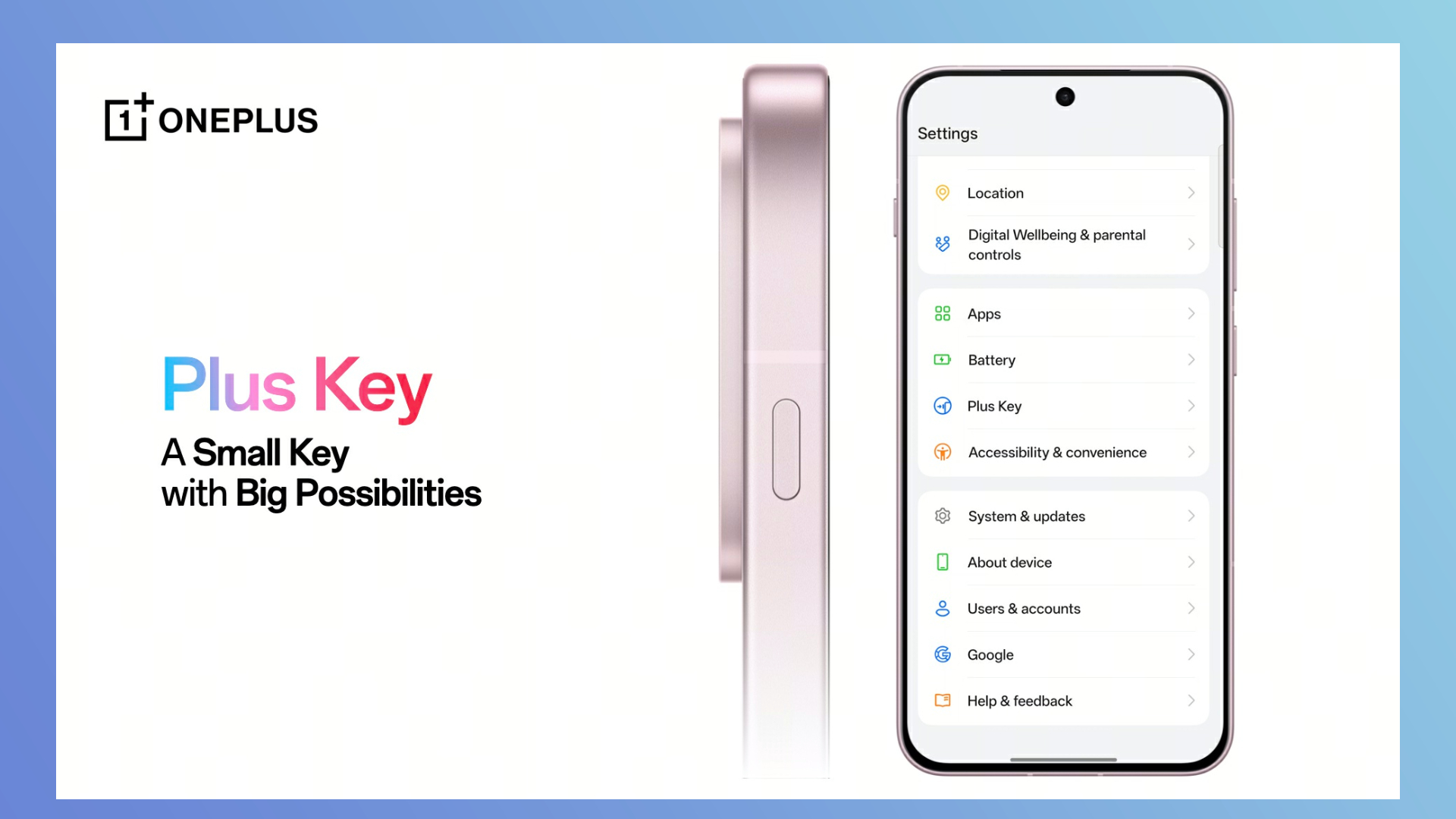
The new Plus Key is a physical button that replaces the three-stage Alert Slider. The button can be customized in settings to activate one of several features, like opening the camera or starting a live translation.
The new hardware feature will make its debut with the OnePlus 13s, a China-only model previously known as theOnePlus 13 Miniin online rumor circles.
OnePlus has confirmed the Plus Key will come to all OnePlus smartphones rolling out this year – at a minimum we’d expect this to include the rumored OnePlus 14 and OnePlus 14R, which based on prior releases we’d expect to launch in China at the end of 2025 for global launch in 2026. Though note that OnePlus might skip the number 14 and call this the OnePlus 15 series instead.
By default, the Plus Key activates the newAI Plus Mind capture system, which saves a screenshot, plus an AI summary of the on-screen information, in the new AI Plus Mind app.
It’s this, alongside the timing of this hardware announcement, that illustrates OnePlus’ vision of the Plus Key as a part of the company’s AI strategy.
“It’s time for us to evolve”
OnePlus revealed its new AI suite on May 27(Image credit: OnePlus)
At the official OnePlus AI reveal event, I spoke with Arthur Lam, director of OxygenOS and AI strategy at OnePlus, about how the Plus Key and AI Plus Mind work together.
“The thought process behind it was we wanted to bring AI that can empower you to do different things. And I think one of the biggest things was we live in this digital age where we have a lot of fragmented memories across multiple places” said Lam.
“We believe that this is not a software-only solution,” Lam continued, “it’s a hardware-software solution; that makes it uniquely OnePlus.”
When OnePlus announced the end of the Alert Slider,I wrote that I’d always found it to be a useful and charismatic addition to the brand’s handsets. However, even with the Alert Slider’s fan-favorite status, Lam tells me the company is confident that it’s time for an update.
“People ask us, ‘after using the Alert Slider for a decade, why are you changing it?’ Because now is the time, because it’s connected with your AI Plus Mind.”
“It makes sense for us to make changes. Even though we’ve been there for the last decade, and many of the users love it, we think it’s time for us to evolve it to the next generation.”
OnePlus is keen to market the Plus Key as a versatile, AI-forward feature(Image credit: OnePlus)
There’s more to OnePlus AI than just the Plus Key and AI Plus Mind – upcoming features include AI Translation, an AI Reframe tool for cropping photos, and AI VoiceScribe, which automatically transcribes phone calls.
With that said, the Plus Key is the most fully-fledged AI hardware feature we’ve seen on a smartphone so far – this AI-first approach could help OnePlus to differentiate the Plus Key from the iPhone’s Action Button, which clearly served as inspiration.
It’s also telling that OnePlus is willing to cut a well-loved feature like the Alert Slider for the AI-focused Plus Key. This suggests that OnePlus AI could be a major priority for the brand going forwards.
Personally, I’m a fan of the Alert Slider, but I think AI Plus Mind is a great idea, and a good enough feature to make the Plus Key seem novel and genuinely useful.
Be sure to keep up with our phones coverage for the latest updates as the Plus Key comes to more of thebest OnePlus phones.
What do you think of the Plus Key? Will you miss the Alert Slider? Let us know in the comments below.
ChromeOS and Android are often mentioned in the same breath, which has a lot to do with them both being part of Google’s vast mobile and digital ecosystem. But while they share common DNA, including access to the Google Play Store and integration with services like Gmail, Google Drive, and Google Assistant, when you go beyond those basics, the two start to go their separate ways. While it’s true that the two can both run Android apps and have some things in common behind the scenes technology-wise, they’re built for different tasks, look different, and work in very different ways.
If you own or have ever used a budget-friendly laptop like the Acer Chromebook Plus 515, you’re familiar with Google’s lightweight ChromeOS operating system. Unlike Windows and macOS, ChromeOS is a cloud-based operating system that emphasizes the use of web applications and services, with Google’s unique Chrome browser acting as its primary interface. In contrast, Android is an operating system designed for mobile devices. All of that tapping, swiping, and pinching you do on your non-Apple smartphone or tablet, Android makes it possible.
What’s important to keep in mind is that these differences aren’t just technical; they affect how each system fits into your daily life. ChromeOS is built for getting things done on a laptop, while Android is made for using your phone or tablet with taps and swipes. While it might seem like these systems could be interchangeable, they’re built for different types of devices, and for most people, there’s really no good reason to use ChromeOS on a phone or Android on a laptop.
ChromeOS is built for productivity and cloud-first computing
Using ChromeOS for the first time takes a little bit of getting used to because it doesn’t work like traditional operating systems, which rely on programs the user has to install and traditional file systems. Instead, ChromeOS is built around the Chrome browser, which means that as the user, you can get everything done using web apps and store most of your work in the cloud. With ChromeOS, you can download Android apps from the Google Play Store, and on many Chromebooks, you can even run Linux apps, something that gives users a lot of choice when it comes time to get things done.
The design of ChromeOS makes it an especially good match for those whose primary work involves document editing, web browsing, and other productivity activities. ChromeOS’ simplicity is what sets it apart from other operating systems and makes it a favorite in schools and among those looking for an inexpensive laptop that’s easy to use and doesn’t come with a bunch of unnecessary extras.
Google’s cloud is an integral part of the ChromeOS setup and makes it easy for users to access their files and applications from any device with an internet connection. ChromeOS includes built-in access to Google Workspace tools like Docs, Sheets, and Slides. While these apps are also available in any browser, ChromeOS offers tighter integration and native offline support that can make them easier to use on a Chromebook. All of these things are what make ChromeOS a better fit for users who need a simple, secure laptop for everyday tasks.
Android is tailored for touch-centric mobile devices
Even if your primary smartphone is a non-Android model, like the Apple iPhone 16e, chances are you’re at least somewhat familiar with Android and have used an Android-based device a few times. Unlike ChromeOS, which was developed for use with computers, Android is an operating system designed for smartphones and tablets. So it’s not too surprising that its interface is optimized for touch-based interaction, and it comes with many customization options. Android supports a wide range of apps available through the Google Play Store, covering everything from communication to entertainment.
While there’s no arguing that Android devices do excel when it comes to portability and app diversity, you may find them lacking when compared with the productivity features that ChromeOS offers. For example, Android’s file management and multitasking capabilities don’t come close to the desktop-like environment on ChromeOS devices. That doesn’t make Android worse; it’s just that Android prioritizes different things.
Since it was designed with mobile devices in mind, it focuses on the intuitive touch interactions that make smartphones and tablets so easy to use. This is what makes Android ideal for on-the-go use, casual entertainment, and communication on smaller touch-based devices. On the other hand, ChromeOS looks and feels more like a traditional computer, with a taskbar and the ability to open apps in separate windows, which can make it easier to get work done.
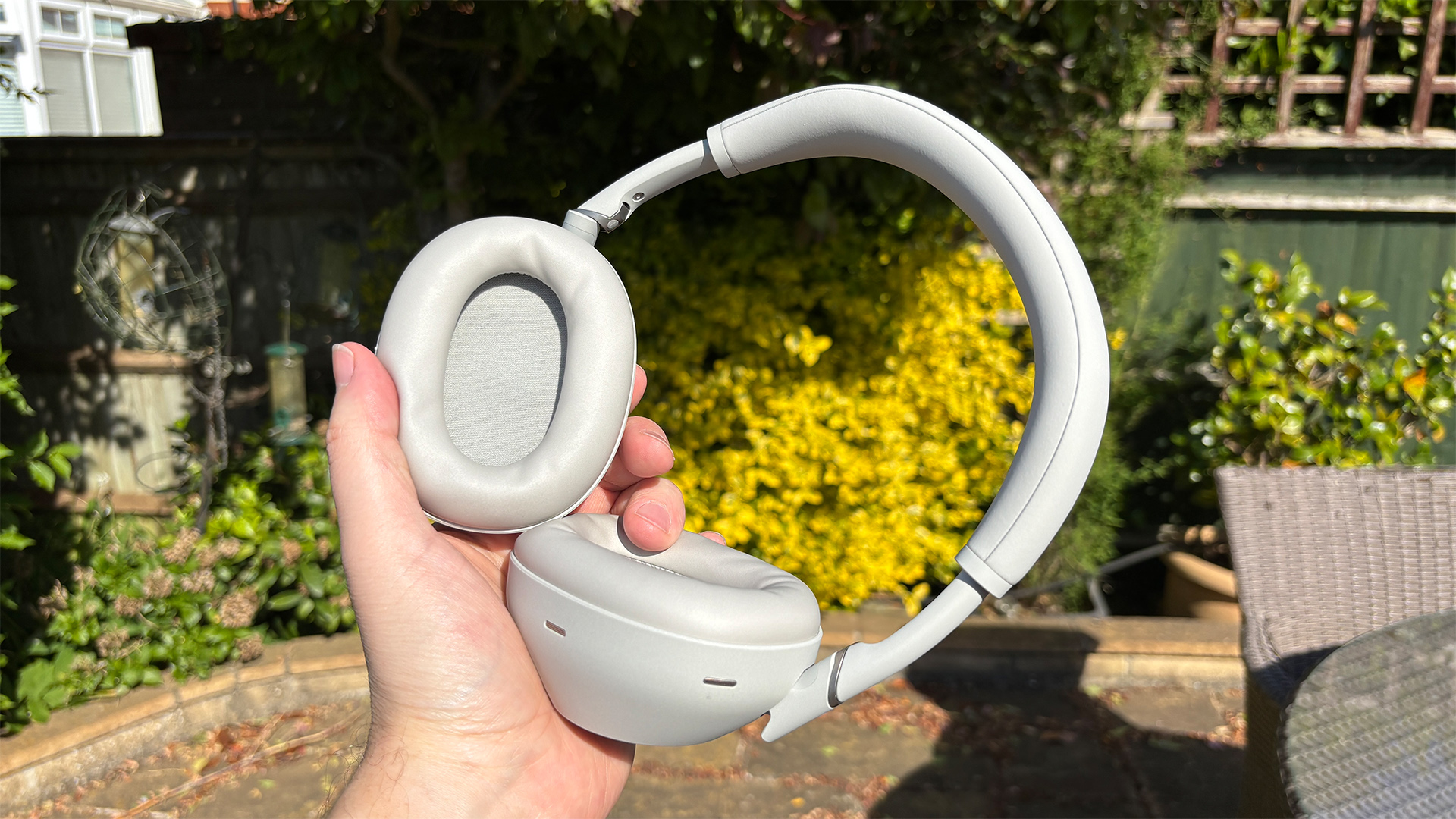
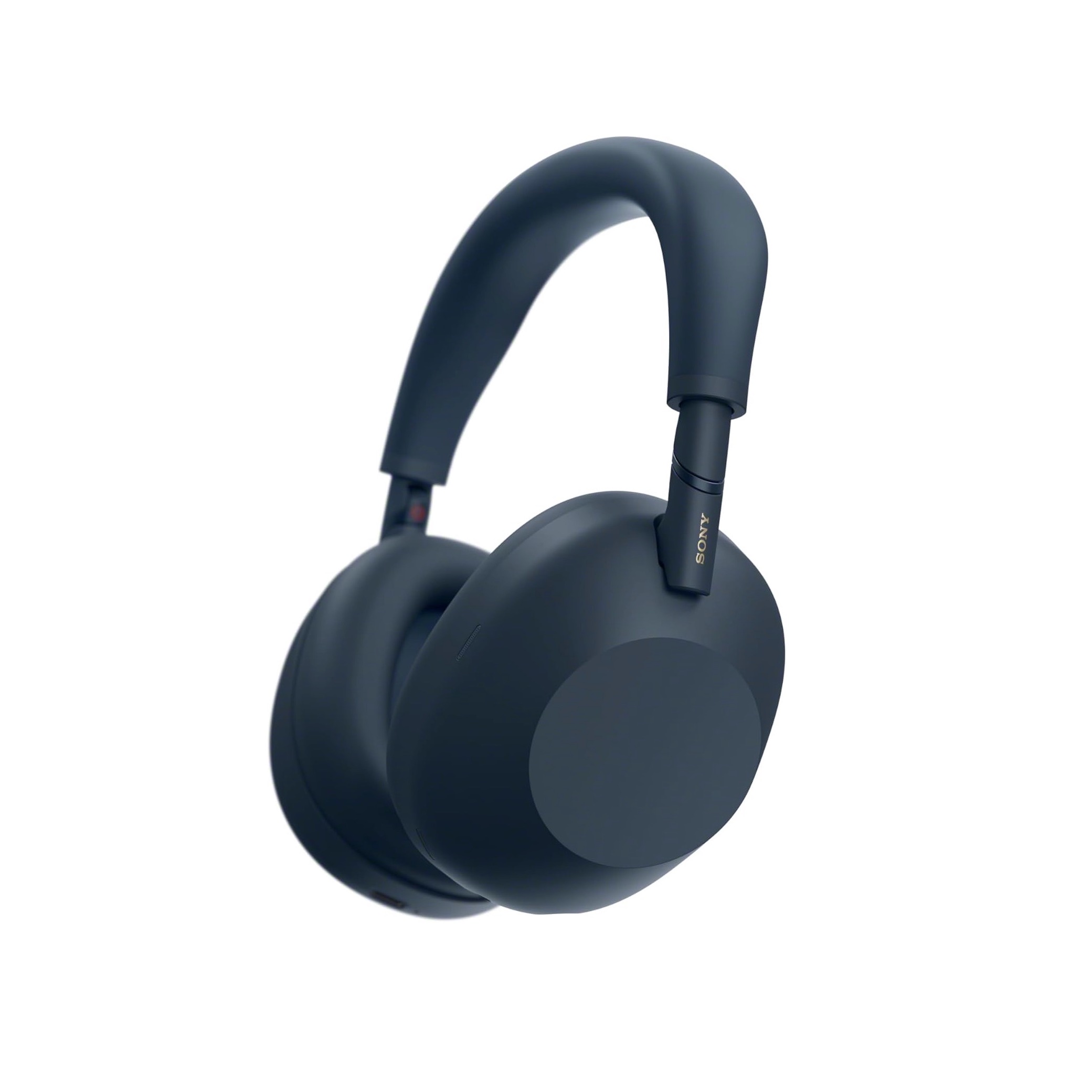
Sony has made improvements across the board, from the design and call quality to noise cancellation and the all-important sound quality. The XM6 are superb. But they are pricey, and unlikely to see a big discount anytime soon.
The XM4 are still competitive, considering they’re five years old, mainly due to their significantly cheaper price. They sound good and block noise well for their cost, but the XM6 are the superior pair and boast better ANC and call quality too.
Pros
Dynamic sound
Great sense of timing
Lightweight, comfy design
Cons
No IP rating
No aptX support
XM6 are superior
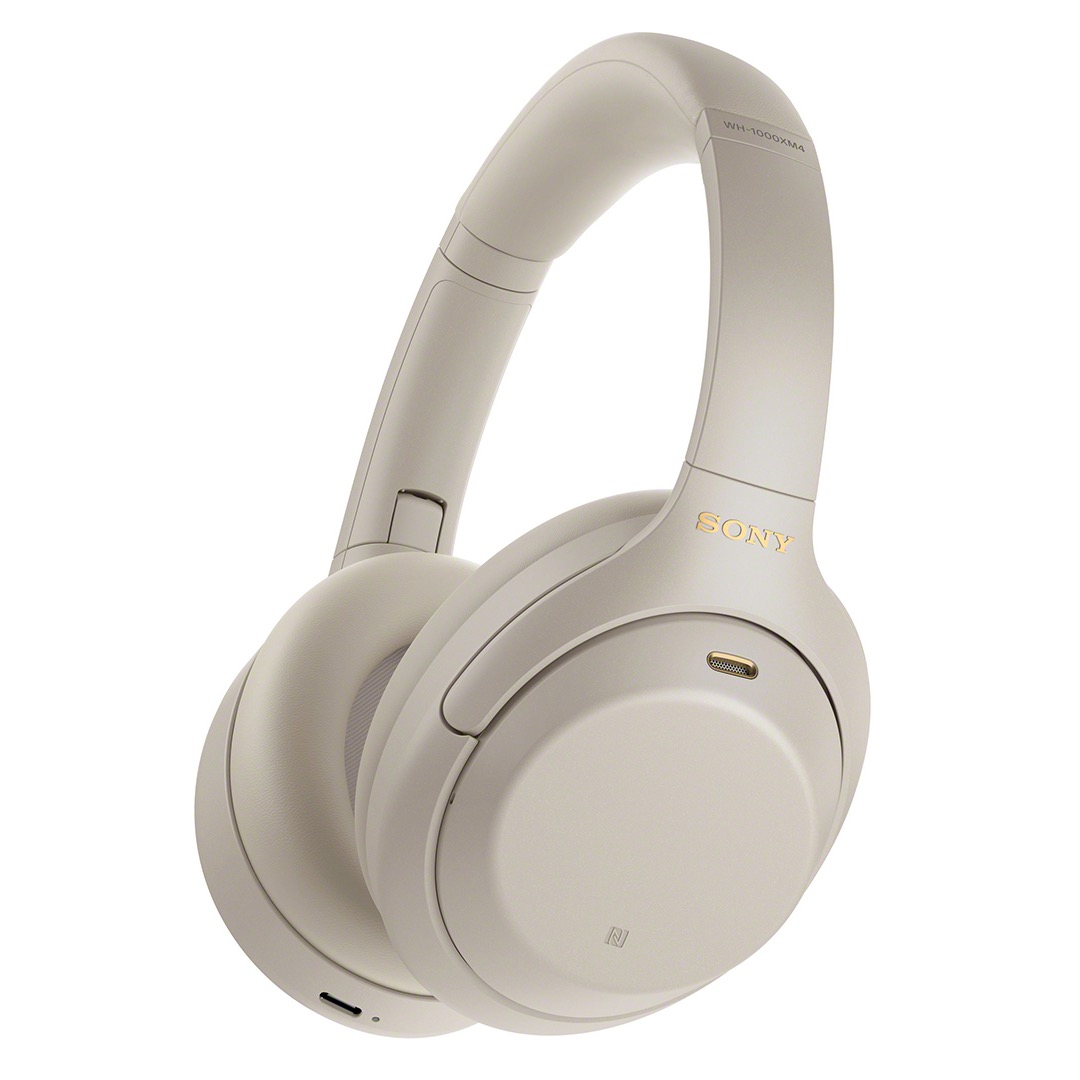
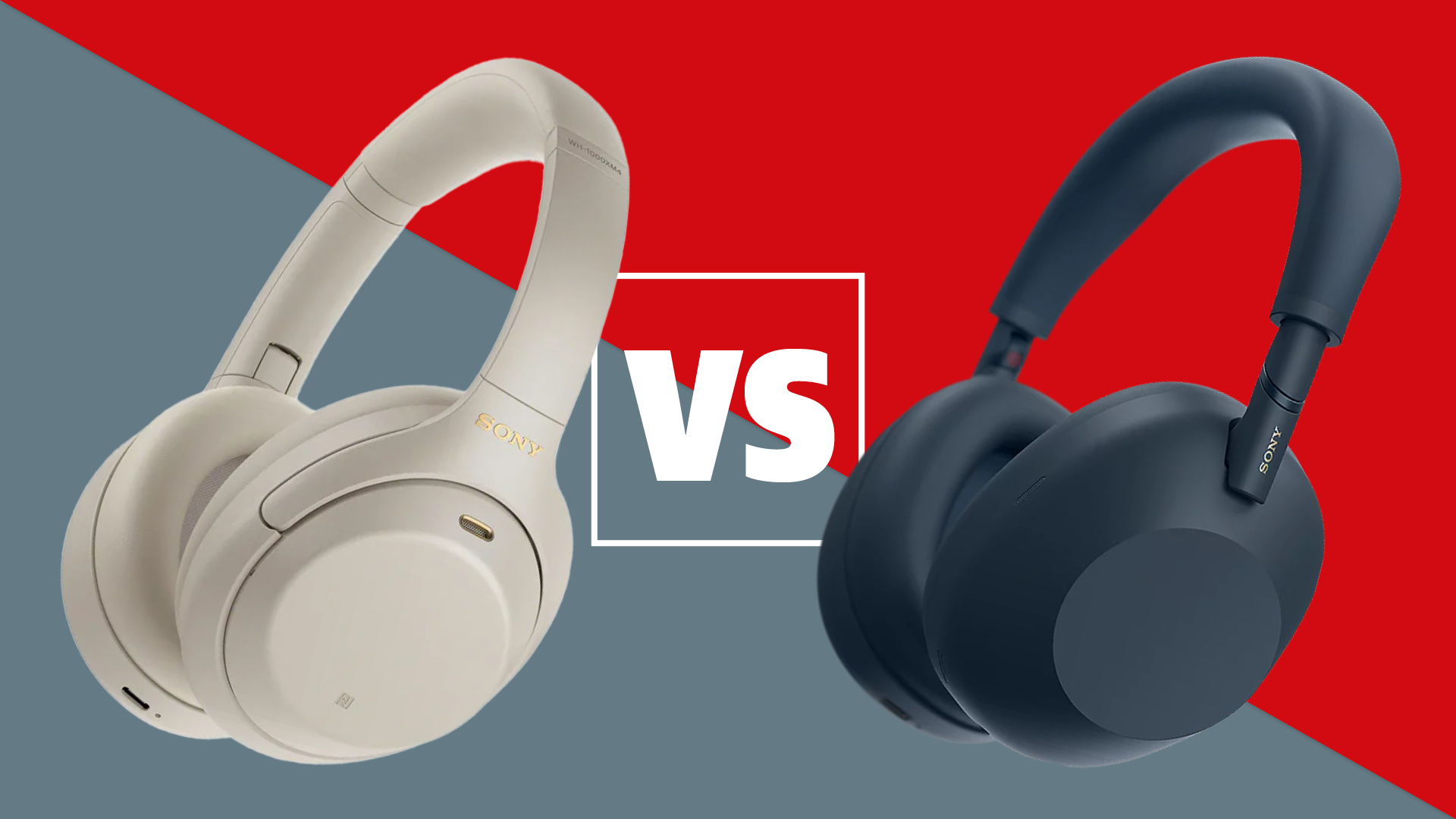
The newSony WH-1000XM6have arrived, and they are excellent. With a tweaked design and small but meaningful upgrades to active noise cancellation (ANC) and sound quality, they are definite improvements on the previous-genWH-1000XM5.
But how do they fare against the model fromtwogenerations ago, theWH-1000XM4? Remarkably, those 2020-launched headphones are still on sale, and naturally are going for a knockdown price. Could they be the better buy? Let’s find out…
This is one area that the XM4 have a clear advantage. They’ve been on sale for five years now, which is an age in headphone terms. As such, their price has come down significantly since their release.
They originally launched at £350 / $350 / AU$550, but now sell for closer to £200 / $220 / AU$380. That’s significantly cheaper than the brand-new XM6, which cost £399 / $449 / AU$699.
The XM6 might come down in theBlack Friday salecome November –Sonyheadphones often do – but given that they have only just launched, we wouldn’t expect anysizeablediscounts until next year.
It’s worth noting that Sony rarely has three pairs of wireless headphones on sale at once, so we’re not exactly sure how much longer XM4 will be on sale. While the XM5 will most likely be around for some time, the remaining XM4 stock might not.
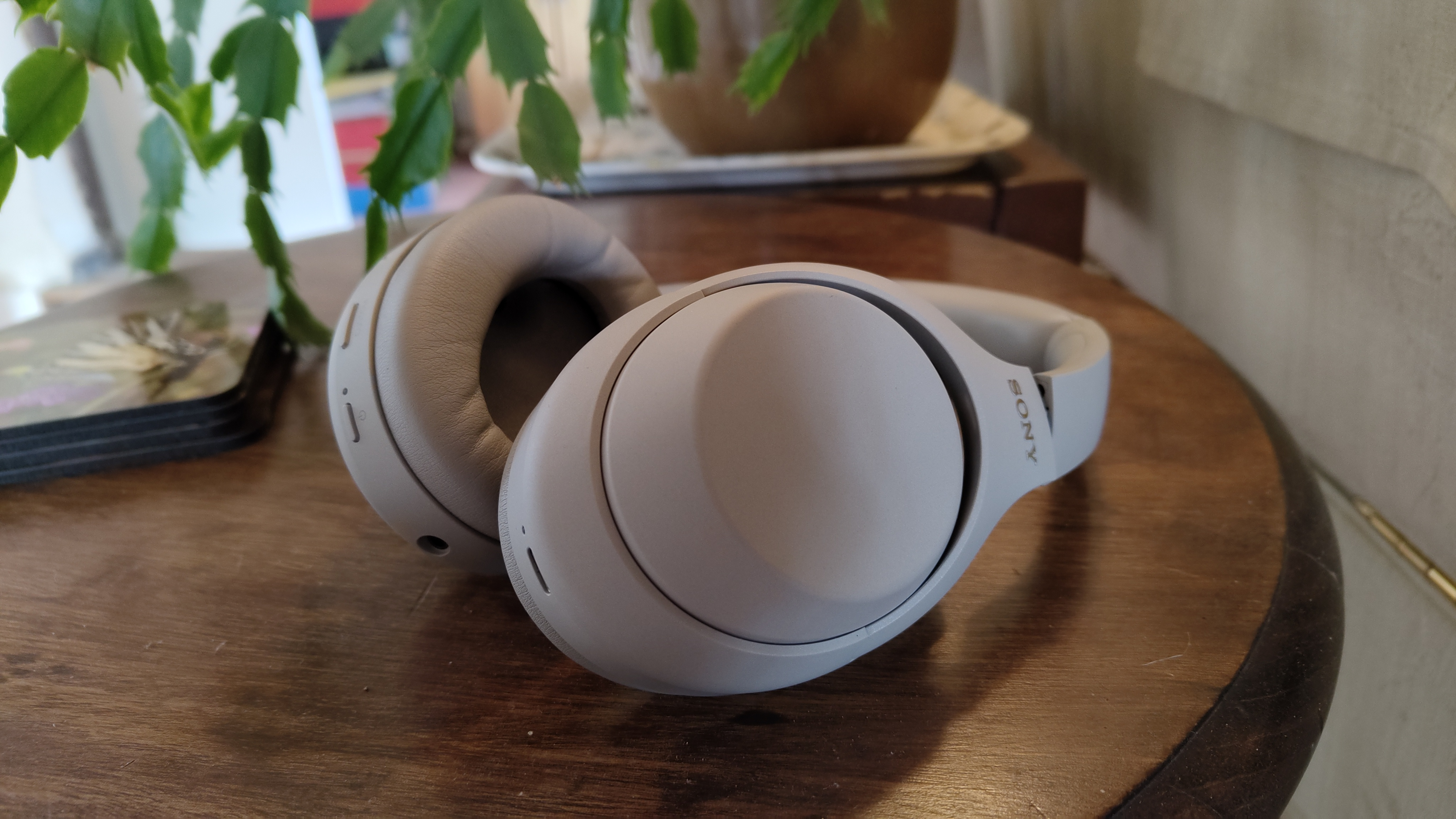
Again, five years is a long time in terms of headphone lifespan, so it isn’t surprising there are differences between the XM4 and XM6 in terms of design.
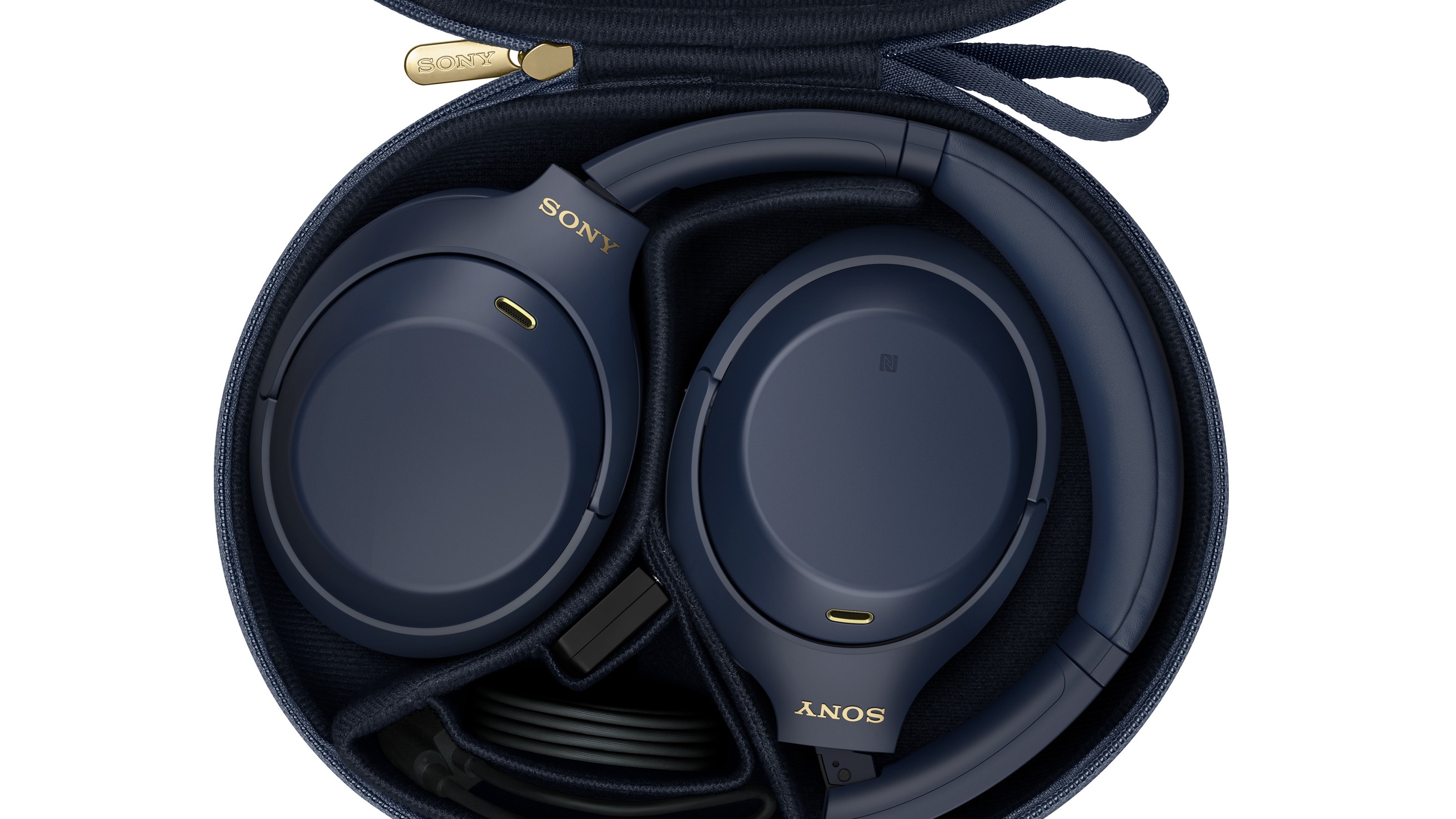
Both pairs have a fold mechanism, allowing them to fold up so you can carry them easily in a bag or coat pocket, but the XM6’s hinge mechanism looks different to the XM4’s. The sliders are noiseless and stepless on the WH-1000XM6, whereas they click on the older model.
The XM6 have a slightly tighter grip on your head than the XM4, too, but both pairs are very comfortable to wear and weigh exactly the same (254g).
Both pairs have touch controls. The headband on the XM6 is asymmetrical to help you see which way to put it on, while the band on XM4 is more uniform.
The XM6 bring some other tweaks too, such as its power button being circular and slightly recessed. The driver inside each earcup has also shrunk – the XM6 have a 30mm drive unit, whereas the XM4’s is 40mm. That may seem like a downgrade, but as we’ll see in later sections of this comprison, the smaller driver is more advanced.
The XM6 add a midnight blue finish to the standard silver and black of the XM4, and they have a new fingerprint-resistant material to keep them looking new. We’ll see how that plays out once we’ve subjected them to a few months’ use.
** Winner: Sony WH-1000XM6 **
Sony WH-1000XM6 vs XM4: features
This is where we start to see some ground open up between the two pairs. While the XM4 were groundbreaking in their day, five years on Sony has added plenty of features to the XM6 that are understandably lacking from the 2020 model.
A lot of this is courtesy of Sony’s new QN3 HD Noise Cancelling Processor. It’s seven times faster than the QN1 Noise Cancelling Processor found inside the last-gen XM5, which in turn was faster than the standard QN1 inside the XM4.
The XM6 have a new ‘look-ahead noise shaper’ that improves the digital-to-analogue conversion process by reducing distortion and improving dynamics.
They borrow tech from Sony’s Walkman range of high-end portable music players, too, such as a low-phase noise crystal oscillator to improve timing and gold-infused solder in parts of the circuit.
Sony’s 360 Reality Audio now has a spinoff for visual content, called 360 Reality Audio Upmix for Cinema. This converts a stereo audio mix to spatial audio to make it more immersive. And the XM6 have a 10-band equaliser and Gaming EQ for customising the sound further.
The battery life remains the same for both pairs – 30 hours with Bluetooth and noise-cancelling activated. But you can listen to the XM6 while you charge them, which you can’t with the XM4.
Both pairs lackaptX Bluetoothsupport, which will be a little frustrating if you own anaptX-supporting Android phone – but they do play nicely with Sony’s high-qualityLDACformat. And both can upscale compressed music files to near hi-res quality using their DSEE Extreme engine.
The XM6 also add next-genBluetooth LE AudioandAuracastsupport to their spec list. Both pairs supportBluetooth Multipointfor seamlessly switching between two wirelessly paired devices.
Quick Attention mode makes a welcome return to both pairs of headphones, allowing allowing you to lower the volume and have a conversation by covering the right earcup with your hand.
Also present and correct in both pairs are Speak to Chat (this pauses playback and engages the ambient sound mode when you’re talking) and Wearer Detection (this pauses playback when you take them off). The latter debuted on the XM4.
The XM4 introduced GPS data from your phone to adjust the ANC and ambient sound based on your location. XM6 also have this, plus an adaptive NC optimiser which automatically tweaks the noise cancellation levels based on the noise around you.
The XM4 also saw the introduction of Sony’s Precise Voice Pickup tech to prioritise voices over background sounds during calls. This continues with the XM6, but that pair’s greater number of microphones gives it clearer calls.
** Winner: Sony WH-1000XM6 **
Sony WH-1000XM6 vs XM4: noise cancellation
(Image credit: Sony)
In our original review, we described the XM4’s noise cancellation as “hugely impressive”.
“The Sonys have no trouble cutting out unwanted extraneous noise, from the rumble of a train as you pass under a railway bridge, to the hustle and bustle of a busy high street,” our expert reviews team wrote, adding that, in some environments, we actually prefer the XM4’s ANC to the XM5’s.
But the XM6 trump them both. While you can’t manually adjust the level of noise cancellation on the new model, the adaptive feature makes this pretty much redundant, as it optimises itself automatically.
They contain low-end and midrange noises extremely well, which is a godsend for anyone travelling by plane or public transport. Their ANC feels very natural too, and has less of a vacuum effect than theBose QuietComfort Ultra Headphones.
“We found the Sonys to be wonderfully consistent in dealing with bass and midrange rumblings and just giving you a nice clear background on which you can place your music,” readsour review.
** Winner: Sony WH-1000XM6 **
Sony WH-1000XM6 vs XM4: sound
And so to sound quality, the true test of any headphones.
Sony’s pairs have excelled in this department in recent years, and so it’s a familiar story – the XM6 sound better, with significant sonic advances made in the intervening years. But the XM4 hold up surprisingly well considering their discounted price. For the money, they’re arguably the best option around.
Dynamic shifts are handled with ease, and their sense of pace and agility means they’re right at home with music of all genres. They’re musical, well-balanced and very easy to listen to. If you can’t spend big on the XM6, XM5 or current models fromSennheiserorBose, we reckon you’ll be pleased with the sound the XM4 deliver.
But of course they’re outdone by the XM6, which offer, to quote our review, “the most detailed, dynamic, precise and open sound we’ve heard from a wireless Sony flagship”.
Detail levels are off the chart, playing host to the full dynamic contrast and plenty of texture. Musical elements sound fantastic in their own right, and come together into a cohesive whole.
Rhythmic drive, openness, dynamics… they’re all a step up from the XM5, which in turn offer decent sonic improvements on the XM4.
But if money is a bit tight and you want a taste of Sony’s multi-award-winning sound signature at half the price, the XM4 fit the bill perfectly.
** Winner: Sony WH-1000XM6 **
Sony WH-1000XM6 vs XM4: verdict
So there you have it. It’s not a great surprise that the XM6 are the more capable and attractive headphones. But what is a surprise – and a pleasant one at that – is that the XM4 still make a decent case for themselves at their discounted price.
They’re comfortable, offer some of the same features as the XM6, and still sound competitive at their price.
If you have the budget, the XM6 are the wireless headphones to beat right now. But if you don’t have the money for them or the XM5, the XM4 aren’t a bad shout at all in what must be their final months of shelf life.
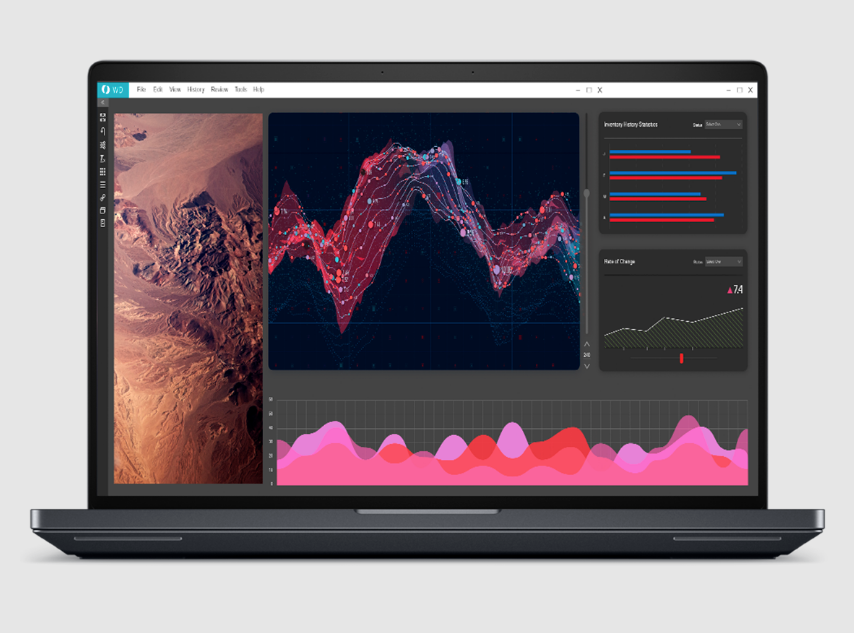
Dell’s Pro Max Plus is built to run massive AI models locally. No GPU, no cloud, no compromises.
(Image credit: Dell)
At Dell Technologies World 2025 this month, one laptop quietly stole the show, and it didn’t even have a GPU.
The new Dell Precision Pro Max Plus is a mobile workstation with a bold twist: It ditches the graphics card for an enterprise-grade discrete NPU.
That might sound niche, but it’s a big deal. This is the first notebook we’ve seen that treats AI as the primary workload, not graphics, gaming, or CAD. It’s powered by a dual-chip Qualcomm AI 100 card with 64GB of dedicated memory. Dell ran a 109-billion-parameter Llama 4 model in a live demo on the laptop without an Internet connection or cloud server.
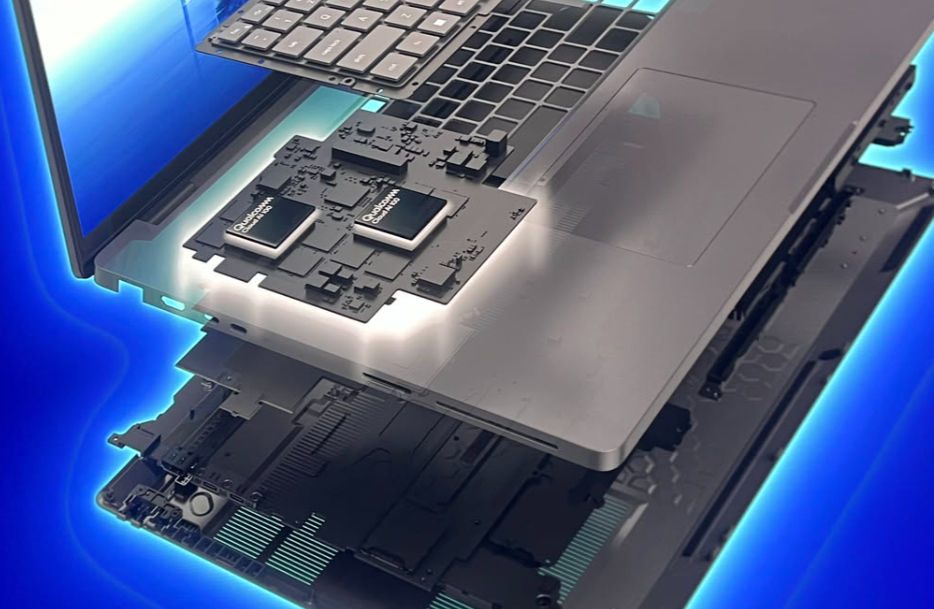
Dell Pro Max Plus Laptop with Qualcomm AI 100 dedicated NPU Internals Render
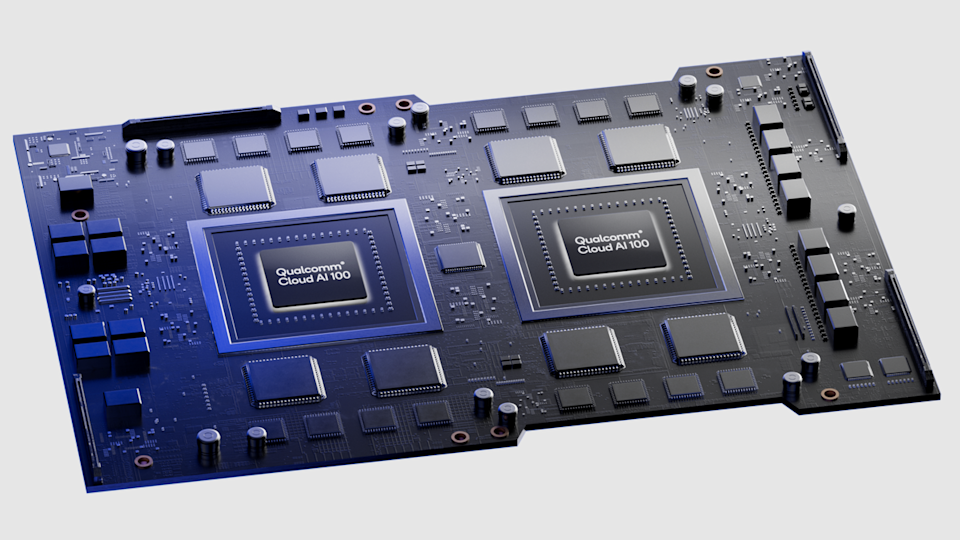
The star of the show is the Qualcomm AI 100 PC Inference Card. It’s a dual-SoC module based on Qualcomm’s Cloud AI 100 chip, silicon that was originally designed for data centers.
In this configuration, you get 32 AI cores, 64GB of LPDDR4x memory, and around 450 TOPS (trillions of operations per second) of 8-bit AI compute. That’s an order of magnitude more AI power than even the latest Copilot+ PCs.
To make room for this monster, Dell removed the GPU entirely. Unlike other Pro Max Plus configs that offer Nvidia RTX graphics, this model swaps the discrete GPU slot for the Qualcomm card. That’s a trade-off for sure, but if you’re not rendering video or playing games, it’s a smart one.
Let’s talk raw AI power. Apple’s M4 MacBook Pro has a 16-core Neural Engine that maxes out around 38 TOPS. Intel’s upcoming Lunar Lake CPUs hit around 48 TOPS. Snapdragon X Elite sits at 45 TOPS, and AMD’s best integrated NPUs are around 55 TOPS. Dell’s Pro Max Plus? 450. That’s ten times more TOPS than the Snapdragon X Elite.
Platform
AI Accelerator
Peak TOPS
Dell Pro Max Plus
Qualcomm AI 100 (discrete)
~450
Apple MacBook Pro (M4)
Apple Neural Engine (integrated)
~38
Snapdragon X Elite
Hexagon NPU (integrated)
~45
Intel Lunar Lake
NPU 4 (integrated)
~48
AMD Ryzen AI
AMD NPU (integrated)
~55
This isn’t just about numbers, though. Dell’s card has a 64GB memory pool, meaning it can keep huge models entirely in local RAM without pulling from system memory.
That’s essential for developers working with large LLMs, vision models, or local inference.
It’s important to be mindful of who this machine is actually for. It’s not for gamers, students, or your average office user. Rather, the Pro Max Plus, with its discrete NPU, is aimed at data scientists, AI engineers, and developers who need to run massive models offline, securely, and on the go.
At Dell Technologies World, the company demonstrated its new Pro AI Studio toolkit running on the device. It includes use cases like modifying code in a game engine with natural language and deploying fine-tuned models without touching the cloud.
There are apparent advantages here for high-security industries. Running sensitive data through a local model means no cloud leaks or latency risk.
This workstation is effectively an AI edge server you can throw in a backpack. That opens the door for field applications in defense, healthcare, manufacturing, or disaster response: Anywhere fast, private AI inference is needed on the edge.
Looking under the hood
The Qualcomm AI 100 card is built on a 7nm process and uses two chips connected over PCIe. Each one offers 16 AI cores and 32GB of memory. Together, they act as a unified engine with enough bandwidth to handle some of the largest models available today.
In terms of thermal management, the card is designed to operate under a 75W thermal design power, which is considerably more than typical NPUs found in consumer laptops (usually under 10W). That means Dell had to account for additional cooling and power delivery, but in return, you get server-class performance without a server.
Apple’s M3 and Intel Lunar Lake are both fabbed on advanced 3nm TSMC nodes, while Snapdragon X Elite and AMD Ryzen AI are built on 4nm. Qualcomm’s 7nm tech may be older, but it’s optimized for efficiency under sustained AI load.
Sure, it won’t render a Pixar movie, but it will run Llama 4 Scout locally… and that’s arguably a more impressive flex nowadays.
The Qualcomm Cloud AI 100 card powering Dell’s Pro Max Plus delivers 450 TOPS of AI compute—ten times more than most integrated NPUs. (Image credit: Dell)
What does this all mean for workstation laptops?
The arrival of discrete NPUs in laptops like the Pro Max Plus marks a major inflection point in mobile computing. Michael Dell summed it up during the opening keynote of Dell Technologies World 2025: “Personal productivity is being reinvented by AI. We’re ready.”
Historically, workstation-class machines have revolved around GPUs, but PUs are general-purpose compute units that weren’t purpose-built for deep learning inference. With the Pro Max Plus, it’s clear Dell isn’t just ready: It’s pushing the workstation category into uncharted territory.
Dedicated NPUs, especially ones with large memory pools and optimized interconnects, change the game. They’re smaller, more power-efficient, and deliver far more performance per watt for AI-specific tasks.
This unlocks use cases previously restricted to datacenter servers or cloud instances for professionals building and deploying AI models.
Expect more vendors to follow suit. We’re already seeing Copilot+ PCs push integrated NPU performance, but Dell’s move hints at a future where premium workstations could offer GPU, NPU, or hybrid configurations.
If you’re building the future of AI, your next workstation might not have a GPU. And with laptops like this, it might not need one.
On average, a laptop can easily last four to five years, sometimes even longer if you take good care of it. Over time, though, you might start to notice it slowing down. In such cases, a common tip for improving performance is to upgrade the RAM (Random Access Memory), since it plays a big role in how fast your system runs. That, however, may not be an option if your laptop uses soldered RAM. So, what exactly is soldered RAM?
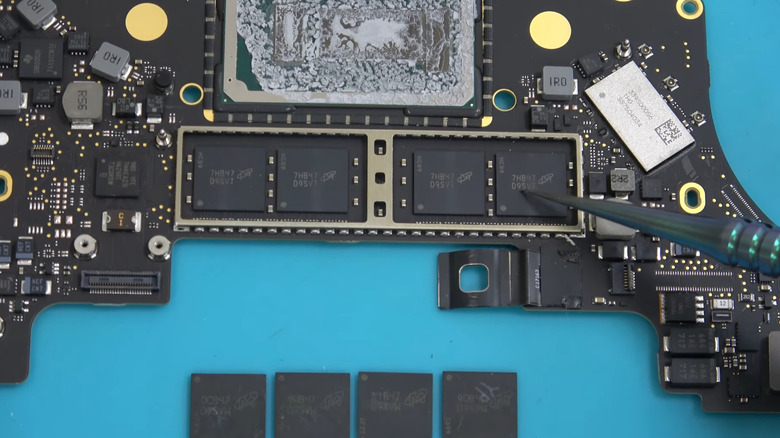
Soldered RAM, as you can probably guess from the name, is memory that’s permanently attached to the motherboard, meaning it’s not possible to remove or upgrade it. In contrast, laptops without soldered RAM usually use removable memory sticks, which makes it easy for users to swap or upgrade RAM when needed.
Soldered RAM offers several advantages. For one, since it is attached directly to the motherboard, there’s no need for separate RAM slots and connectors. This saves space and allows laptops to be slimmer and lighter. A prime example of this is Apple’s MacBooks, which have used soldered RAM for years. Soldered RAM can also deliver faster data transfer speeds and improved bandwidth, which is necessary for laptops built to handle AI processors. Finally, soldered RAM tends to be more durable than traditional memory sticks, since there are fewer physical components that can loosen or fail over time.
While there are valid reasons for manufacturers to use soldered RAM in laptops, it does come with some clear downsides. The most obvious is the lack of upgradability. If your laptop has soldered memory and you ever want to upgrade or replace it, you’re out of options. This is something that might not matter to the average user, but for tech-savvy users, it’s a real pain point.
To make up for the lack of upgradability, you’ll need to choose a model with more RAM right from the start. Another good option is a laptop that has both soldered RAM and an extra RAM slot. This will give you the flexibility to add more RAM later if needed. Essentially, soldered RAM in laptops makes it important to think ahead and future-proof your purchase.
Another downside of soldered RAM in laptops is that it makes repairing difficult and more costly. Since the RAM is permanently attached to the motherboard, a failure means replacing the entire motherboard instead of just swapping out the faulty memory. This, of course, can drive up the cost significantly. The best way to find out if a laptop uses soldered RAM is to check the manufacturer’s official documentation.
The short answer to this is no, at least not for most people. There are other important laptop components, like the CPU and GPU, that are already non-upgradeable, and soldered RAM is just another one on that list. Also, soldered RAM isn’t necessarily bad as it offers benefits such as better speeds, increased reliability, and efficient use of internal space.
If you’re concerned about your laptop becoming slow over time, upgrading the RAM isn’t the only solution. There are ways to make Windows 11 run faster and even speed up your slow Mac by minimizing startup apps, cutting down on background processes, clearing up disk space, or switching to a high-performance power plan.
Finally, while upgrading the RAM can help, it can’t magically solve everything and make your laptop last longer. If your laptop is already showing signs of wear, it might actually be smarter to replace it instead of throwing money at upgrades. Plus, you can still repurpose your old laptop for something useful like a home security hub or a game server.
A mouse on a Nintendo console menu!GIF: Nintendo Today app
Summary
Nintendo Switch 2 supports USB mice at launch for precise controls in Nobunaga’s Ambition.
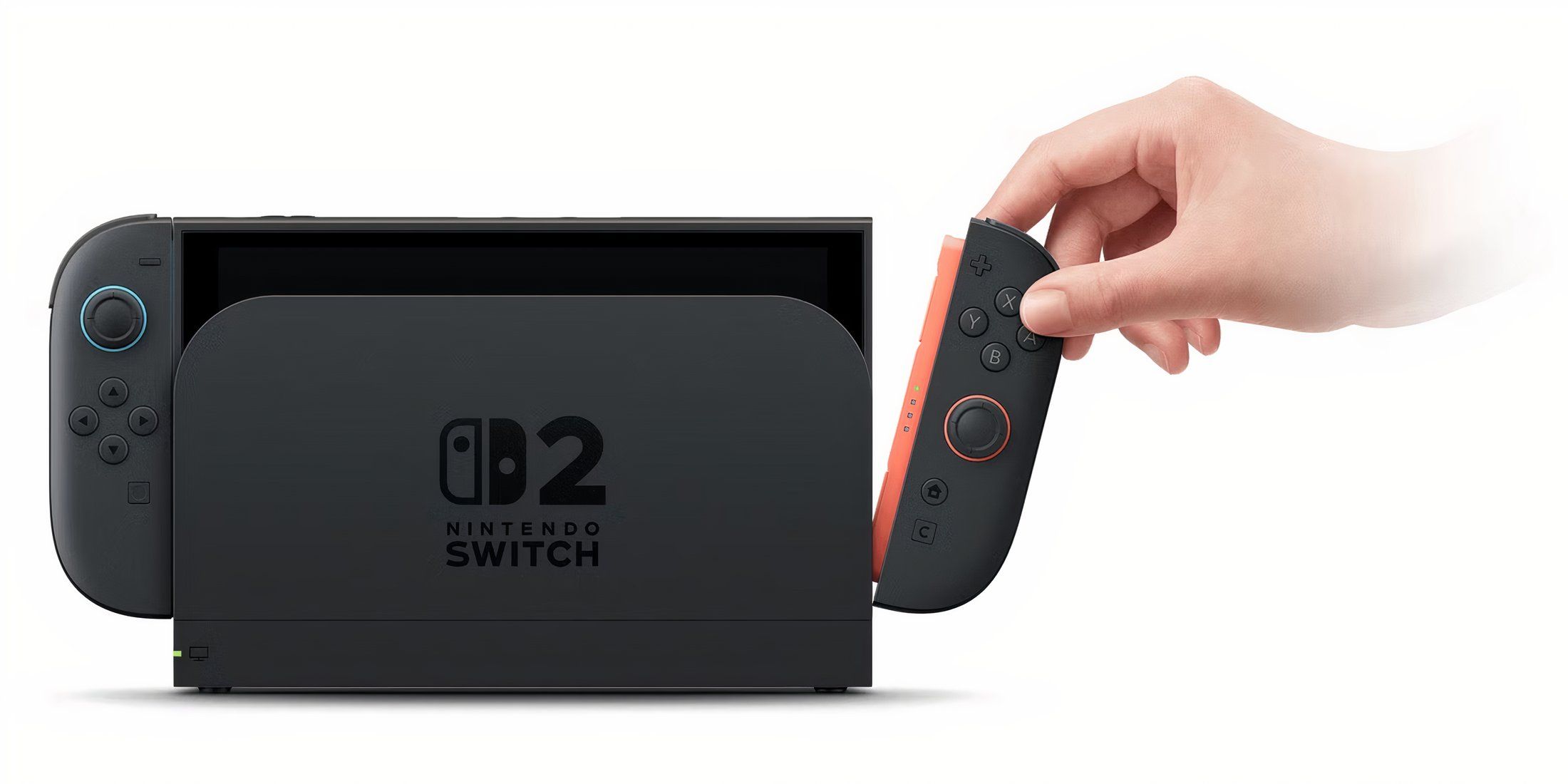
Joy-Con 2 has mouse-like input, but players can also use an external USB mouse in the Switch 2 for more control options in at least one game.
Nintendo Switch 2is confirmed to support USB mice at launch forNobunaga’s Ambition: Awakening Complete Edition, one of the games announced for the platform. This means thatNintendo Switch 2players will have the option to choose between the Joy-Con 2 and a USB peripheral for using mouse controls in at least one supported game.
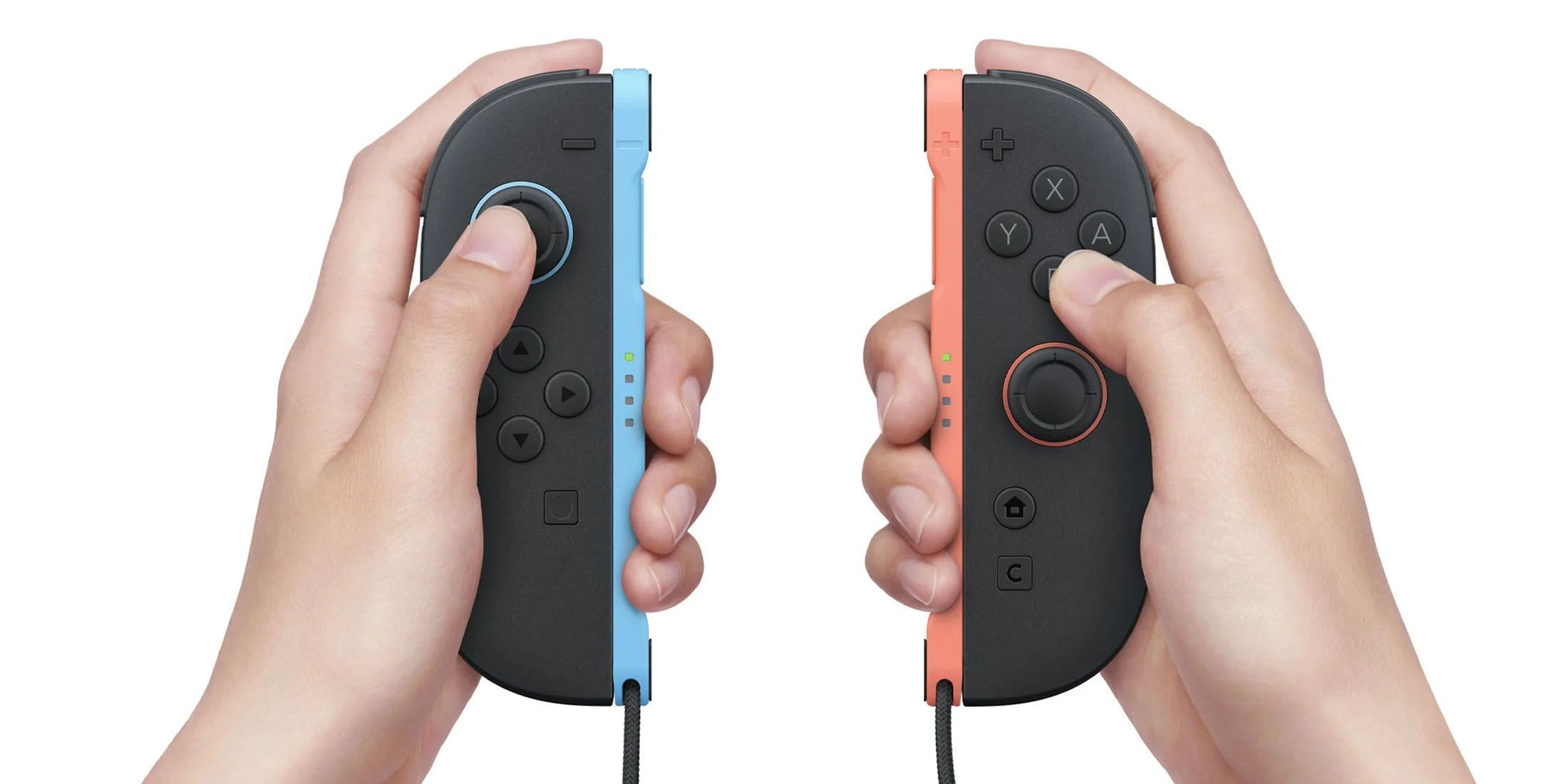
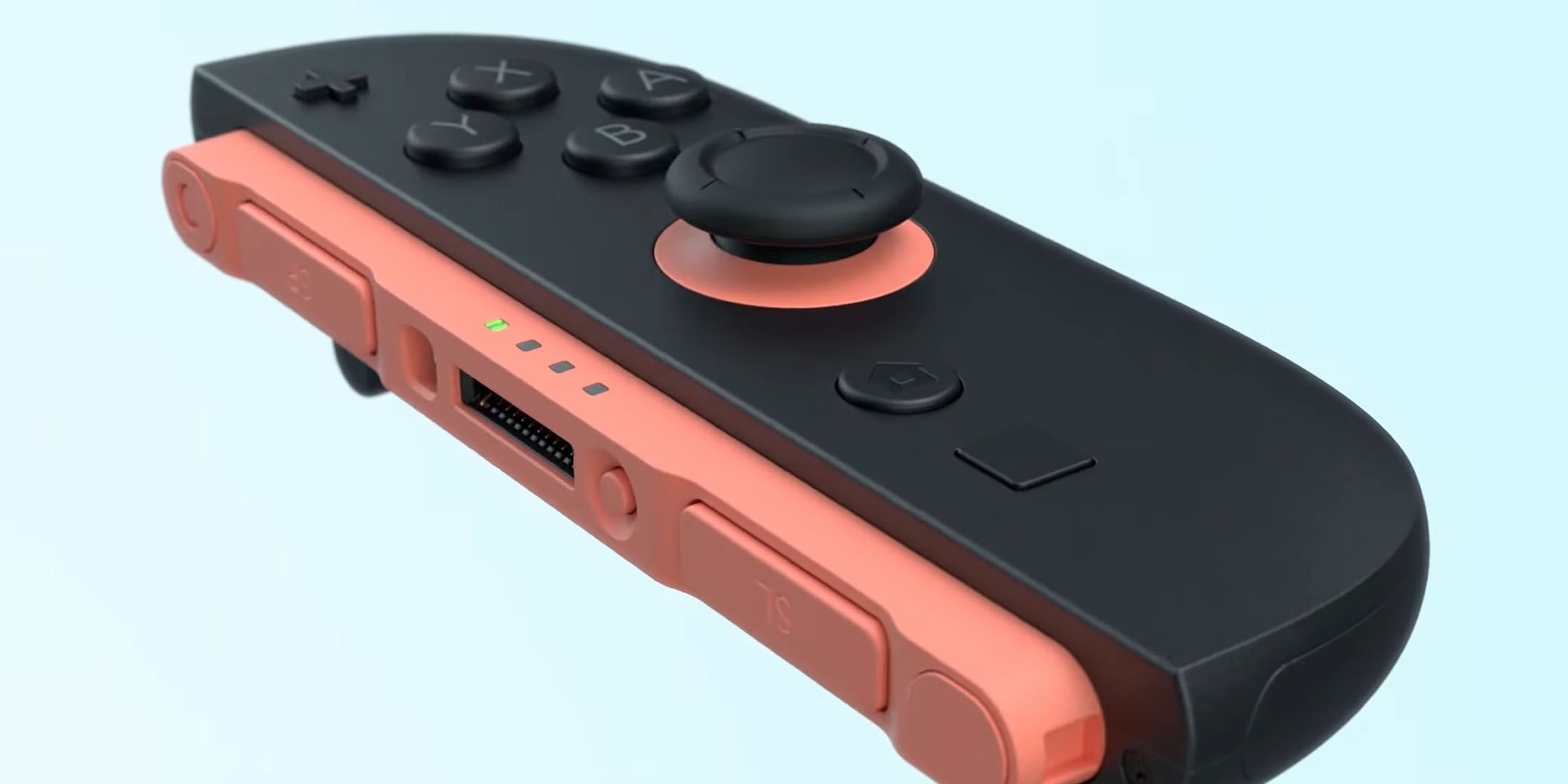
Controllers used in console gaming have been criticized for lacking the precision offered by a mouse for a long time, especially when playing genres such as first-person shooters. To address this shortcoming,Nintendo has incorporated mouse controlsinto the Joy-Con 2, the detachable controllers that come bundled with the highly-awaited Switch 2. It is one of the key highlights of the Japanese gaming giant’s next-gen system and lets players use either of the two Joy-Cons to mimic mouse-like input. Even though this particular functionality is now set to be available out-of-the-box with the Switch 2, it turns out that the console maker has still gone ahead and given players the option to use an external USB mouse if they wish to, at least for one launch title.
In a recentgameplay video forNobunaga’s Ambition: Awakening Complete Edition, a Koei Tecmo rep showed how to play the strategy game on the Switch 2 with a USB mouse. He stated that the mouse takes precedence in the game as soon as it is plugged in, with a prompt on the top-left of the screen confirming the connection. As shown in the demonstration, the players will be able to seamlessly swap between the USB peripheral and the Joy-Con 2, with the in-game cursor changing based on which of the two is used. On top of that, the clip also revealed the ability to simultaneously use the USB mouse and the Joy-Con 2 in the game, which could be useful in certain scenarios. In the case of this particularSwitch 2 game, players can opt for the USB mouse for precise navigation while still being able to quickly access on-screen UI elements using the Joy-Con 2’s buttons. However, it’s not clear at this time if a standard USB mouse will be usable in any other games.
Nintendo Switch 2 Works with USB Mice, Similar to its Predecessor
It’s worth mentioning that the support for USB mice isn’t something new for Nintendo as the original Switch also offered this feature, albeit only in select titles. A handful of Switch games, ranging from Quake to Factorio, are compatible with not only mouse but also keyboard peripherals through a USB connection. Given that the Switch 2 has now also been confirmed to support the mouse in the aforementioned game, it might be fair to think that the hybrid console could work with a USB keyboard as well, at least in some games.
The mouse-like features of Joy-Con 2 are one aspect that the devs have discussed interesting possibilities for. Recently, CD Projekt Red also shared how Switch 2’s unique controls would fit into Cyberpunk 2077‘s gameplay, revealing that the player could swing their katanas in the game using the Joy-Con 2’s motion controls.
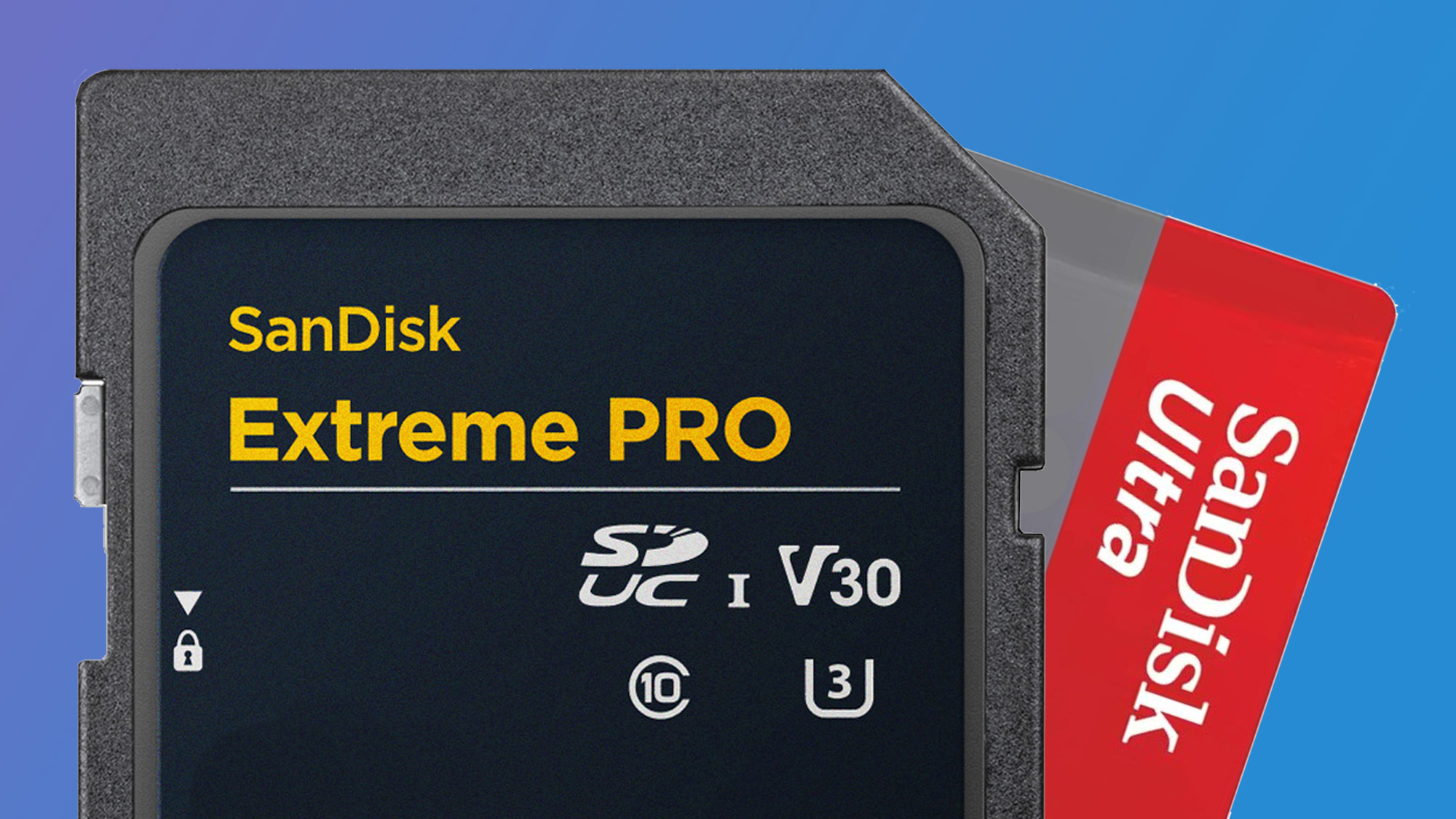
From 8MB to 8TB: SD card’s insane 1,000,000x growth no one saw coming
(Image credit: SanDisk)
A modest beginning with massive growth over 25 years
Over 12 billion SD and microSD cards have been sold across consumer and industrial devices
SD Express cards now reach speeds of 4GB/s, up from just 12.5MB/s in 2000
When the first SD memory card hit the market in 2000, it offered a modest 8MB of storage. At the time, this was a practical solution for the relatively small demands of digital cameras and early portable media devices.
Twenty-five years later, SD and microSD cards have evolved into high-performance storage mediums, with capacities reaching up to 8TB following the launch of theSanDisk Extreme Proin 2024.
According to the SD Association (SDA), a consortium of nearly 800 technology companies, this represents a capacity increase of over one million times.
MicroSD, which marks its 20th anniversary in 2025, has been particularly credited with shaping mobile device capabilities.
“Selfies, mobile phone photography, enjoying music and videos on a mobile phone all became possible because of innovation driven by the SDA,” the association noted.
Today, thebest microSD cardsandSD cardsremain widely used in smartphones, cameras, drones, gaming consoles, and IoT devices.
Even with the rise ofUSB-C flash drivesand cloud syncing services, SD technology continues to hold its place.
“SD memory cards continue delivering portability and convenience, letting people upgrade the storage in their devices at any time thanks to the dedication and vision of our nearly 800 SDA members,” said Yosi Pinto, Chairman of the SDA.
The SDA reports that more than 12 billion SD and microSD cards have been sold globally. While volumes increase, performance is also improving.
In 2000, card speeds were around 12.5MB per second. Modern cards using the SD Express standard can reach nearly 4GB per second, a speed improvement of more than 300 times.
With these gains, SD technology is approaching SSD-level performance, a development especially important as gaming, VR, and AI workloads drive demand for faster, high-capacity storage.
That said, internal storage is becoming more affordable, and reliance on the cloud continues to grow. This raises the question of whether external cards will remain essential or shift into niche roles. However, the SDA remains confident.
“We expect SD memory cards to remain a critical, cost-effective storage option across a variety of applications and devices in the future, since 394 zettabytes of data is expected to be created by 2028,” said Hiroyuki Sakamoto, President of the SDA.
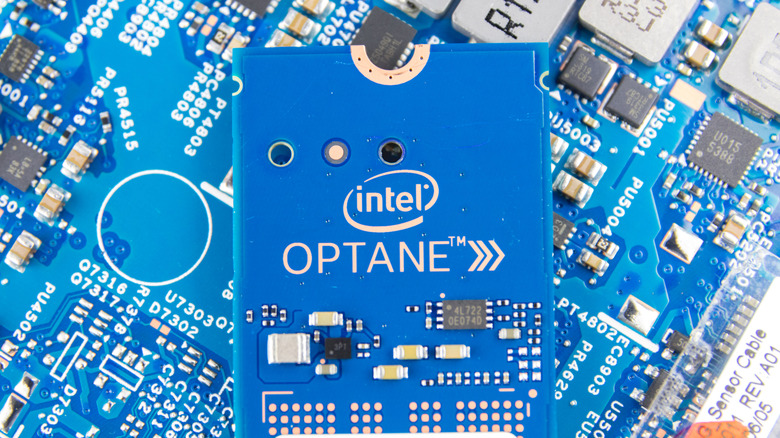
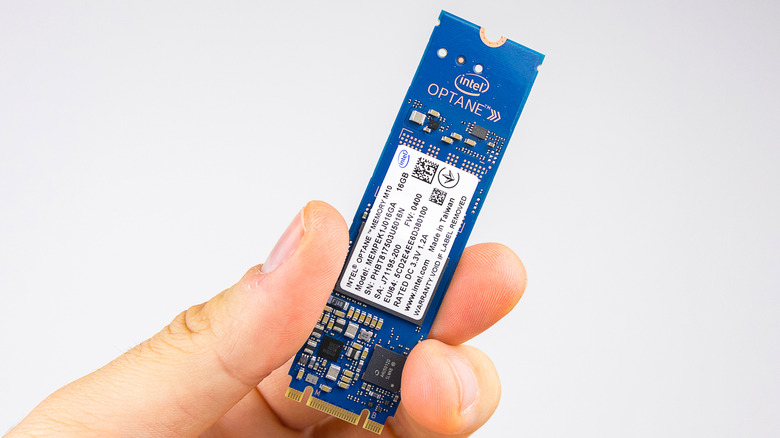
When Intel introduced its Optane memory solution, it was deemed the future of computing. “For the first time ever, we’ll be able to equip computers with memory that’s faster than NAND and more dense than DRAM, and nonvolatile,” the company said. Unfortunately, the product’s consumer market innings lasted merely half a decade before Intel pulled the plug on the whole endeavor. But, Intel is no stranger to killing products, both symbolic and strategic.
The cancellation of its highly ambitious AI chip project was also accompanied by the exit of company veteran and CEO, Pat Gelsinger, earlier this year. The same year, Intel put the NUC mini PC platform on cold ice. Intel even put an Atom chip inside an Android Wear smartwatch made by TAG Heuer, and then quietly abandoned those wearable ambitions. The list of dead and discontinued products at Intel is quite long, and nearly in the same league as the famed Google Graveyard.
With the Optane memory solution, the writing had been on the wall, at least from the market analysts’ perspective. To the last day, Intel was adamant that Optane was a tech stack ahead of its time, but it couldn’t evolve into a profitable business for the company. How much was the hit? Intel lost billions each year on the Optane business, and eventually had to write off assets worth over half a billion dollars when it announced its death.
Intel Optane was somewhat of a bridge between traditional RAM and storage modules, with the sole objective of speeding things up inside your computer. Intel officially referred to it as a system acceleration solution that would spped up data transfer between SSDs and the processing unit. The net result of those memory and storage innovations was faster boot time, quicker search and discovery of assets, quicker app launch, and overall enhanced responsiveness on Optane-powered machines.
At the heart of it was the non-volatile, dense 3D XPoint memory, which was achieved using sliced submicroscopic layers connected by perpendicular wires and stacked to enhance the memory density into a single, small package. Now, this tech was jointly developed by Intel and memory giant Micron. In 2021, Macron announced that it was shutting down development of 3D XPoint memory. The same year, Intel revealed that it was killing the Optane SSD platform built atop the PCIe 4.0 bus standard. By the end of 2021, Intel had sold its SSD and NND memory business to Korean memory chip giant, SK Hynix.
A few weeks later, Intel chief Gelsinger explained in an interview why he wanted the company to dump its memory business. “I never want to be in memory,” he told Stratechery. Months later, Intel announced in its Q2 2022 earnings that it was winding down its Optane business, which resulted in an inventory write-off worth $559 million. Intel didn’t outright reveal why, but in a statement shared with the press, the company hinted that it was not a “sufficiently profitable” venture.
If you are still rocking a computing machine, such as a laptop powered by 11th Gen Intel processors and the Intel Optane SSD solution, you are “temporarily” fine. On the operating system side of things, Intel says the Optane memory is compatible with the 64-bit version of Windows 11 and 10. However, if you haven’t made the jump to Windows 11 yet, prepare for the shift. On October 14, 2025, Microsoft will end official support for Windows 10.
If you invested in an Intel Optane-powered computing machine, the company will honor the standard 5-year warranty, calculated from the date of purchase. But do keep in mind that Intel is no longer offering services related to Optane products. For example, if you purchased a product with one of Intel’s Optane 8 and 9 series SSDs, they have already reached the End of Servicing (ESU), End of Life (EOL), and End of Interactive Support (EOIS) deadlines, as of 2024.
Similar is the status of Intel Optane H and M-series memory solutions. The sole exception is the Intel Optane Persistent Memory 100 Series, which is going to reach the EOIS status on June 30, 2025. Notably, Intel had already ceased to provide firmware updates and the necessary software tools for storage and memory tools in March this year. In a nutshell, your Optane machine will continue to work, but don’t expect a fix if something is broken, and of course, don’t buy any fresh Optane hardware.
WhenAppleopened its first retail stores in Tysons, Virginia, and Glendale, California, back in 2021, the goal was to let peopletouchthe tech and connect with it in a way that glossy print ads never could.
While your local Apple Store may still be a bustling place on the regular, the retail world has changed a lot over the past twenty-four years.
Online shopping dominates, and most of us have giddily traded the instant gratification of immediately leaving a store with product in hand for the one-click convenience of cashing out your virtual shopping cart in your PJs, only for your shiny newiPhoneor AirPods to show up on your doorstep a few days later.
But what if there was a third option? One with the benefits of both?
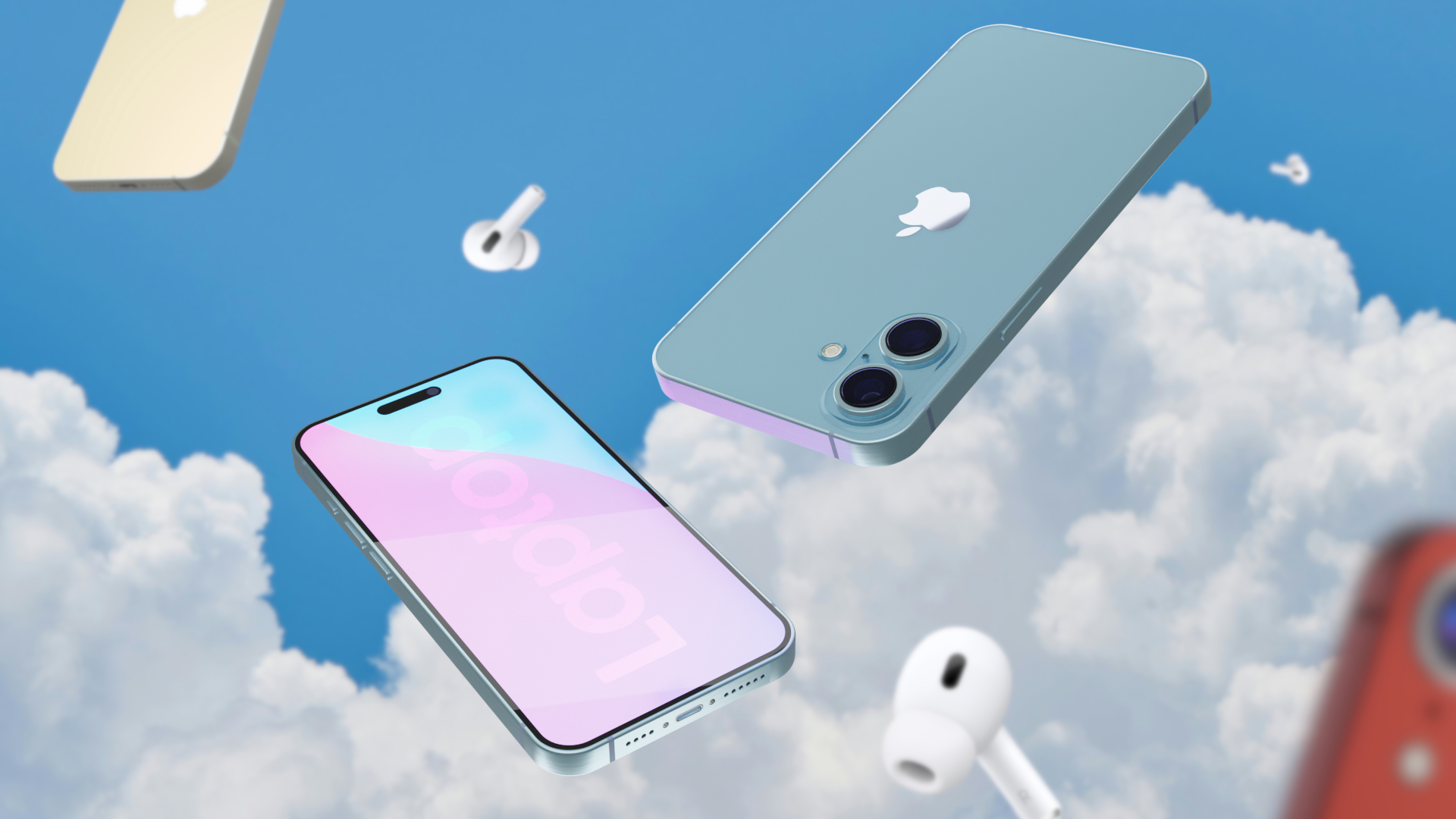
What if you could buy an iPhone, AirPods, or a new set of Apple AirTags in your PJs, step outside, and have them rain down from the sky into your eager arms within the hour?
You could call itthe most literal version of AirDrop to date.
And, in parts of the U.S., you can now call it a reality — thanks to Amazon.
If you’ve ever ordered an Apple product online, you’re probably well aware of the usual routine: confirmation email, obsessive tracking, and the anxiety loop of peering out of the window every five minutes while your parcel is “out for delivery” — lest you be plundered by porch pirates.
However, in a handful of U.S. cities, some Apple products are skipping the store, skipping the delivery truck, and skipping the porch entirely.
Instead, they’re arriving by air.
Skipping the Apple Store for Amazon is already something of a surreal experience. It’s a bit like finding your new-age vegan nutritionist slipping Big Macs into bags behind the counter at McDonald’s.
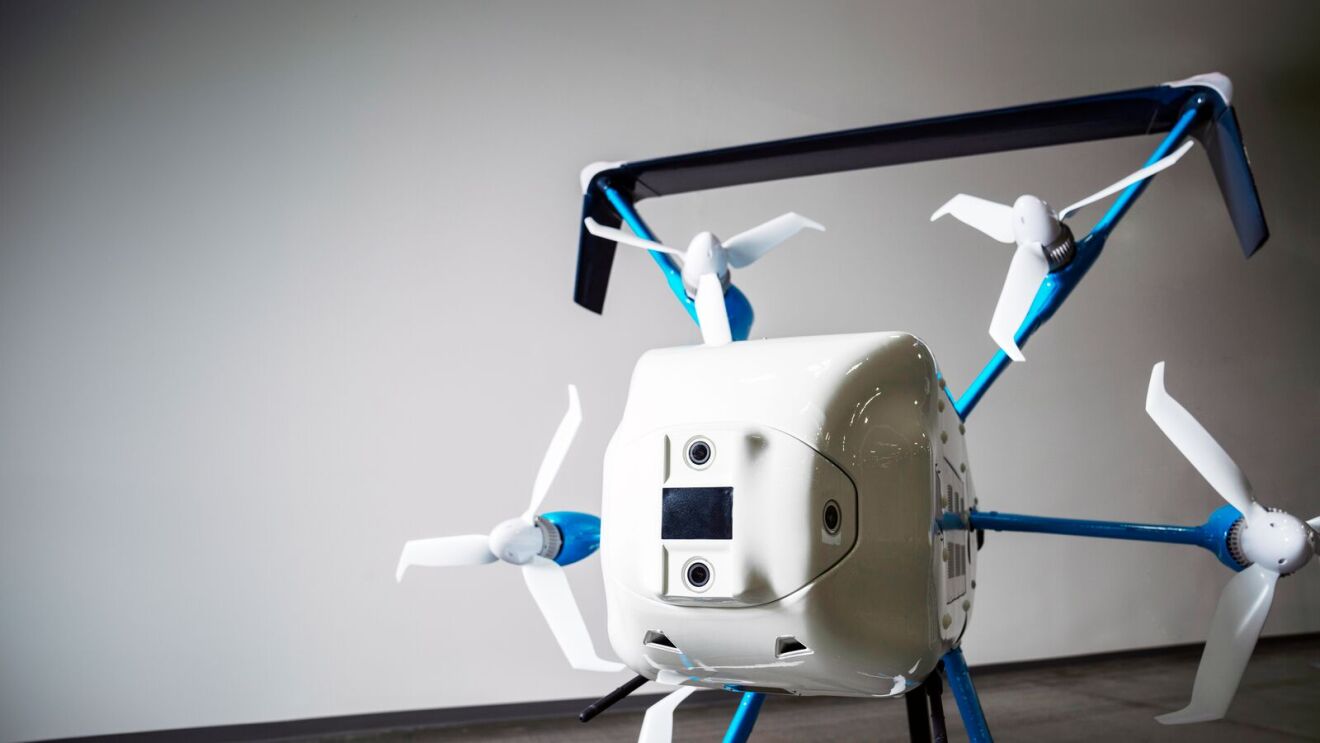
To protect your purchases from their 13-foot free-fall on delivery, Amazon has developed a new “Trampoline” box for drone deliveries. The packaging offers extra cushioning to prevent any damage from the fall.
The news in pictures: Cleared for landing, and rolling out nationwide
Right now, those in College Station, Texas, and the West Valley area of Phoenix, Arizona, can opt for drone delivery on their purchases through the Amazon Shopping app. However, the company is looking to expand its drone delivery program over the coming months and years.
However, that experience is set to get all the more unique following theFAA’s approval for Amazon to deliver several new categories of productsby drone, including iPhones, AirPods, and AirTags — joining more than 60,000 other eligible products ready to arrive by air.
According to Amazon, the entire delivery process takes just 60 minutes or less, with customers able to select the drone delivery option through the Amazon Shopping app.
At which point, one of Amazon’s MK30 drones will secure your package, take flight, and head towards your preferred delivery spot, which could be your driveway or yard. Once at the location, Amazon’s drone drops to a height of 13 feet, scanning for any obstacles (including cars or pets), before safely dropping your (cushioned) parcel for collection.
At present, Amazon’s drone delivery service is only available for a select catalog of items and in the following areas:
College Station, Texas
West Valley area of Phoenix, Arizona
However, Amazon is testing the program in other areas and looks to scale its drone delivery service to more states and cities across the U.S. over the coming months and years.
Given the MK30 drone’s 5 lbs weight limit, we may not be too far off from a day when your nextMacBook Airdoesn’t only earn its moniker from its lightweight build, but also its method of delivery.
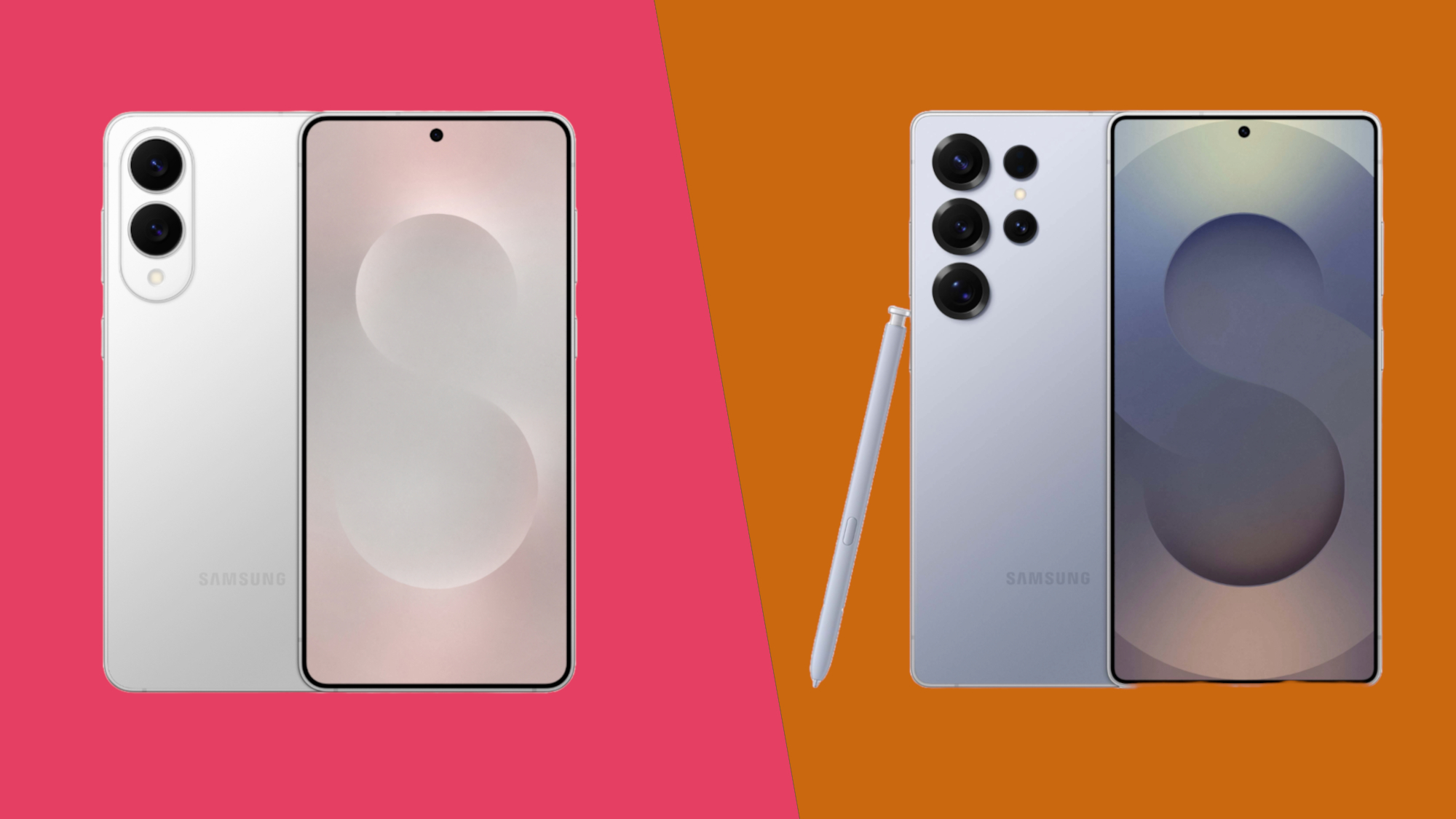
The Samsung Galaxy S25 Edge and Samsung Galaxy S25 Ultra
TheSamsung Galaxy S25 Edgehas taken theSamsung Galaxy S25 Plus’s place as the company’s second most expensive non-foldable phone. So if you want a premiumSamsunghandset and don’t want a foldable, then you’re most likely considering either this or the even more expensiveSamsung Galaxy S25 Ultra.
Aside from price, these phones also have some other similarities, especially when it comes to their construction and camera systems. But they also have a whole lot of differences, and in many ways are aimed at very different people.
Below, you’ll find a comparison of every key aspect of these phones, from their prices to their screens, cameras, and beyond, so you can see which is a better fit for you.
Before we look closer at each element of these two phones, here’s a brief overview of all their key specs, so you can see how they stack up at a glance.
Samsung Galaxy S25 Edge vs Samsung Galaxy S25 Ultra: price and availability
The Samsung Galaxy S25 Edge was announced on May 13, 2025, and it ships on May 30. It starts at $1,099 / £1,099 / AU$1,849, for which you’ll get a model with 256GB of storage and 12GB of RAM. But there’s also a version that ups the storage to 512GB for $1,219 / £1,199 / AU$2,049.
As for the Samsung Galaxy S25 Ultra, that was unveiled back in January of 2025 and is available now. You can pick it up from $1,299 / £1,249 / AU$2,149, which gets you 256GB of storage. Or you can get 512GB of storage for $1,419 / £1,349 / AU$2,349, or 1TB for $1,659 / £1,549 / AU$2,749. In all cases that’s with 12GB of RAM.
So the starting price of the Samsung Galaxy S25 Ultra is $200 / £150 / AU$300 higher, with the same amount of storage and RAM as you’ll get in the base model of the Galaxy S25 Edge.
Samsung Galaxy S25 Edge vs Samsung Galaxy S25 Ultra: design and display
Samsung Galaxy S25 Edge
Samsung Galaxy S25 Ultra
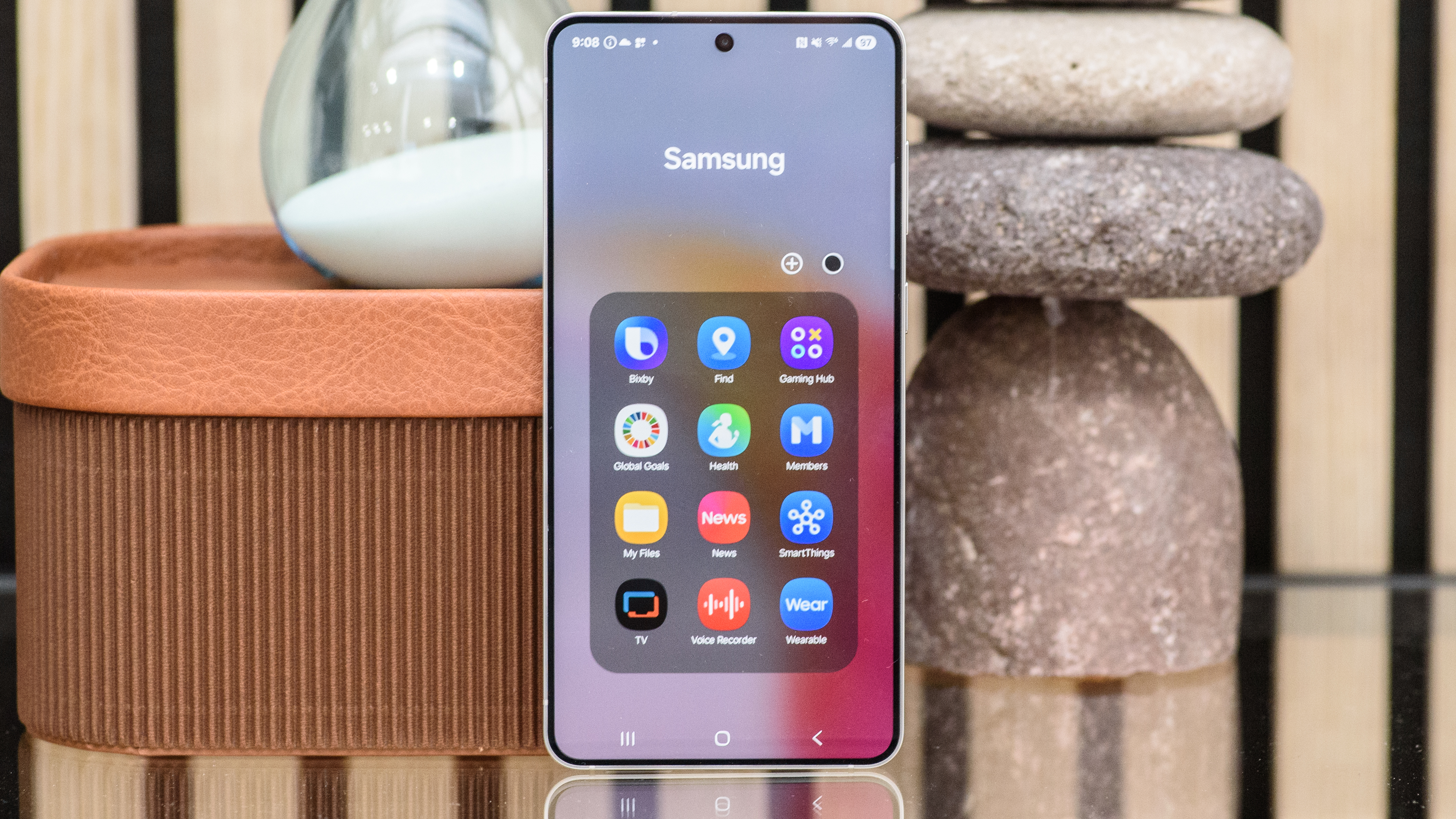
Viewed from the front, these two phones look quite similar, with expansive flat screens, and a punch-hole camera in the top-center.
They also both have titanium frames and similarly muted color schemes, though the selection of shades differs – the Samsung Galaxy S25 Edge is available in Titanium Icyblue, Titanium Silver, and Titanium Jetblack, while theSamsung Galaxy S25 Ultra colorsinclude Titanium Silverblue, Titanium Black, Titanium Whitesilver, Titanium Gray, Titanium Jadegreen, Titanium Jetblack, and Titanium Pinkgold.
And both phones also have a glass back protected by Gorilla Glass Victus 2, along with an IP68 rating for water and dust resistance. However, that’s largely where the similarities end.
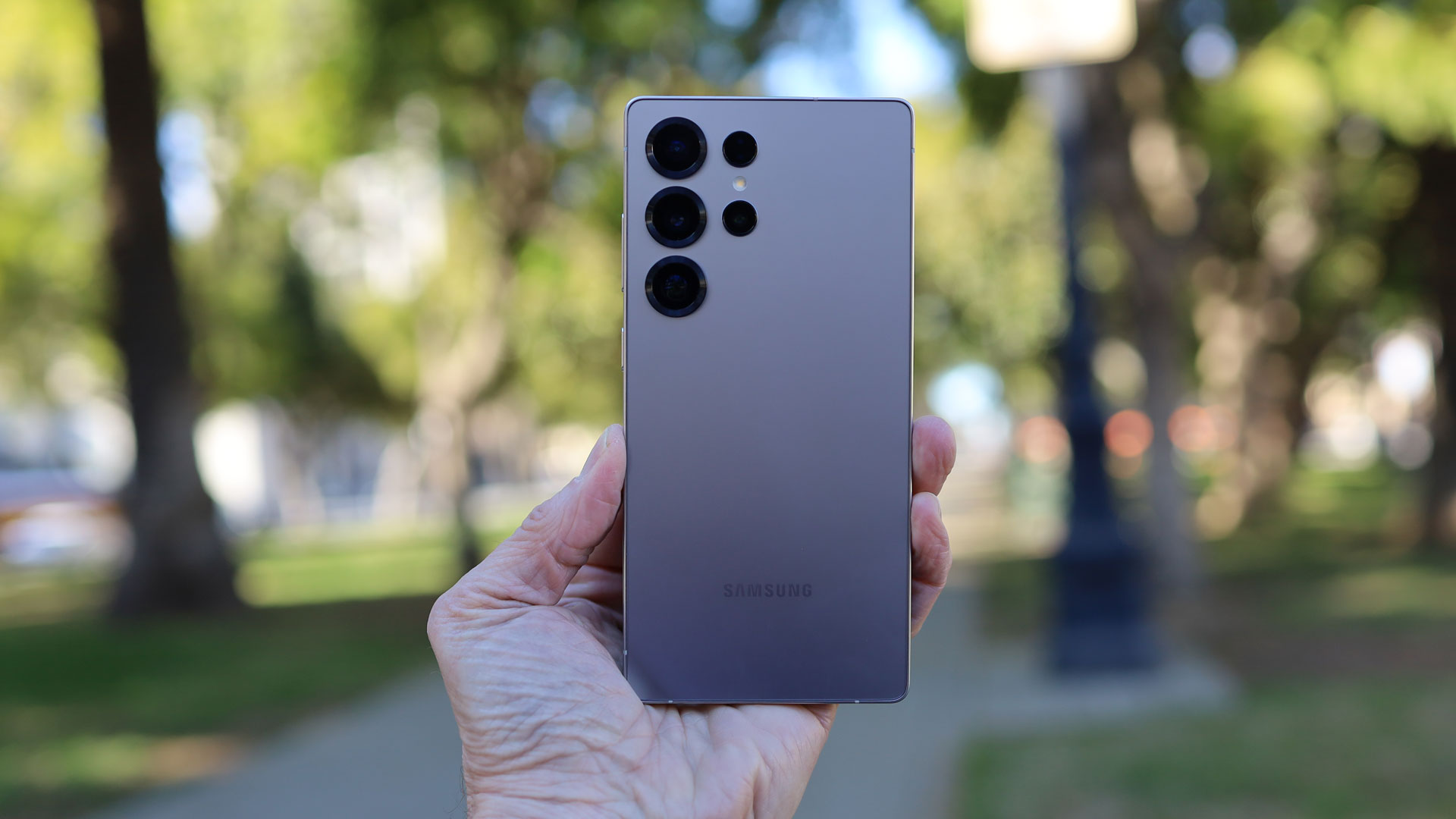
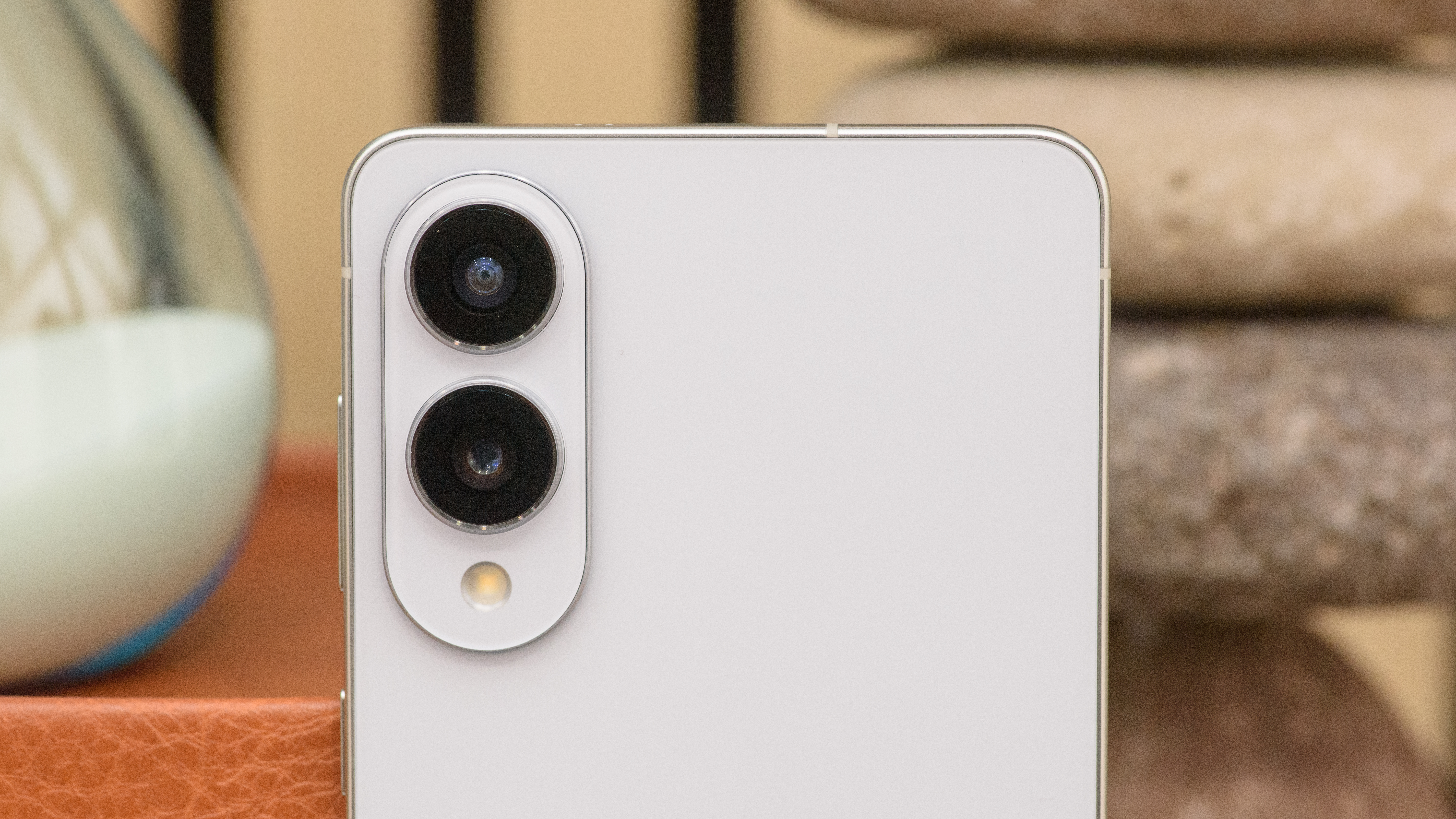
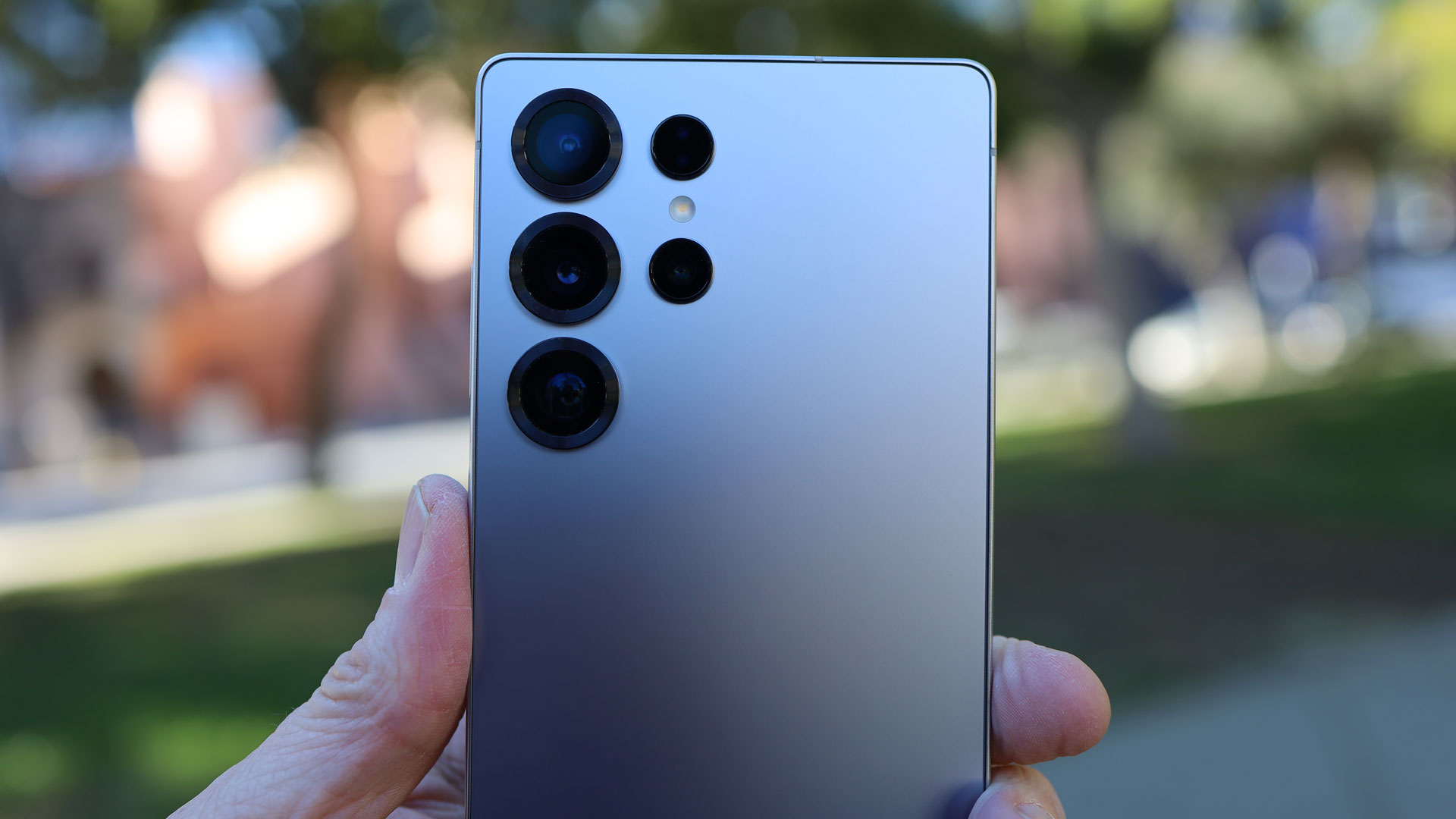
Their camera blocks look very different – partially because the S25 Edge only has two rear lenses while the S25 Ultra has four, but also the former’s cameras are housed in an oblong shape, while the latter’s are individual floating lenses.
The Samsung Galaxy S25 Edge is also of course a lot slimmer, as well as being all-round smaller and lighter, at 158.2 x 75.6 x 5.8mm and 163g, to the Galaxy S25 Ultra’s 162.8 x 77.6 x 8.2mm and 218g. Of course, some of the extra size and weight on the S25 Ultra is to house an S Pen stylus, which you don’t get with the Samsung Galaxy S25 Edge.
Their screens also differ a bit. On the Samsung Galaxy S25 Edge, you get a 6.7-inch 120Hz display with a 1440 x 3120 resolution and around 513 pixels per inch. The Samsung Galaxy S25 Ultra though has a larger 6.9-inch screen but with the same resolution, for a slightly lower 498 pixels per inch. This again is with a 120Hz refresh rate.
At the time of writing, we haven’t yet completed a fullSamsung Galaxy S25 Edge review, but in ourSamsung Galaxy S25 Ultra reviewwe described the display as “an excellent screen for all kinds of content and uses,” and it’s likely that the Edge’s will be similarly impressive.
Samsung Galaxy S25 Edge vs Samsung Galaxy S25 Ultra: cameras
The Samsung Galaxy S25 Edge and the Samsung Galaxy S25 Ultra both have 200MP sensors, but not the same ones. Samsung has said as much, but hasn’t outlined how the Edge’s differs. Regardless though, both also have an aperture of f/1.7, so it’s possible that the size of the sensors differs.
Along with that 200MP main sensor, the Samsung Galaxy S25 Edge also has a 12MP f/2.2 ultra-wide and a 12MP f/2.2 selfie camera.
The Samsung Galaxy S25 Ultra though has quite a few more cameras, with a 50MP f/1.9 ultra-wide, a 50MP f/3.4 periscope (with 5x optical zoom), and a 10MP f/2.4 telephoto with 3x optical zoom, as well as a 12MP f/2.2 front-facing camera.
So the two phones have similar – but not identical – main cameras, and similar selfie snappers too. But the Samsung Galaxy S25 Ultra has more megapixels on its ultra-wide and has two dedicated telephoto snappers, while the only optical quality zoom you can get with the Samsung Galaxy S25 Edge is a 2x zoom achieved by cropping into the main sensor (something that you can also do with the S25 Ultra).
Samsung Galaxy S25 Edge vs Samsung Galaxy S25 Ultra: performance and software
If you want top-end smartphone performance then, well, you should be happy with either of these phones, as both of them have a top-tierSnapdragon 8 Elite chipsetand 12GB of RAM.
So this is one area where there shouldn’t really be anything to choose, and neither phone is likely to let you down, with our Galaxy S25 Ultra review finding its chipset was “a near-perfect mix of performance and efficiency.”
This means both phones should also be a strong choice for AI – the Galaxy S25 Ultra certainly is, and there’s no reason to think the Galaxy S25 Edge won’t be.
Speaking of AI, both phones have a whole lot of AI features baked into them, and they both use Samsung’s One UI 7 interface, which is a tweaked version ofAndroid 15.
Samsung Galaxy S25 Edge vs Samsung Galaxy S25 Ultra: battery
While the Samsung Galaxy S25 Ultra has a respectably large 5,000mAh battery, the Samsung Galaxy S25 Edge is stuck with a rather small 3,900mAh one. That was presumably necessary to keep the phone thin, but it does mean it won’t match the Ultra’s stamina.
According to Samsung, the Galaxy S25 Edge can manage up to 24 hours of video playback on a single charge, while the Samsung Galaxy S25 Ultra can manage up to 31 hours.
The Samsung Galaxy S25 Ultra also offers faster wired charging, at up to 45W compared to 25W on the Samsung Galaxy S25 Edge. So not only won’t the Edge’s battery last as long, it will also charge up slower. Though both phones are capable of 15W wireless charging.
Samsung Galaxy S25 Edge vs Samsung Galaxy S25 Ultra: verdict
Going purely by their specs, the Samsung Galaxy S25 Ultra should have the edge when it comes to battery life, charging speeds, and telephoto photography. It also has a slightly larger screen, an S Pen stylus, and can come with twice as much storage if you pay for the top 1TB model.
The Samsung Galaxy S25 Edge on the other hand is slimmer, lighter, and costs less, all while having the same amount of power, a similar primary camera, and similar screen specs.
So which you should buy might come down to which you can afford, and whether you prioritise a slim build over improved specs.



 Sony WH-1000XM6